Tagging contacts
Tags are short, color-coded labels you attach to contacts so you can group and find them quickly. Use tags to mark people and companies by anything that matters to your firm: VIP, Referral source, Opposing party, Do not contact, Spanish speaker, and so on. Tags are firm-wide, so once you create a tag, every member can apply it, and you can filter your whole contacts list by it.
Before you begin
- Tags live in your firm's settings and are shared by everyone in the firm. A tag you create is available to all members.
- What you can do with tags depends on your role. By default:
- Firm owners, administrators, and attorneys can create, edit, archive, restore, and delete tags.
- Staff can see tags and apply existing tags to contacts, but cannot create, edit, archive, or delete them. If your role does not include the right access, the Add tag button, the Edit button, and the archive, restore, and delete actions will not appear.
- To apply tags to a contact, you also need permission to create or edit contacts. See Working with contacts.
Note: Tags are different from custom fields. A tag is a simple yes/no label (a contact either has it or not), while a custom field stores a value such as a date or a number. To learn about custom fields, see Custom fields.
What tags are and how they help organize contacts
A tag has just two parts: a Name and a Color. The color is a small dot or chip that helps you spot a tag at a glance in lists.
Once tags exist, you can:
- Apply one or more tags to any contact, person or company.
- See a contact's tags at a glance on the contacts list and on the contact's page.
- Filter the contacts list to show only contacts that carry a specific tag (or tags).
Tags are designed to be reusable categories. Rather than typing the same note on dozens of contacts, you create the tag once and apply it everywhere, which keeps your labels consistent and makes filtering reliable.
Tip: Keep your tag list short and meaningful. A handful of well-chosen tags (for example, VIP, Referral, Prospect) is far more useful than dozens of one-off labels that no one reuses.
Create, edit, and color firm tags in Settings
You manage your firm's tag library on the Tags settings page. This is where you add new tags, rename them, and change their colors.
Open the Tags page
There are two ways to get to the tag library:
- In the sidebar, open Settings, then click Tags.
- Or, from the Contacts page, click Manage tags in the top right. (You will only see Manage tags if your role allows you to create or edit tags.)
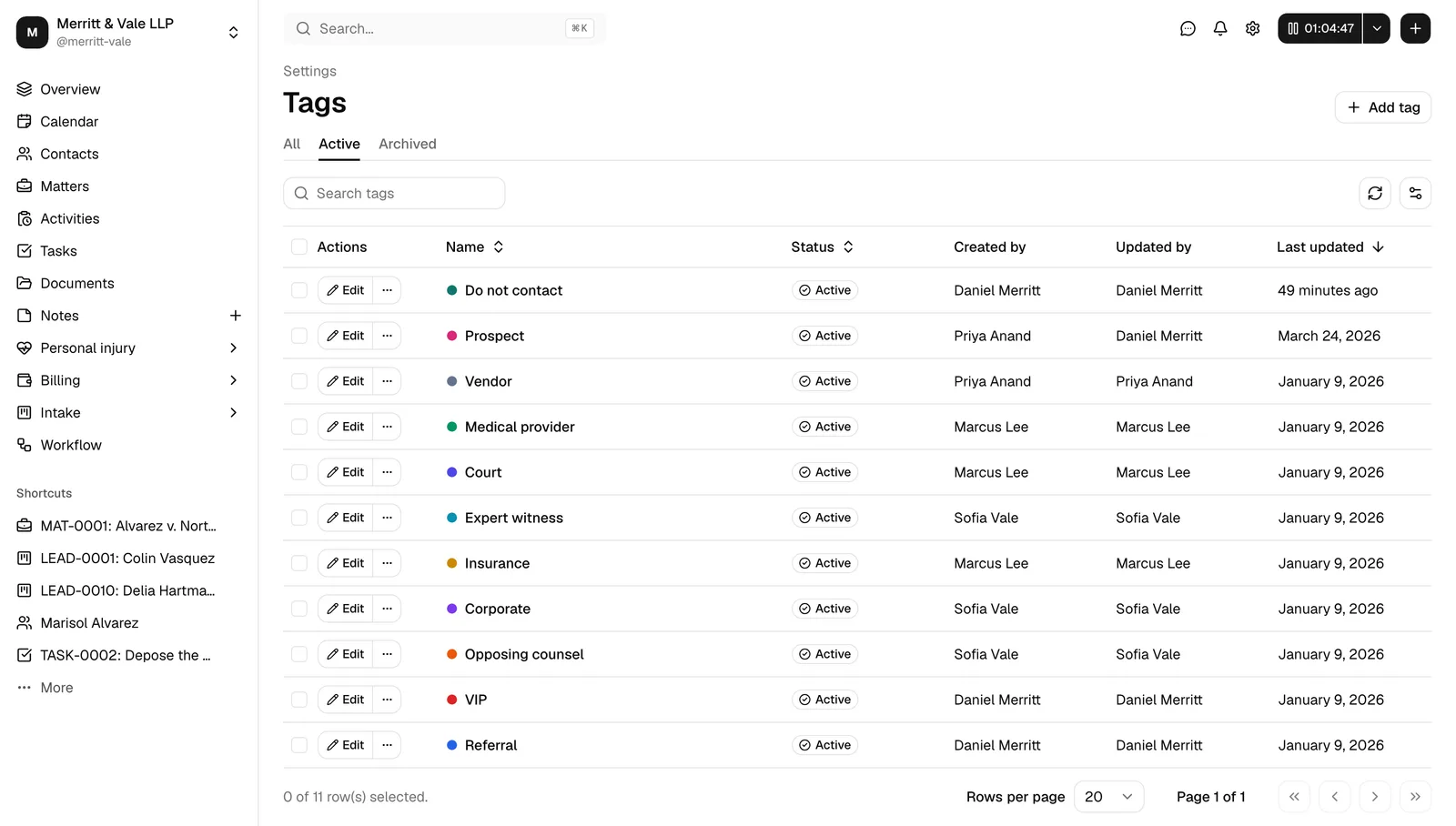
The Tags page shows a table of your firm's tags. Each row lists the tag's colored dot and Name, its Status (Active or Archived), who created it (Created by), who last changed it (Updated by), and when it was Last updated.
Create a tag
- On the Tags page, click Add tag in the top right.
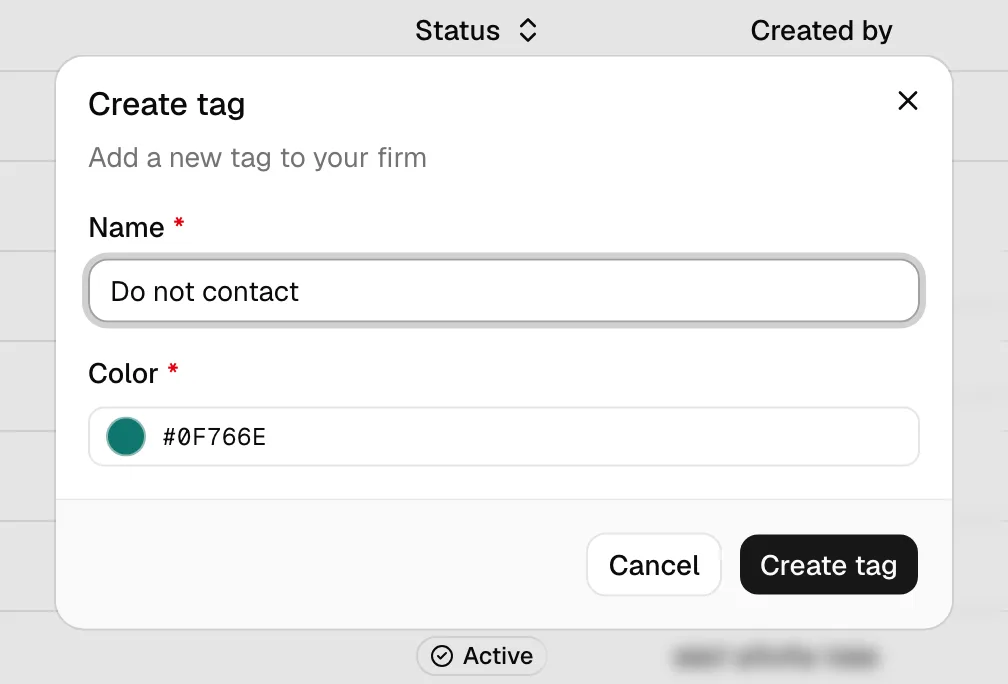
- The Create tag dialog opens. Fill in:
- Name (required): a short label, up to 64 characters. For example, type
VIP. This is the text members will see on the tag chip. - Color (required): click the color swatch to open the color picker and choose a color, then confirm. The color defaults to a neutral slate gray if you do not change it. The hex value of the chosen color is shown next to the swatch.
- Name (required): a short label, up to 64 characters. For example, type
- Click Create tag to save, or Cancel to discard.
On save, the new tag appears in the table and is immediately available to apply to contacts and to filter by. You will see a brief Tag created confirmation.
Important: Tag names are not forced to be unique, so it is possible to create two tags with the same name but different colors. Before adding a tag, glance at the list (or use the search box) to avoid duplicates.
Edit a tag (rename or recolor)
Renaming or recoloring a tag updates it everywhere it is already applied, so every contact that carries the tag instantly shows the new name and color.
- On the Tags page, find the tag you want to change. Use the Search tags box at the top to narrow the list if needed.
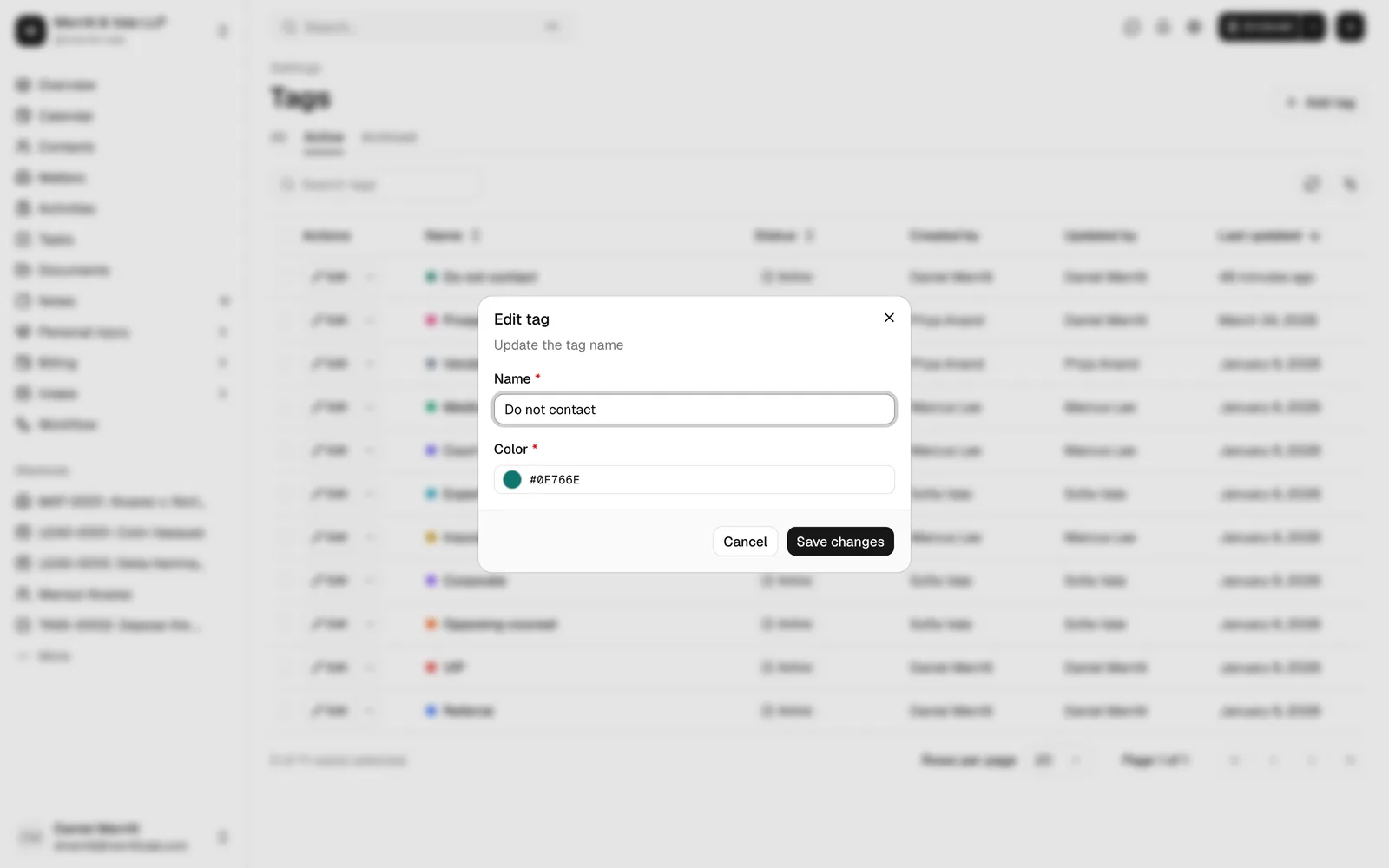
- Click Edit on that tag's row.
- In the Edit tag dialog, change the Name, the Color, or both.
- Click Save changes to apply, or Cancel to discard.
You will see a Tag updated confirmation, and the change appears on every contact that already uses the tag.
Archive, restore, and delete tags
When you stop using a tag, you do not have to delete it outright. You can archive it first. Archiving hides the tag from the pickers people use to apply tags and from the contacts-list filter, but it keeps the tag (and its history) so you can bring it back later.
Archive a tag
- On the Tags page, make sure you are looking at an active tag (the Active tab, or All).
- On the tag's row, click the "..." (more actions) button.
- Choose Archive.
The tag moves to the Archived tab. It stays applied to any contacts that already carry it, but members can no longer pick it for new contacts, and it no longer appears as a choice in the contacts Tags filter.
Tip: To archive several tags at once, tick the checkbox at the start of each tag's row, then click Archive in the batch-actions bar that appears, and confirm. Only active tags can be archived this way.

Restore a tag
- On the Tags page, click the Archived tab to list archived tags.
- On the tag's row, click the "..." button and choose Restore.
The tag returns to Active and is available again in the tag pickers and the contacts filter. You can also select several archived tags and use the Restore batch action.
Delete a tag
Deleting a tag removes it permanently and cannot be undone. To prevent accidental loss, a tag must be archived before you can delete it.
- Open the Archived tab.
- On the tag's row, click the "..." button and choose Delete.
- In the Delete tag? confirmation, review the warning, then click Delete tag.
The tag is removed for good. To delete several archived tags together, select their rows, click Delete in the batch-actions bar, and confirm.
Important: Deleting is permanent. If you are not certain you will never need a tag again, archive it instead so you can restore it later.
Status tabs at a glance
The tabs at the top of the Tags table control which tags you see:
- All: every tag, active and archived.
- Active: tags currently available to apply and filter by. This is the default view.
- Archived: retired tags you can restore or delete.
Assign and remove tags on a contact
You apply tags to a contact from the contact's own form, both when you create a contact and when you edit one. You do not add tags from the Tags settings page; that page is only for managing the tag library itself.
Add tags when creating or editing a contact
- In the sidebar, click Contacts.
- Click Add contact to create a new contact, or open an existing contact and start editing it. (For the full contact form, see Working with contacts.)
- Scroll to the Tags section of the form.
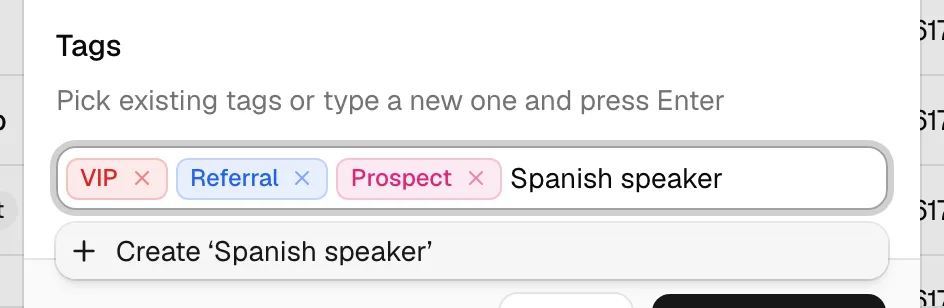
- Click the Tags field and start typing. As you type, matching existing tags appear in a dropdown, each with its colored dot.
- To apply an existing tag, click it in the list. It appears as a colored chip in the field.
- To create a brand-new tag on the spot, type its name and choose Create '<your text>' from the dropdown (or press Enter). The new tag is added to the contact and to your firm's tag library.
- Repeat to add as many tags as you need. Each applied tag shows as a chip.
- Save the contact. The applied tags now appear on the contact and in the contacts list.
Note: A tag you create from the Tags field gets a default color. To give it a specific color (or rename it later), edit it on the Tags settings page as described above.
Remove a tag from a contact
- Open the contact and start editing it.
- In the Tags field, find the chip for the tag you want to remove.
- Click the chip's remove control (the small x on the chip).
- Save the contact.
Removing a tag from a contact only unlinks it from that one contact. The tag itself stays in your firm's library and on every other contact that still carries it.
See a contact's tags
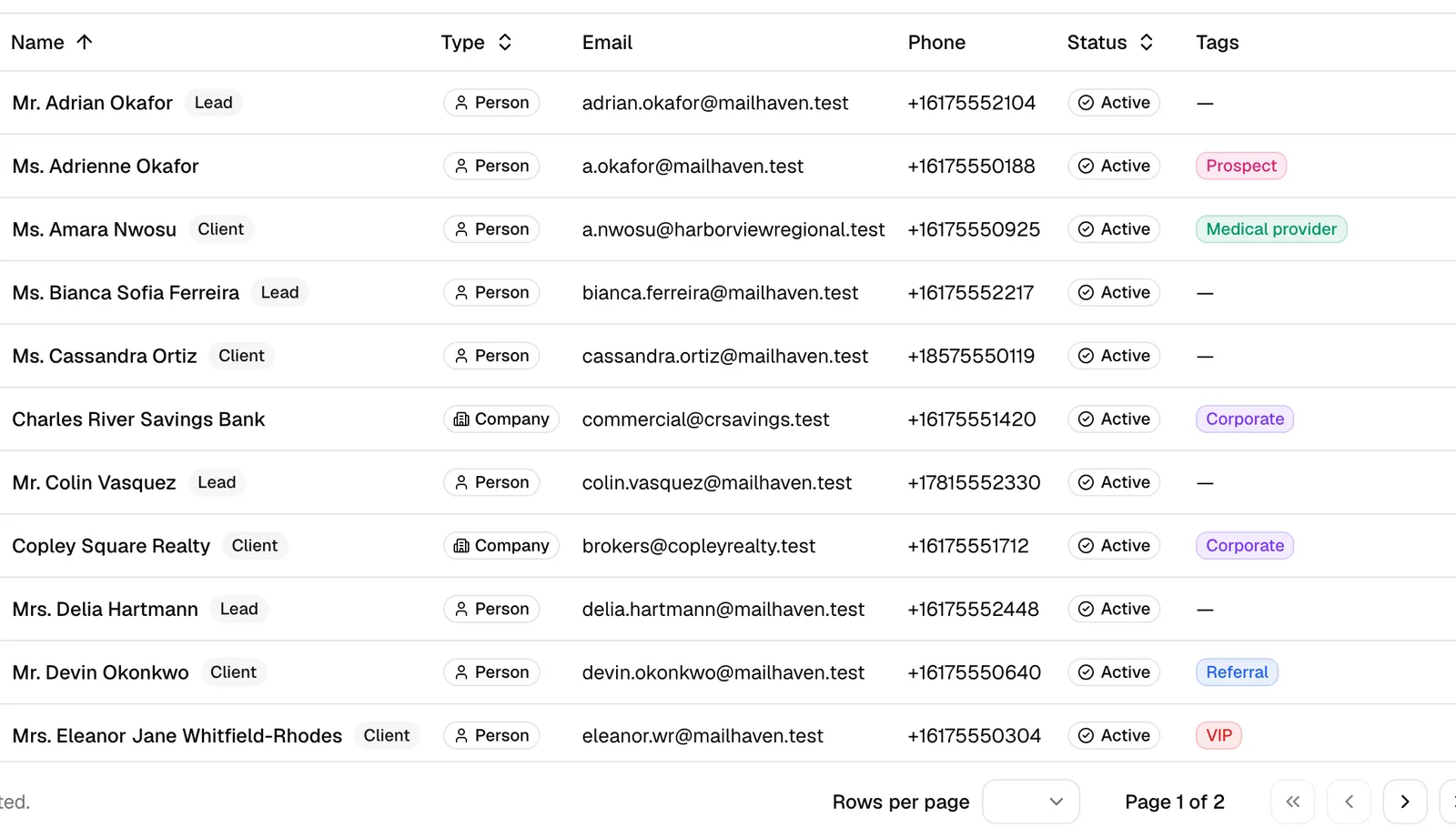
You do not have to open a contact to read its tags. On the Contacts list, the Tags column shows each contact's tags as colored chips. A contact with no tags shows a dash (-).
Filter the contacts list by tag
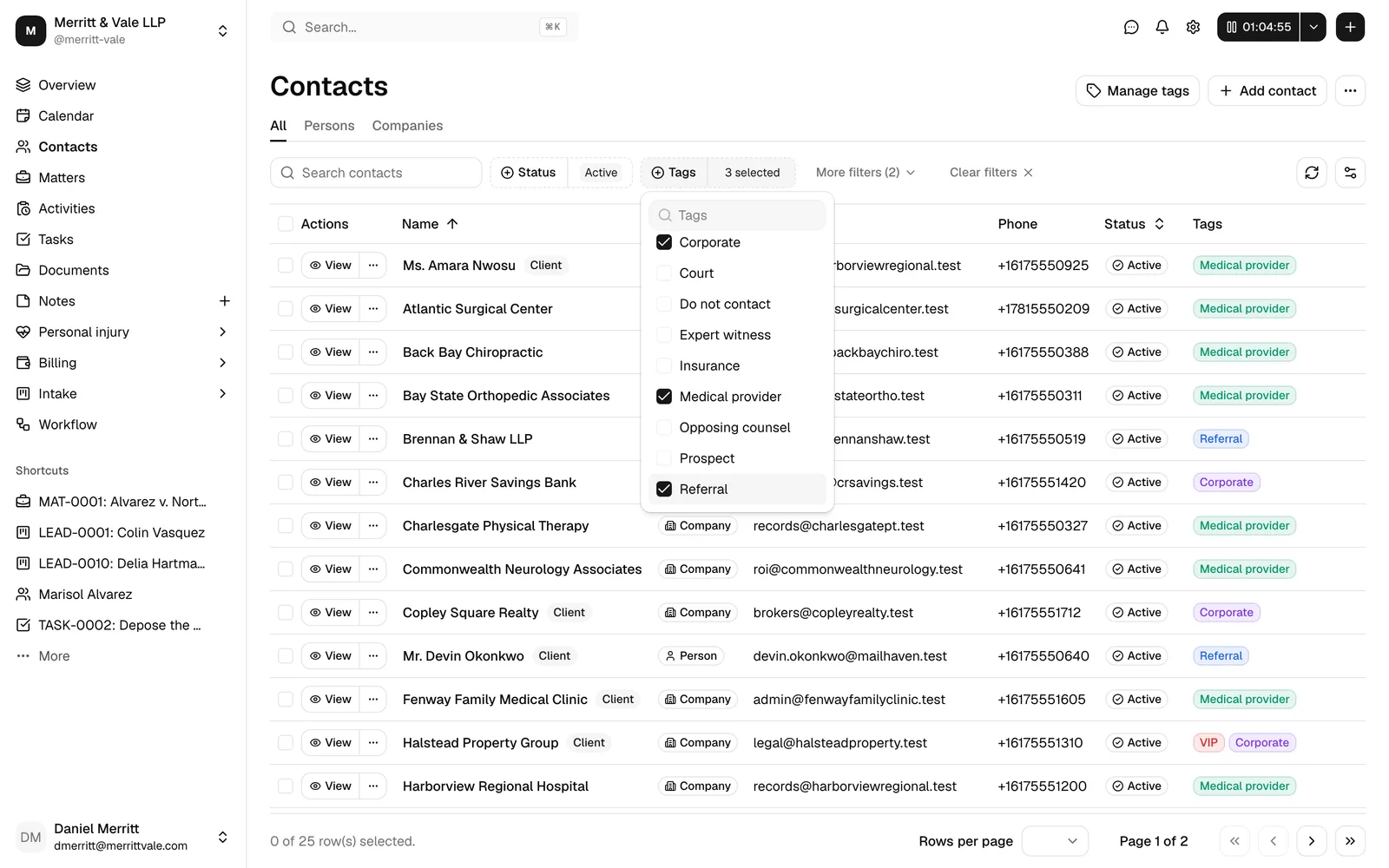
Tags become most powerful when you use them to filter. You can narrow the contacts list to just the people and companies that carry the tags you pick.
- In the sidebar, click Contacts.
- In the toolbar above the table, click the Tags filter button.
- A dropdown lists your firm's active tags. Tick one or more tags to filter by.
- The list updates to show only contacts that carry the tags you selected.
- To clear the tag filter, reopen the Tags filter and untick the tags, or click Clear filters to reset every filter at once (search, status, and tags).
Note: Only active tags appear as choices in the Tags filter. Archived tags are not listed, even if some contacts still carry them.
Tip: Combine the Tags filter with the Persons and Companies tabs, the Status filter, and the search box to drill down quickly, for example, all active Companies tagged Referral source.
Common questions
Why doesn't a tag I expected show up in the filter? The Tags filter only lists active tags. If you archived the tag, restore it on the Tags settings page and it will appear again.
I deleted a tag. Did I lose the contacts that had it? No. Deleting a tag only removes the label. The contacts themselves are untouched; they simply no longer carry that tag.
Can I rename a tag without re-tagging every contact? Yes. Edit the tag on the Tags settings page. The new name and color apply everywhere the tag is used.
Can staff create tags? By default, no. Staff can apply existing tags to contacts but cannot add, edit, archive, or delete tags. Ask a firm owner, administrator, or attorney to create the tag, then you can apply it.