The intake overview
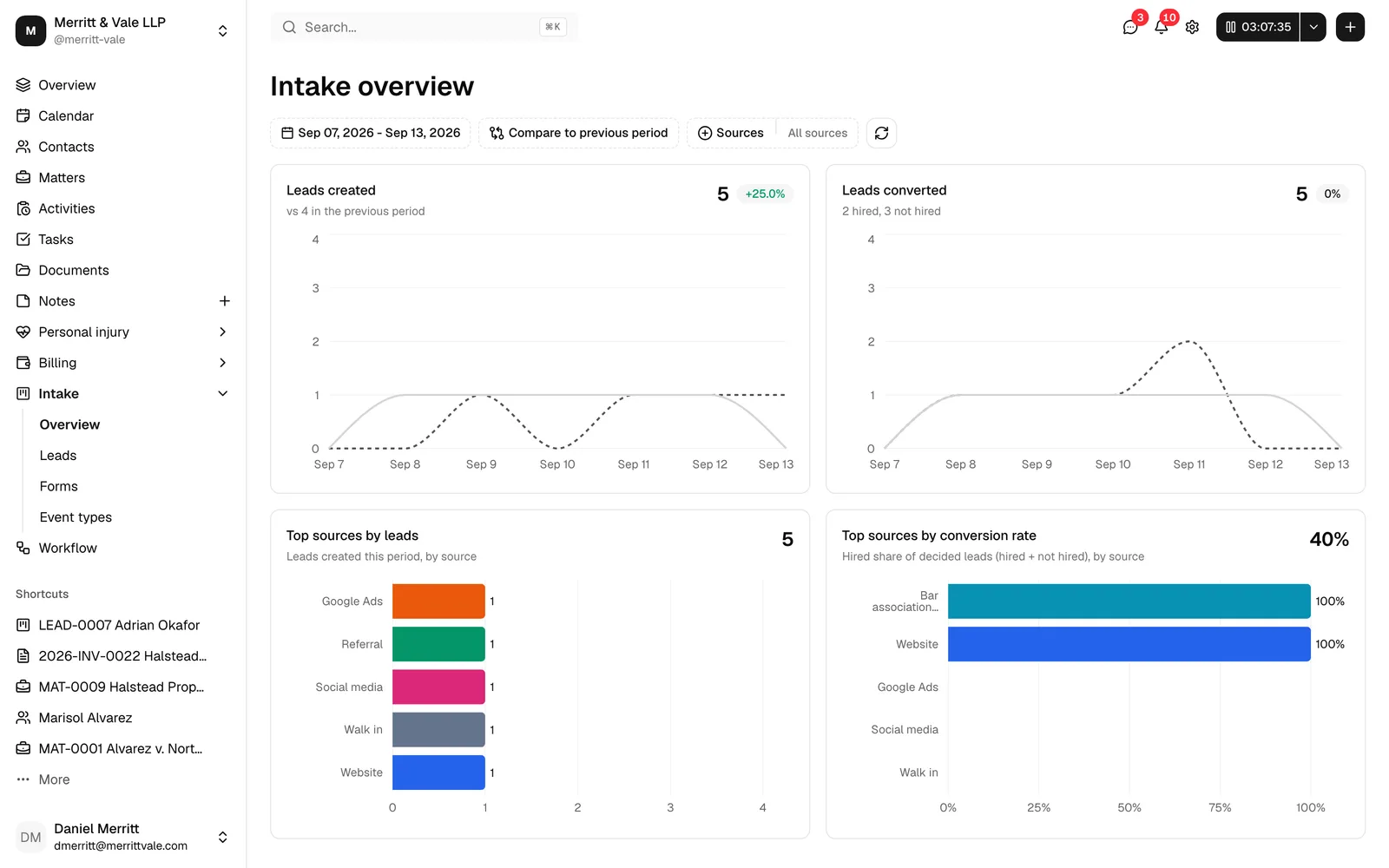
The Intake overview is the at-a-glance dashboard for everything happening at the top of your funnel: the prospective clients (leads) coming into your firm and how many of them you go on to take on as cases. It answers two questions quickly: how many leads came in during a period, and how many of those leads you converted. It also ranks your lead sources, so you can see which channels bring in the most prospects and which bring in the most signed clients. It is a read-only dashboard, so you cannot create or edit anything here. Use it to spot trends, compare periods, and see which lead sources are working.
Note: In Esqase, a "lead" is a prospective client your firm has not yet taken on. Leads are tracked separately from matters (active cases). A lead is "converted" when you mark it Hired (you took the work) or Not hired (you declined or it fell through). The overview measures both of these as conversions, because in each case the lead has reached a decision.
Before you begin
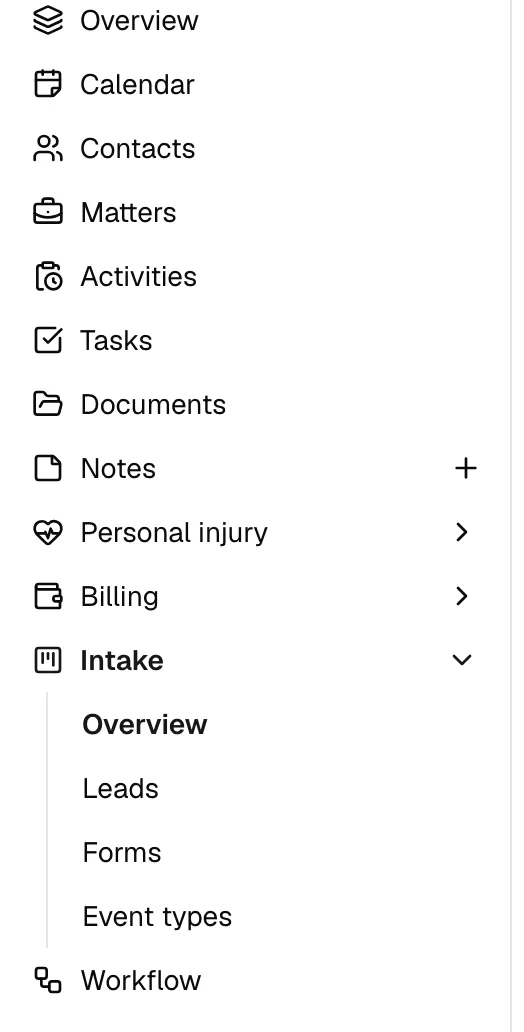
- You reach this dashboard at Intake > Overview in the left sidebar.
- You need View access to leads to see the dashboard. If your role does not include the ability to view leads, the Overview link will not appear in your sidebar, and opening the page directly will show a permission message instead of the charts. Firm owners always have access.
- The numbers reflect leads created through any channel: manually added leads, leads from public intake forms, and leads created when someone books a meeting through your booking page.
Reading the dashboard
The overview shows four charts. The top two are line graphs that plot leads over time; the bottom two are bar charts that rank your lead sources (covered in Which sources bring in the most leads and clients below). Each of the two line charts has a headline number, an optional growth badge, a one-line summary underneath, and a line graph over the selected period.
- In the sidebar, click Intake, then click Overview.
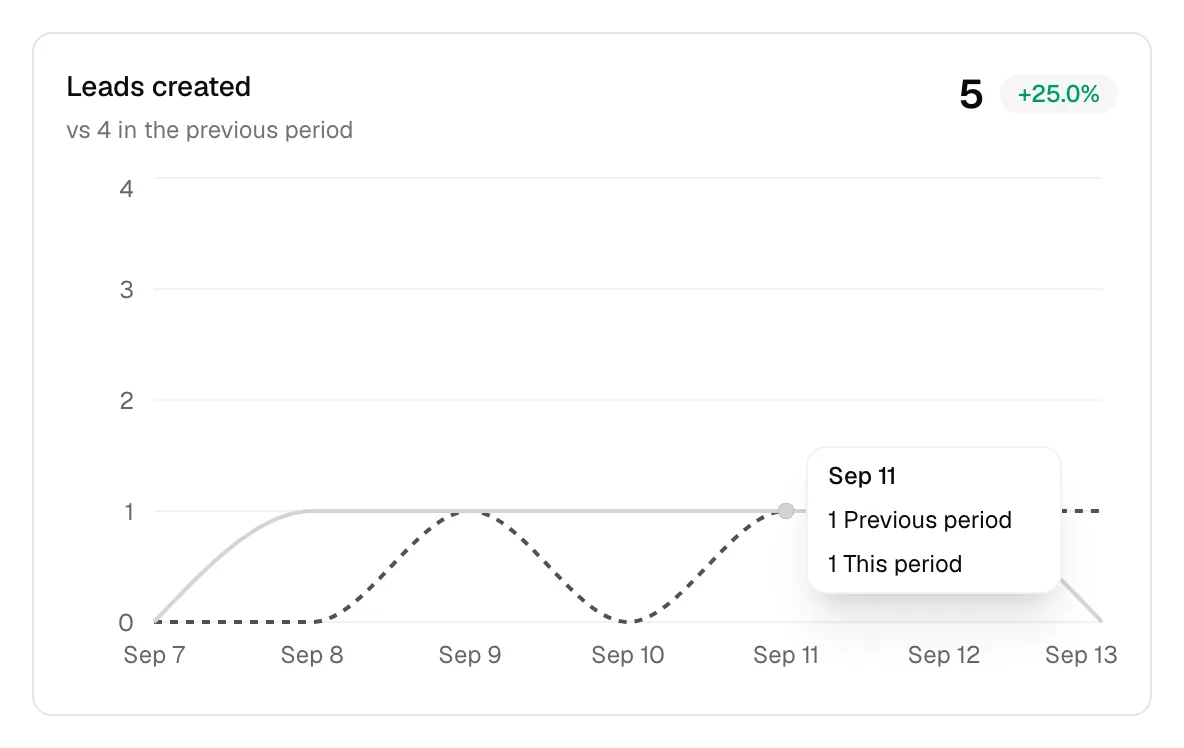
- Look at the Leads created chart on the left. The large number is the total leads created in the selected date range. The line graph plots leads created per day.
- Look at the Leads converted chart on the right. The large number is the total leads converted (Hired plus Not hired) in the same range. The line graph plots conversions per day.
Here is what each part of a chart means:
- Leads created (left chart): every lead that came in during the period, counted by the day it was created. This includes leads that are still being worked, as well as those already hired or not hired. It excludes draft and archived leads.
- Leads converted (right chart): leads that reached a final decision during the period, counted by the day the decision was recorded. Its summary line reads, for example, "12 hired, 5 not hired", so you can see the split at a glance.
- The headline number: the total for the current period, shown in large type above each chart. When the dashboard is still loading or has no data, you will see a dash (
-) in its place. - The solid line: this period (the date range you selected). The dashed line: the comparison period (see Comparing against another period below). Hover over any point to see the exact counts for that day in a tooltip labeled This period and Previous period.
- The summary under the headline: for Leads created, it reads "vs N in the previous period". For Leads converted, it shows the hired/not-hired breakdown.
Interpreting the growth badges
Next to each headline number, a small badge shows how the current period compares with the comparison period.
- A green badge with a plus sign (for example, +18.5%) means the current total is higher than the comparison total. For leads, that is usually a good sign.
- A red badge with a minus sign (for example, -12.0%) means the current total is lower than the comparison total.
- 0% means the two totals are equal.
- No badge at all means the comparison period had zero of that metric, so a percentage cannot be calculated (you cannot divide by zero). In that case, compare the raw numbers instead.
The percentage is the change from the comparison total to the current total. For example, if you created 10 leads previously and 13 now, the badge reads +30.0%.
Tip: A green badge is not always good news on its own. A spike in Leads created with flat Leads converted can mean more inquiries but the same number of clients signed. Read the two charts together.
Which sources bring in the most leads and clients
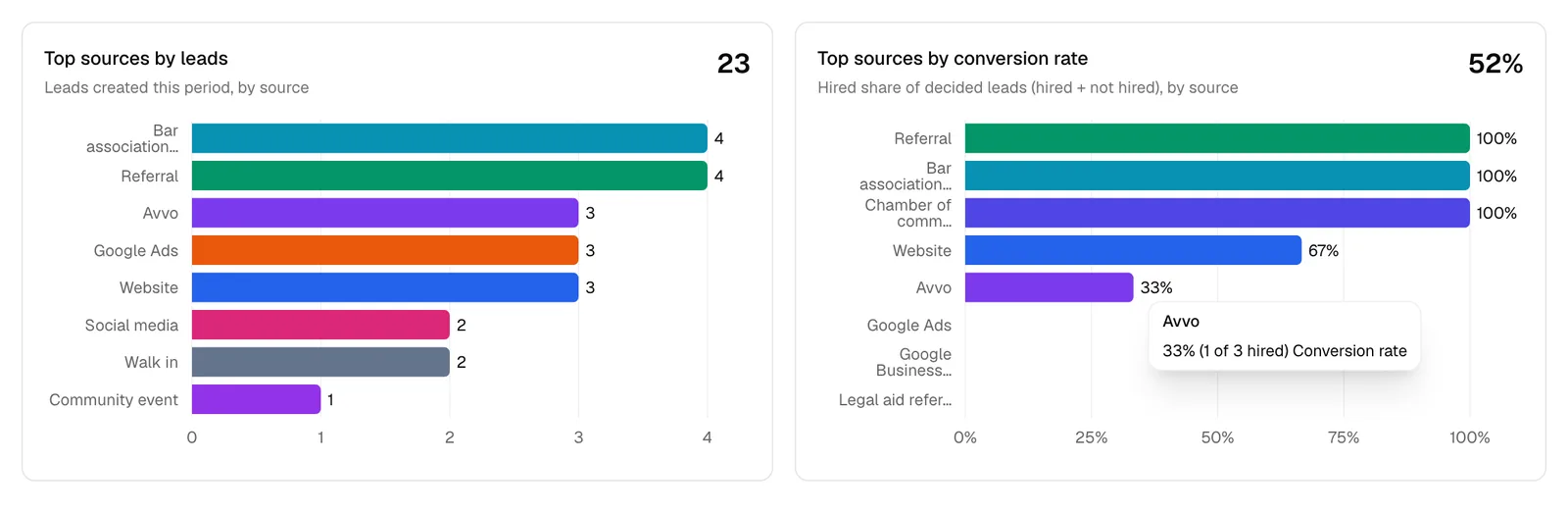
Below the two line graphs, two bar charts rank your lead sources so you can see, at a glance, which channels bring in the most prospects and which bring in the most signed clients. Both bar charts respect every filter on the page: they cover the date range and comparison you have chosen, and they narrow to your selected Sources just like the line graphs.
Top sources by leads
This chart ranks your lead sources by how many leads they brought in during the selected period, most at the top. Each bar is drawn in that source's color, with the exact count shown at the end of the bar, and the chart lists your top eight sources. The headline number above the chart is the total leads created in the period across all sources.
Use it to see where your prospects are actually coming from. A tall No source bar, for example, is a sign that leads are arriving without a source recorded, which is worth tightening up so this chart stays accurate.
Top sources by conversion rate
This chart ranks your lead sources by conversion rate: the share of that source's decided leads that you took on as clients. A lead is "decided" once you mark it Hired (you took the work, usually converting it into a matter) or Not hired (you closed it without a case). The rate is the hired leads divided by the decided leads, shown as a percentage, so a source at 80% means four out of every five decided leads from that source became clients. Hover over a bar to see the underlying counts, for example "80% (8 of 10 hired)". The headline number above the chart is your firm's overall conversion rate for the period.
A few things to know about how the rate is measured:
- Only decided leads count. Leads that are still open and being worked are left out of the rate entirely, so a source is never penalized for prospects you have not finished working yet. This is also why a source can show a high rate even when it has sent you only a few leads so far.
- Ties break by volume. When two sources have a similar rate, the one that has decided more leads ranks higher, so a well-established source is not pushed down by a brand-new source that happens to be one-for-one.
- The chart lists your top eight sources by rate, and includes only sources that have at least one decided lead in the period.
When a chart has no data for your current filters, it still renders as an empty chart (its axes with no bars) rather than a message, so the dashboard layout stays consistent as you change the date range or sources.
Tip: Read the two bar charts together. A source at the top of Top sources by leads but low on Top sources by conversion rate is bringing in volume but few signed clients. A source that is high on conversion rate but sends only a handful of leads may be worth investing in to grow that volume.
Choosing a date range
By default, the dashboard shows the last 7 days (including today). You can pick any range you like.
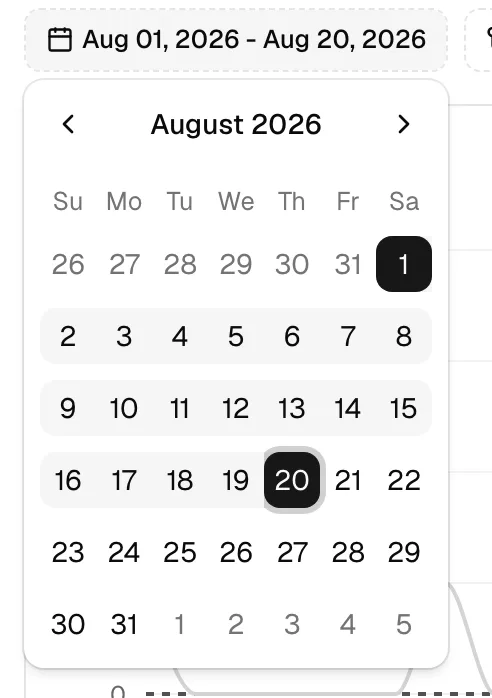
- At the top of the page, click the date button on the left. It shows the current range, for example Jun 14, 2026 - Jun 20, 2026.
- In the calendar that opens, click the first day of your range, then click the last day. You can also click a single day to view just that day.
- The charts and totals update automatically once both ends of the range are set.
Note: Days are counted in your firm's time zone, set in your firm profile. A lead created late at night is assigned to the correct day for your firm, not in UTC, so the daily buckets line up with your business days. To change your firm's time zone, see Your firm profile and details.
Comparing against another period
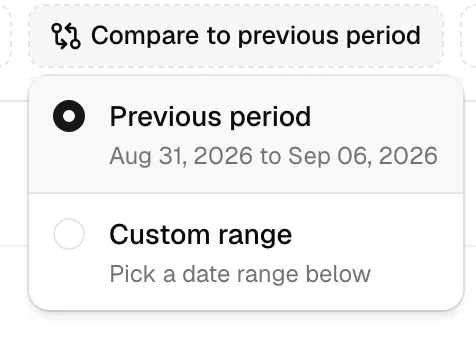
Every metric is compared against a second period so you can see whether you are trending up or down. You control which period that is with the Compare to button.
- Click the Compare to button at the top of the page. It shows the current comparison, for example Compare to previous period.
- Choose one of two modes:
- Previous period (the default): Esqase automatically uses the window of equal length immediately before your selected range. If your range is the last 7 days, the comparison is the 7 days before that. The button and the option both show the exact dates being used, so there is no guesswork.
- Custom range: pick any range to compare against. After selecting this option, a calendar appears in the same panel. Click the first and last day of the period you want to compare with. This is useful for year-over-year comparisons, such as this June against last June.
- The dashed line in each chart, the growth badges, and the "vs N in the previous period" summary all update to reflect your choice.
Tip: Use Custom range to compare a busy season against a quiet one, or to line up the same month across two years. Use Previous period for a quick, always-fair like-for-like check.
Filtering by lead source
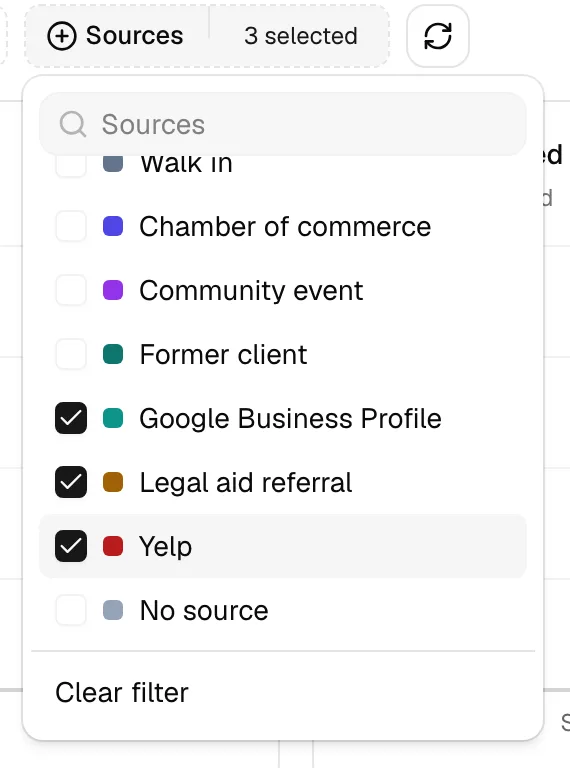
A lead source records where a prospective client came from (for example, a referral, your website, or a specific intake form). The Sources filter lets you narrow both charts to one or more sources so you can measure which channels actually bring in clients.
- Click the Sources button at the top of the page. When nothing is selected, it reads All sources.
- In the list that opens, click each source you want to include. A checkmark appears next to selected sources, and each source shows its color swatch. You can type in the search box at the top to find a source by name.
- The charts, totals, and growth badges update to count only the leads attached to the sources you picked. Selecting nothing is the same as selecting everything (all sources count).
- To clear your selection and return to all sources, reopen the menu and click Clear filter.
A few things to know about how source filtering counts leads:
- A lead can have more than one source. When you filter, a lead is included if it matches any selected source.
- A lead with no source recorded is grouped under No source, which you can select like any other source.
- Sources you have archived still appear in the list, so leads created in the past keep their label and stay countable.
Important: The Sources filter is applied to the data already on screen, so it updates instantly without reloading the dashboard. It does not change your date range or comparison period.
Refreshing the data
The dashboard loads its numbers when you open it and whenever you change a filter. To pull the latest figures without changing anything (for example, after a new lead just came in), use the refresh button.
- Click the Refresh button (the circular-arrows icon) at the far right of the filter row.
- The button shows a spinner while it reloads. Your date range, comparison, and source selections are kept.
Tip: You rarely need to refresh manually. Changing any filter already reloads the data. Reach for Refresh when you have been looking at the same screen for a while and want to confirm the totals are current.
If you see an error
If the dashboard cannot load its data, a red message appears above the charts with a short explanation. Click Dismiss to close it, then try again with Refresh or a narrower date range. If the message says you do not have access, ask a firm owner or administrator to grant you View access to leads.
How the intake funnel works
The Intake overview sits on top of a connected set of features that together move a stranger from first contact to signed client. Understanding the path helps you read the dashboard and know where to act.
A typical journey looks like this:
- A prospect arrives. Someone reaches your firm through one of these channels:
- A booking. A prospect picks a time on your public booking page. This creates a contact, a lead, and a scheduled event in one step. See Event types (scheduling) and How clients book meetings.
- A form submission. A prospect fills out one of your public intake forms. This creates a contact and a lead, and records the source. See Public lead-intake forms and How clients fill intake forms.
- A manual entry. A team member adds the lead directly. See Managing leads.
- The lead becomes active and appears on the funnel. However it arrived, the new lead shows up in your Leads workspace and counts toward the Leads created chart on this dashboard.
- A workflow drives the next steps (optional). If a workflow is attached, it lays out the follow-up tasks, emails, and other steps your team works through, so no lead falls through the cracks. See Workflows and the builder and Assigning and attaching workflows.
- You work the lead. Your team follows up using tasks, notes, emails, and the lead's kanban stages until the prospect reaches a decision. See Managing leads.
- The lead converts. When you mark a lead Hired, you typically convert it into a matter (an active case), carrying over the contact and details. When you mark it Not hired, the lead is closed without a case. Either decision counts toward the Leads converted chart. See Converting a lead to a matter.
So the two charts on this dashboard are the two ends of the same funnel: Leads created measures the top (new prospects in), and Leads converted measures the bottom (decisions out). The Sources filter lets you see which entry channels feed the funnel most effectively.
📷 Screenshot: A simple left-to-right diagram of the funnel (Booking or Form > Lead > Workflow > Hired/Not hired > Matter), captioned to match the steps above.
Navigating the Intake sidebar group
The Intake group in the left sidebar collects the tools that feed and manage your funnel. Click Intake to expand it.
- Overview: this dashboard. Trends and totals for leads created and converted.
- Leads: your lead workspace, where you review, work, and convert individual leads. See Managing leads.
- Forms: build and manage the intake forms that prospects fill out. See Building forms.
- Event types: define the meeting types prospects can book, and configure your booking page. See Event types (scheduling).
Note: Lead sources, workflows, and the calendar are part of the same funnel but live elsewhere. Find lead sources under Lead sources, automation under Workflows and the builder, and your scheduled events on the Calendar and events page.
Common questions
Why do my leads-created and leads-converted totals not match? They measure different things. A lead is created when it arrives and converted when it reaches a Hired or Not-hired decision, which often happens days or weeks later (or in a different period entirely). The two numbers will rarely line up within a single short range.
Does a "Not hired" lead really count as a conversion? Yes, for this dashboard. "Converted" here means the lead reached a final decision, not that you won the business. To see the win/loss split, read the "N hired, N not hired" summary under the Leads converted headline.
Why does my growth badge disappear sometimes? The badge is hidden when the comparison period had a total of zero, because there is no baseline to calculate a percentage against. Compare the raw totals in that case.
Why does a source show a high conversion rate but only a few leads? The Top sources by conversion rate chart measures only decided leads (Hired or Not hired), so a source that has decided just one or two leads can show a very high rate. That is why ties break in favor of the source with more decided leads, and why it helps to read the rate alongside the Top sources by leads chart to judge how much volume sits behind each rate.
Why don't my two source charts list the same sources? They rank by different things. Top sources by leads ranks by how many leads a source brought in, so it can include sources whose leads are all still open. Top sources by conversion rate ranks by outcome and includes only sources that have at least one decided (Hired or Not hired) lead in the period, so a brand-new source with no decisions yet appears on the first chart but not the second.
Where do leads from my booking page show up? A booking creates a lead automatically, so it appears in Leads and counts toward Leads created, just like a form submission or a manually added lead.
Can I change anything from this page? No. The overview is a read-only dashboard. To act on a specific lead, source, form, or event type, open the matching page from the Intake sidebar group.