Practice areas and stages
Practice areas are how Esqase organizes the kinds of legal work your firm does (for example, Family law, Personal injury, or Estate planning). Each practice area carries its own list of types (sub-classifications you can tag a matter with) and an ordered set of stages (the kanban lanes a matter moves through as it progresses). Setting these up once gives every new matter a consistent structure and gives you a clean Stages board to manage your caseload.
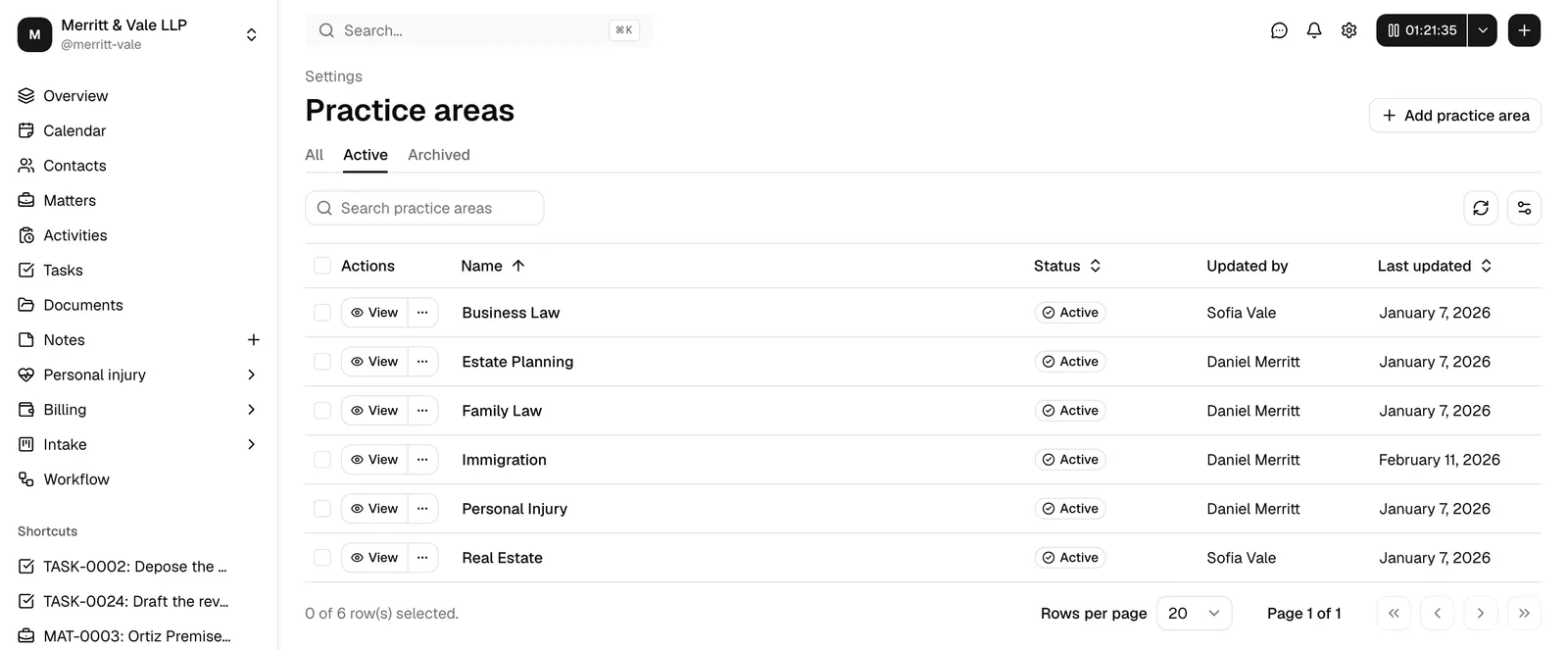
You manage practice areas under Settings, on the Practice areas page. The settings you make here flow straight into the new-matter form and into the Stages view on the Matters page.
Before you begin
- Practice areas live under Settings. From the sidebar, open Settings, then choose Practice areas.
- Your role controls what you can do here. Firm owners and roles with the right access can create, edit, archive, and delete practice areas, their types, and their stages. If your role has view-only access, you will see the lists and a View button but no Add, Edit, Archive, or Delete controls. If your role has no access at all, the page shows a "no access" message.
- It helps to set up practice areas before you start creating matters, since every matter must belong to one practice area and sit in one of its stages.
What practice areas are and how matters use them
A practice area is a category of work. Inside Esqase, three things attach to every practice area:
- Types are optional sub-classifications. For example, the Family law practice area might have types like Divorce, Custody, and Adoption. When you create a matter, you can tag it with one or more of the area's types so similar matters group together.
- Stages are the steps a matter passes through, shown as kanban lanes (for example, Intake, Discovery, Trial prep, Closed). Each matter sits in exactly one stage at a time, and you move it between stages by dragging its card on the Stages board.
- A practice area name that appears wherever matters are filtered or grouped.
When you create a matter (see Creating a matter), the Matter information step asks you to choose a Practice area. As soon as you pick one:
- The Stage field fills with that area's stages, and the matter starts in the first stage.
- The Matter types field offers that area's types, so you can tag the matter. You can also add a new type to the area from that field, without leaving the wizard.
On the Matters page (see Browsing matters), the Stages view shows a kanban board built from one practice area's stages. Each card is a matter, and dragging a card to another lane moves that matter to a new stage. The lanes, and their left-to-right order, come straight from the stages you define here.
Note: Every matter belongs to exactly one practice area and one stage. That is why it is worth defining at least one practice area with a few stages before you open your first matter.
Create and manage practice areas
Practice areas appear in a table with a Name, a Status (Active or Archived), who last updated it, and when. New ones start as Active.
Add a practice area
- In the sidebar, click Settings, then click Practice areas.
- Click Add practice area in the top right.
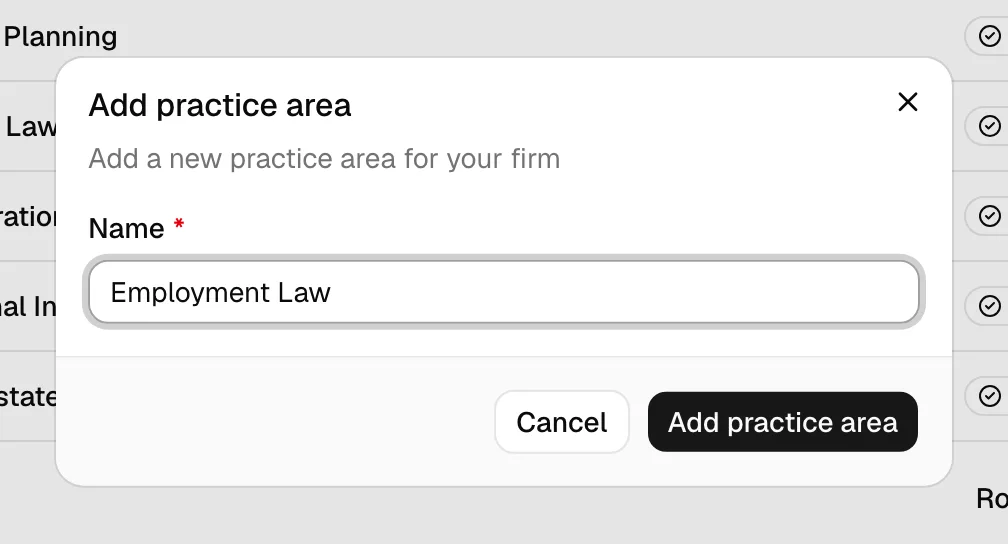
- In the Add practice area dialog, enter a Name (for example,
Family law). The name is required and can be up to 64 characters. - Click Add practice area to save. A confirmation appears and the new area shows up in the table as Active.
Open a practice area
To work on a practice area's types and stages, open its detail page.
- On the Practice areas page, find the row you want.
- Click View in the Actions column. The detail page opens, showing the area's name as the page title, a Types section, a Stages section, and a sidebar with details on the right.
Rename a practice area
You can rename an area from either the list or its detail page.
- From the list, click the More (
...) menu on the row, then choose Edit. From the detail page, click Edit in the top right. - In the Edit practice area dialog, update the Name.
- Click Save changes.
Tip: Use the Search practice areas box and the All, Active, and Archived tabs at the top of the list to find an area quickly. The list opens on the Active tab by default. Click Clear filters to reset a search.
Find a practice area's identifier
Each practice area has a unique identifier shown on its detail page sidebar, under Practice area ID. Click the copy icon next to it to copy it to your clipboard. You rarely need this for day-to-day work, but it can help if you are coordinating with support.
Manage practice area types
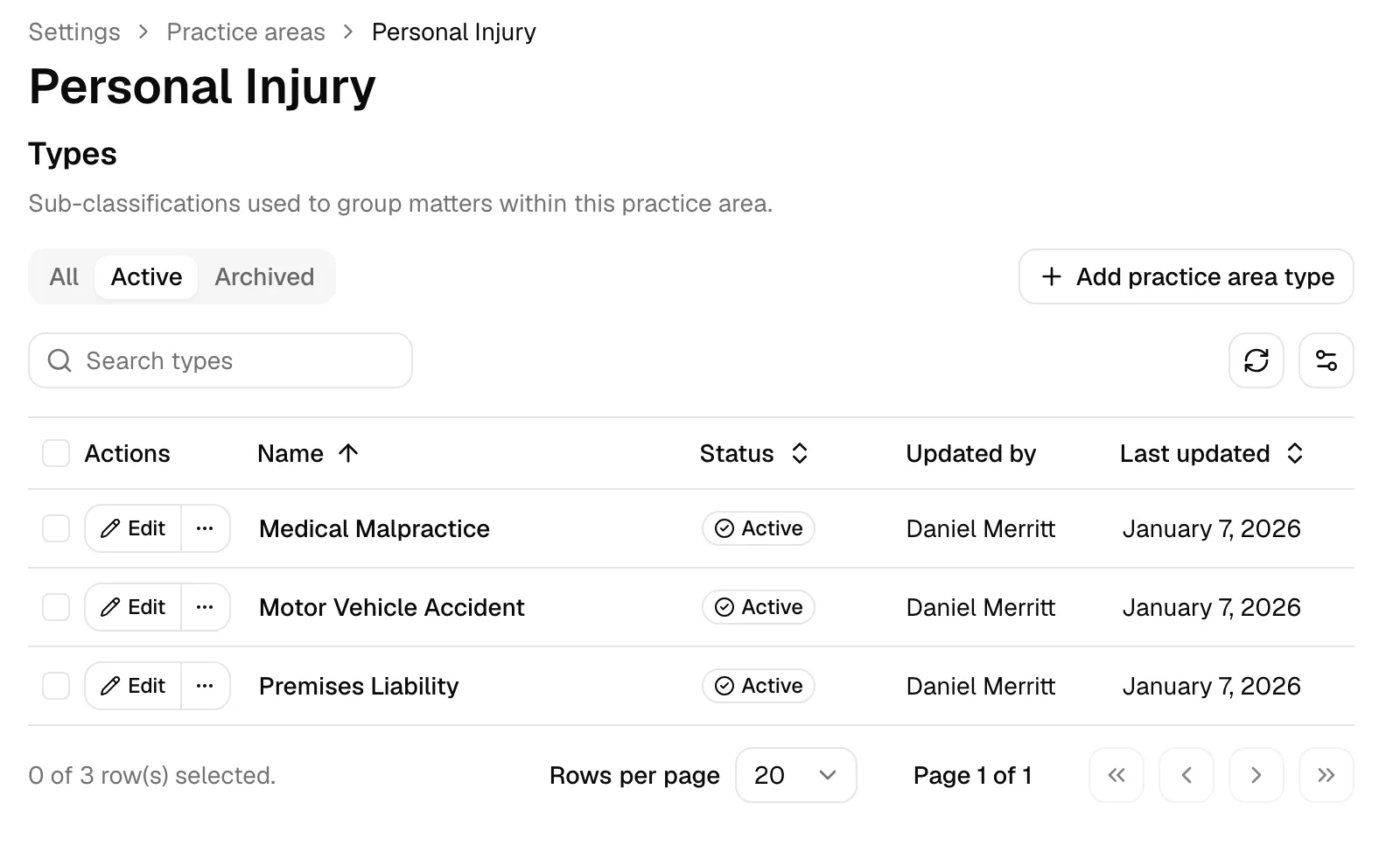
Types are sub-classifications used to group matters within a single practice area. They live in the Types section of the practice area's detail page. Like areas, each type has a Status of Active or Archived.
Add a type
- Open the practice area (click View on its row).
- In the Types section, click Add practice area type.
- In the Add practice area type dialog, enter a Name (for example,
Divorce). The name is required and can be up to 64 characters. - Click Add practice area type to save. The new type appears in the Types table as Active and becomes selectable as a Matter type the next time someone creates a matter in this practice area.
Tip: You do not have to come here first. While creating or editing a matter, open the Matter types dropdown on the Matter information step and click New matter type. It opens the same Add practice area type dialog, files the type under the practice area selected on the matter, and tags the matter with it. See Creating a matter.
Rename a type
- In the Types table, click Edit on the row you want to change.
- In the Edit practice area type dialog, update the Name.
- Click Save changes.
Tip: The Types table has its own All, Active, and Archived tabs and a Search types box, so you can manage a long list of types without leaving the page.
Manage and reorder a practice area's stages
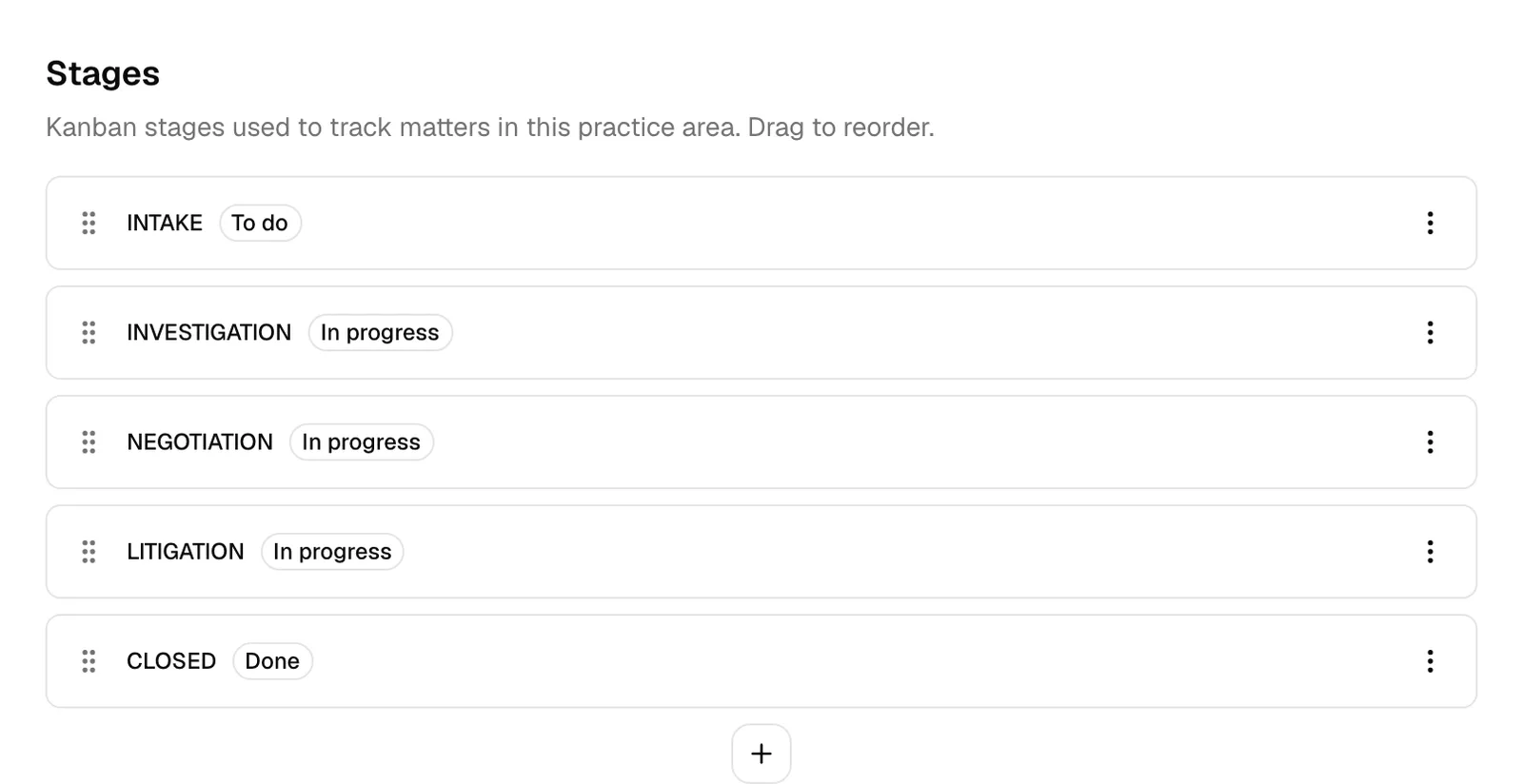
Stages are the kanban lanes a matter moves through in this practice area. They live in the Stages section of the detail page, listed top to bottom in the order they appear left to right on the Stages board on the Matters page. Each stage has a Name and a Type.
The stage Type tells Esqase what a stage represents:
- To do for stages where work has not started yet (for example, Intake).
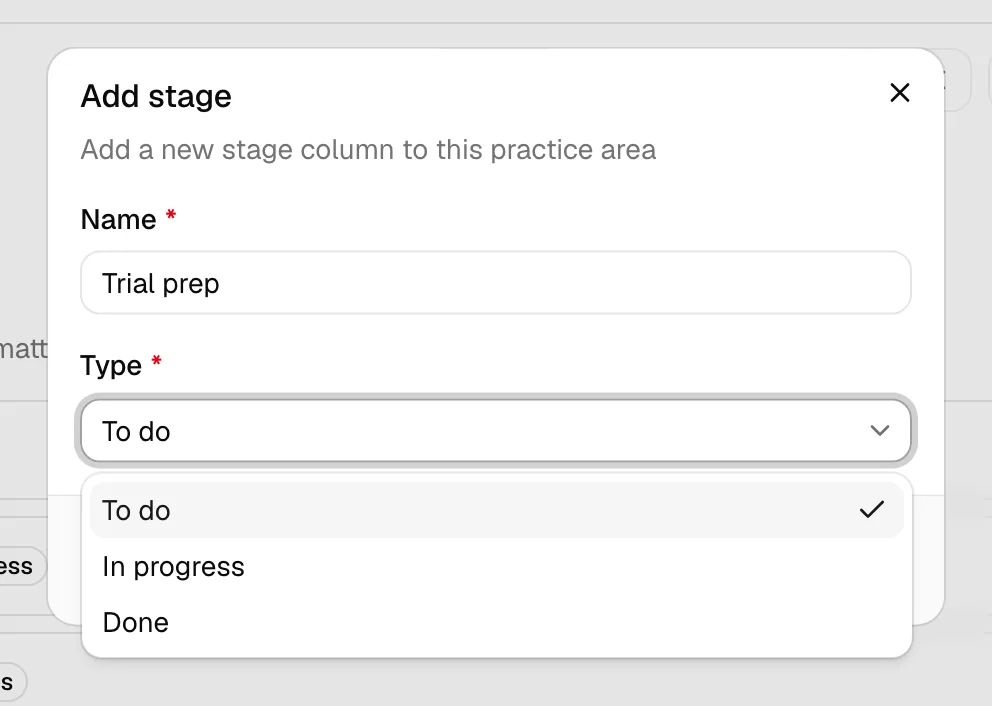
- In progress for active stages (for example, Discovery or Trial prep).
- Done for finished stages (for example, Closed).
Add a stage
- Open the practice area and scroll to the Stages section.
- Click the Add stage button (the plus button below the list, or Add stage in the empty state if there are no stages yet).
- In the Add stage dialog, enter a Name (for example,
Intake). The name is required and can be up to 64 characters. - Choose a Type from the dropdown: To do, In progress, or Done. This is required and defaults to To do.
- Click Add stage. The new stage is added at the end of the list.
Edit a stage
- In the Stages list, click the More (
...) menu on the stage row, then choose Edit. - In the Edit stage dialog, update the Name or the Type.
- Click Save changes.
Reorder stages
The order of stages here is the order matters travel through on the board, so reordering changes the flow your team sees.
- In the Stages list, point at the stage you want to move.
- Click and hold the drag handle (the grip icon on the left of the row) and drag the stage up or down to its new position.
- Release to drop it. Esqase saves the new order automatically and shows a "Stages reordered" confirmation.
Tip: The first stage in this list is the stage every new matter starts in, so put your earliest step (such as Intake) at the top.
Note: If a reorder cannot be saved (for example, a brief connection problem), the list snaps back to its previous order and an error message appears. Just try the drag again.
Delete a stage
- In the Stages list, click the More (
...) menu on the stage row, then choose Delete. - In the Delete stage? dialog, confirm by clicking Delete stage.
Important: Deleting a stage is permanent and cannot be undone. Stages do not have an Archive option, only Delete, so remove a stage only when you are sure no matter needs that lane.
Archive, restore, and delete a practice area or a type
Practice areas and their types support a soft lifecycle: you Archive something to take it out of active use without losing it, Restore it later if you need it again, and Delete it only once it is archived. This protects matters that already reference an area or type.
Archive
Archiving moves an item to the Archived tab and stops it from appearing as a choice for new matters, while keeping it on record.
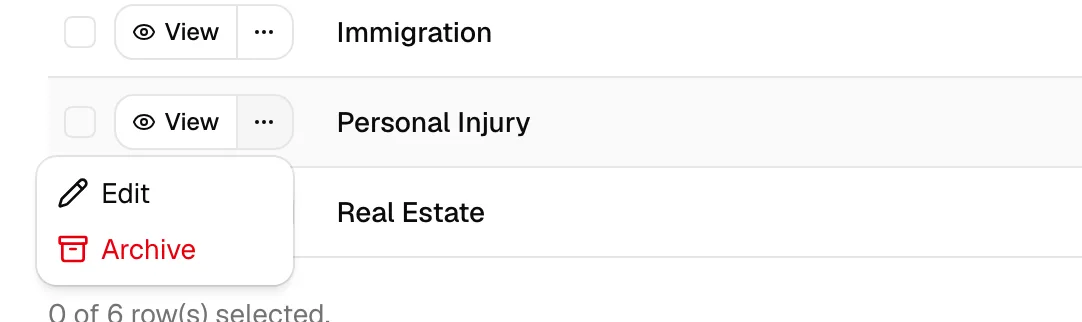
- To archive a practice area: on the Practice areas list, open the row's More (
...) menu and choose Archive, or open the area and use the same menu. You can also select several rows and use the batch Archive action. Confirm if prompted. - To archive a type: open the practice area, then in the Types table open the row's More (
...) menu and choose Archive (or select rows and use the batch Archive action).
A confirmation appears, and the item moves to the Archived tab.
Restore
Restoring brings an archived item back to Active so it can be used again.
- Switch to the Archived tab on the list (for areas) or in the Types table (for types).
- Open the item's More (
...) menu and choose Restore, or select rows and use the batch Restore action.
The item returns to the Active tab.
Delete
Deleting permanently removes an item. You can only delete something that is already archived, which is a safeguard against removing an area or type that is still in use.
- Make sure the item is archived (it appears on the Archived tab).
- For a practice area, open its More (
...) menu (or the Delete button on its detail page) and choose Delete, then confirm in the Delete practice area? dialog by clicking Delete practice area. You can also batch-delete archived rows. - For a type, open the archived type's More (
...) menu, choose Delete, and confirm in the Delete practice area type? dialog by clicking Delete type.
Important: Deletion is permanent and cannot be undone. If you only want to take something out of circulation for now, Archive it instead so you can restore it later.
Common questions
Why can I not delete a practice area right away? You must archive it first. The Delete option only appears once an area or type is on the Archived tab. This two-step flow helps prevent accidental loss of categories that matters still rely on.
What happens to existing matters if I archive a practice area or type? Archiving takes the area or type out of the choices offered when creating a new matter. It does not erase matters that already use it. Plan changes around your live caseload.
Why is there no Archive option for stages? Stages support only Edit, reordering, and Delete. There is no archive step for a stage, so delete one only when you are certain no matter needs that lane.
Who can change practice areas? Firm owners and members whose role includes the right access. If you only see View buttons and no create, edit, or delete controls, your role is view-only for this area. Ask a firm owner or administrator to adjust your access. See Roles and permissions.