Batch invoicing
Batch invoicing bills many matters at once. Instead of building invoices one at a time, Esqase gathers every matter that has unbilled billable work into a single screen, lets you review and choose what to bill, then generates all the invoices together in one step. This is the fastest way to run an end-of-month or end-of-cycle billing cycle across your whole firm.
Before you begin
- Access. Batch invoicing uses the same permission as creating a single invoice. If your role includes Create access for the Invoices area (or you are a firm owner), you will see the Batch invoices button. If it does not, the button is hidden and the screen shows a no-access message.
- Unbilled billable work. The screen only lists matters that have billable, un-invoiced time entries and expenses. Work that is not marked billable, or that is already on an invoice, does not appear. To learn how activities are recorded and marked billable, see Time and expense tracking.
- A client on each matter. An invoice is always tied to one client, so a matter can only be billed if it has a client on it. Matters with no client show No client and cannot be selected. To add a client, open the matter first; see The matter workspace.
Note: What happens when you generate depends on your firm's approval rules, exactly like submitting a single invoice. If your role requires approval for invoices, the invoices are created as In review and each opens its own review. If it does not, they are finalized immediately. See Approvals for invoices and documents and Understand invoice statuses and the lifecycle.
Open the batch invoices screen
- In the sidebar, open Invoices.
- At the top of the page, click Batch invoices (next to New invoice).
- The Batch invoices screen opens and lists every matter across your firm that has unbilled billable activities.
If nothing is waiting to be billed, the screen shows No unbilled activities and lets you know that all billable time entries and expenses have already been invoiced.

Review the matters and their activities
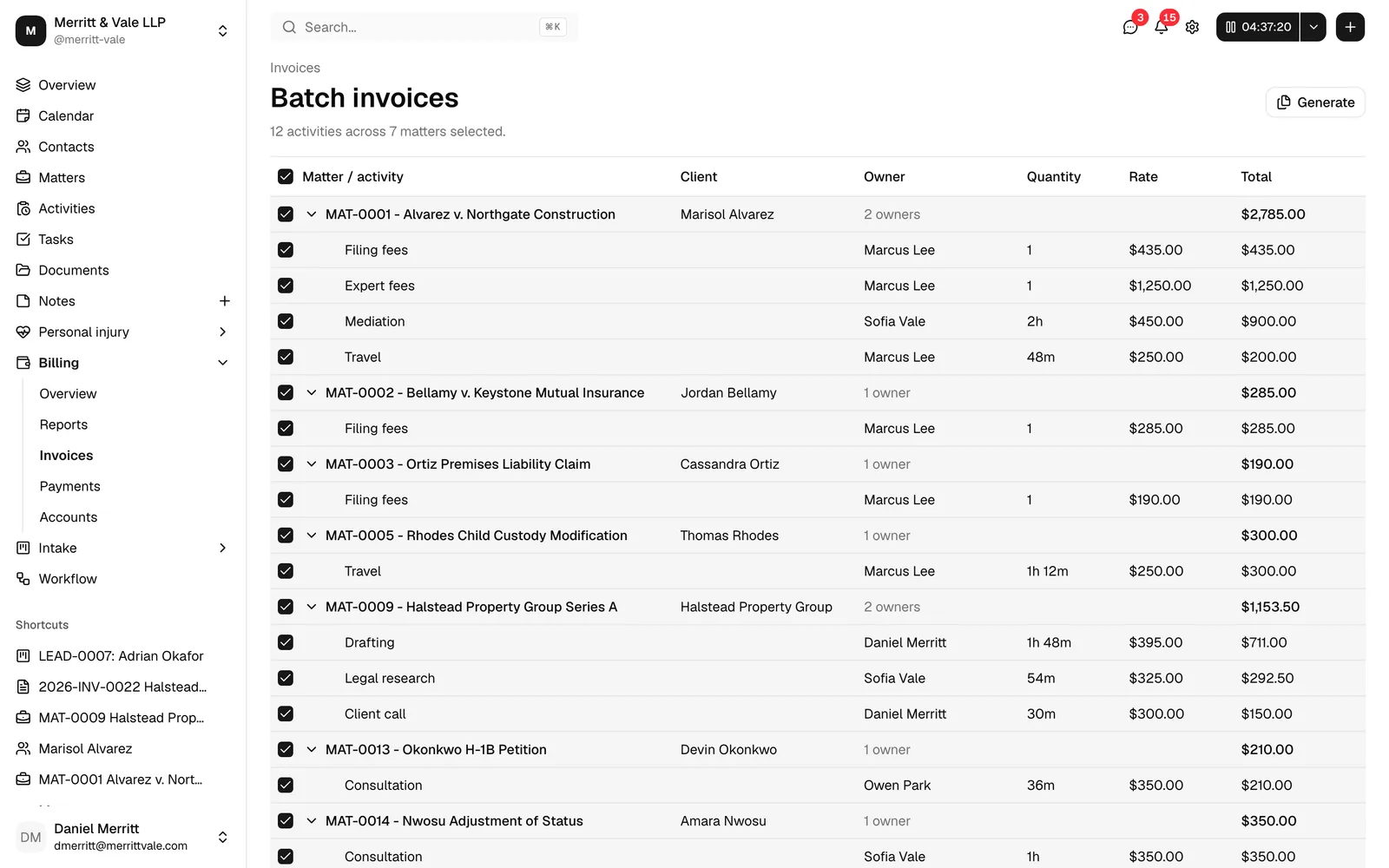
Each matter appears as its own expandable card. Everything is selected and expanded by default, so you can see the full picture the moment the screen loads.
- A short line above the table tells you how much is currently selected, for example "24 activities across 6 matters selected". It updates as you change your selection.
- Each matter row shows its identifier and title (for example "M-0007 - Smith v. Jones"), its Client, how many owners contributed the work, and the matter's Total.
- Click the arrow at the start of a matter row to expand or collapse it. Expanding shows one row per activity, with the activity's category, its owner (the person who recorded it), the quantity (hours for time, count for expenses), the rate, and the line total. Click an owner's name to open that member's page. An activity with nobody recorded against it shows Unassigned, which is not a link.
Choose what to bill
You do not have to bill everything the screen found.
- To leave a whole matter out, untick the checkbox on its matter row. This clears all of that matter's activities at once.
- To leave out a single activity, expand the matter and untick just that activity. The matter's total continues to reflect everything, but only the ticked activities are billed.
- Use the checkbox in the table header to select or clear everything at once.
Note: Matters with No client cannot be billed, so their checkboxes are disabled and they are never included when you generate. Add a client to the matter to make it billable.
Generate the invoices
When your selection looks right, you create all the invoices in one step.
- Click Generate at the top right of the screen. This button stays disabled until at least one activity is selected.
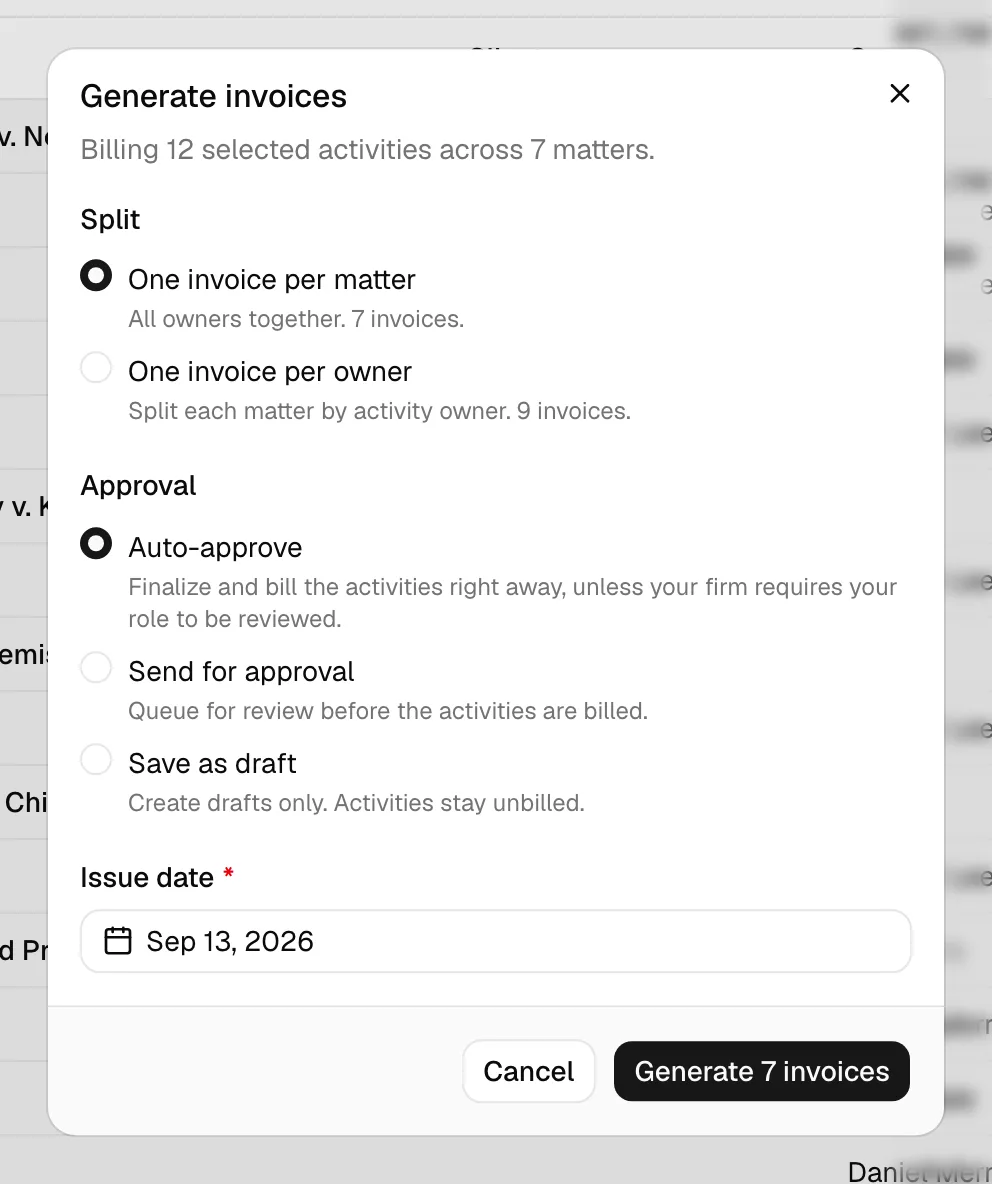
- The Generate invoices dialog opens. Its heading summarizes what you are about to bill, for example "Billing 24 selected activities across 6 matters".
- Choose how to Split the work into invoices (see below).
- Choose an Approval option (see below).
- Set the Issue date. It defaults to today.
- Click the Generate button, which shows how many invoices will be created (for example Generate 6 invoices).
Esqase creates the invoices together, giving them sequential invoice numbers, and returns you to the Invoices list. A confirmation message tells you how many invoices were created, and notes any matters that were skipped for having no client.
Choose how to split
The Split option decides how the selected work is grouped into invoices. Each choice shows a live count of how many invoices it will create, so you can compare before deciding.
- One invoice per matter (the default) puts all of a matter's selected work on a single invoice, no matter who recorded it. You get one invoice per matter.
- One invoice per owner creates a separate invoice for each person's work within a matter. If two attorneys both logged time on the same matter, that matter produces two invoices, one for each of them. Use this when different owners need to be billed or reviewed separately.
Choose an approval option
The Approval option decides the status the new invoices start in.
- Auto-approve (the default) finalizes the invoices right away, so they become Pending and are ready to send and collect on. Its description reads Finalize and bill the activities right away, unless your firm requires your role to be reviewed. If your role does require approval for invoices, the invoices go to In review instead, exactly as they would if you submitted them one at a time, and each one opens its own review.
- Send for approval always queues the invoices for review as In review, whatever your role. Use this when you want someone to check the batch before it is finalized.
- Save as draft creates the invoices as Draft only. Drafts are never sent, and the underlying activities stay unbilled, so you can keep editing before you commit.
Note: With Auto-approve or Send for approval, the billed activities are marked as billed and will no longer be offered on other invoices. With Save as draft, the activities stay unbilled and remain available to bill again later.
Note: Save as draft also means the new invoices take no invoice number. They read as Pre-bill until someone finalizes them, which is what makes a batch safe to review before your clients see numbers. See Recurring invoices and pre-bills.
Set the issue date
The Issue date is the date printed on every invoice in the batch. It defaults to today (in your firm's time zone) and applies to all of the invoices created in this run.
Tip: Each invoice in the batch uses your firm's default invoice template. To change how an invoice looks after it is created, open it and edit it like any other invoice. See Invoice templates and the builder.
After generating
The new invoices behave exactly like invoices you create one at a time. From the Invoices list you can open any of them, edit ones that are still Draft or In review, work through the reviews on those awaiting approval, generate a payment link, and email them to the client. Batch invoicing does not send anything to clients on its own, so you send each invoice when you are ready. See Creating and sending invoices.
Each queued invoice carries its own review, so reviewers approve them one at a time rather than the batch as a whole. Open any of them and use the approval panel at the top right. Until a review is approved, that invoice cannot have a payment link generated or a payment recorded against it.
Common questions
Why is a matter greyed out and showing "No client"? An invoice needs a client. A matter with no client on it cannot be billed, so it is shown for visibility but cannot be selected. Add a client to the matter, then return to the batch screen.
I generated the batch but some matters were not invoiced. Why? Matters with no client are skipped, and the confirmation message tells you how many were skipped for that reason. Everything else you selected is billed.
Can I bill only some of a matter's activities? Yes. Expand the matter and untick the activities you do not want to bill yet. The unticked ones stay on the matter and remain available for a future invoice.
What invoice numbers do the batch invoices get? They receive your firm's next invoice numbers in sequence, following the same numbering as invoices you create by hand. See Document and record numbering.
Do the batch invoices get sent to clients automatically? No. Generating only creates the invoices. You send each one, with a payment link, from its own page when you are ready.