Custom fields
Custom fields let you capture information that Esqase does not collect out of the box. You define a field once, choose the kind of input it uses, and it becomes available on the records you choose: contacts, leads, or matters. Every firm has different needs (a referral source on a contact, a court county on a matter, an opposing-party name on a lead), and custom fields let you tailor Esqase to yours without waiting on a developer.
This page covers creating and managing individual custom fields. To bundle several fields together so they can be added to a record in one click, see Field sets and using custom fields. To learn how fields actually get filled in on a contact, lead, or matter record, see the same page.
Before you begin
Custom fields are managed under firm settings, and access depends on your role.
- You reach the page from the sidebar under Settings, then Custom fields.
- To see the page at all, your role must include View access for custom fields. Firm owners and administrators always have it.
- To add or edit fields, you need Create and Edit access. To permanently delete an archived field, you need Delete access. In the default setup, owners and administrators can do everything, attorneys can create, edit, and delete, and staff can create and edit but not delete.
- If a button described below does not appear for you, your role likely does not include that level of access. Ask a firm owner or administrator to adjust your Roles and permissions.
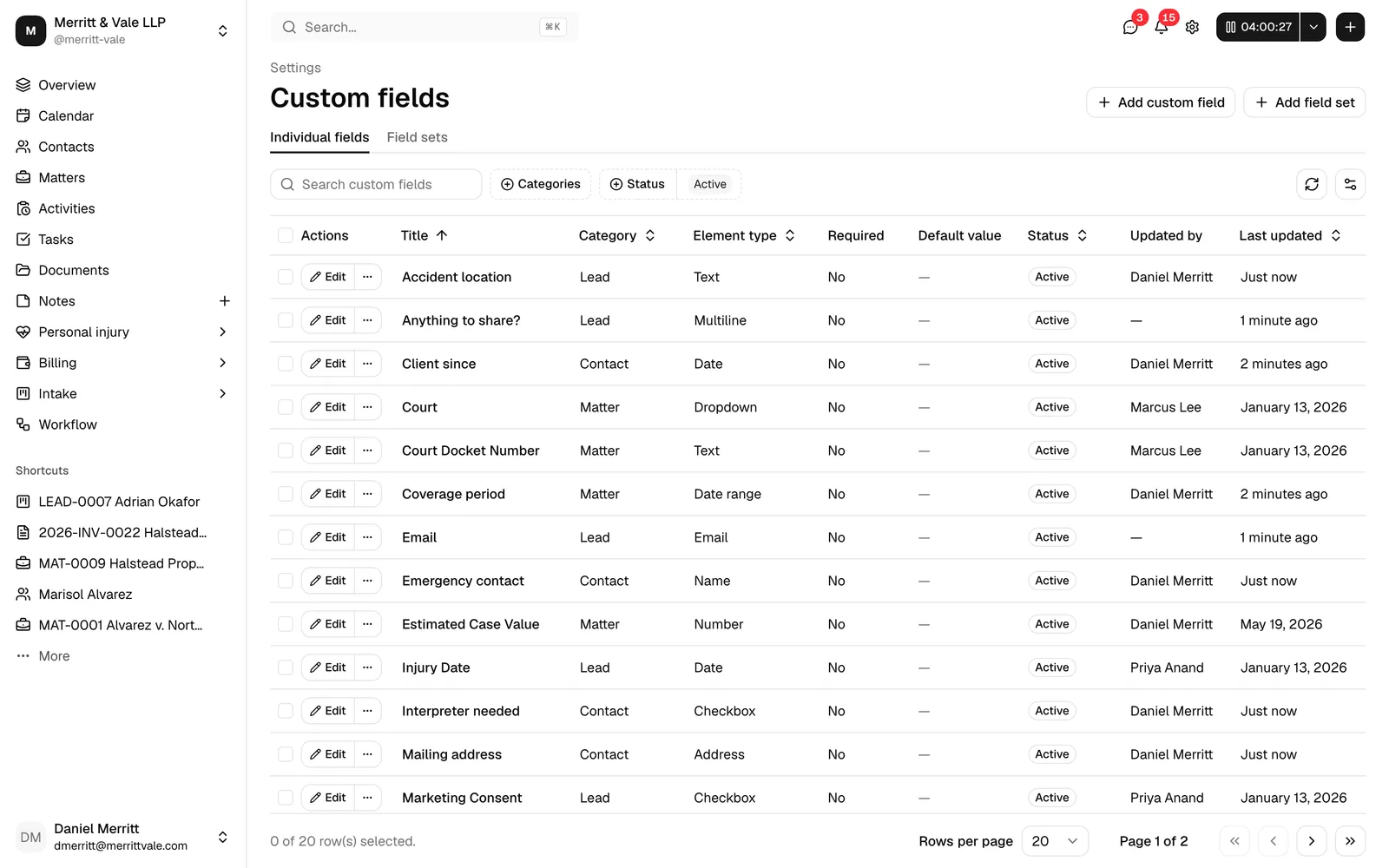
What custom fields are and where they appear
A custom field is a single reusable input definition. Each field belongs to one category, which decides where it can be used:
- Contact fields appear on contact records.
- Matter fields appear on matter records.
- Lead fields appear on lead records.
A field defined for one category does not show up on the others. So a Contact field will never appear on a matter, and vice versa.
The Custom fields page has two tabs:
- Individual fields lists every single field you have defined. This is where you create, edit, reorder, archive, and delete fields. It is the focus of this page.
- Field sets lets you bundle several fields into a named template that can be added to a record all at once. See Field sets and using custom fields.
Once a field is Active, it becomes available to add to records of its category through the Custom fields panel on a contact, lead, or matter record. Filling in values is covered in Field sets and using custom fields.
Note: Defining a field does not automatically add it to every existing record. It makes the field available so you (or a teammate) can add it to a record and enter a value when you need it.
Create an individual custom field
You build a field, preview how it will look, and save it. New fields are created as Active right away, so they become usable as soon as you save.
- In the sidebar, click Settings, then Custom fields.
- Make sure you are on the Individual fields tab.
- Click Add custom field in the top-right. The Add custom field dialog opens.
- In Title, type a clear name for the field, for example
Referral sourceorCourt county. This is required and is what you and your team will see in lists. As you type, Esqase auto-fills the field's internal label and name behind the scenes, so you usually do not need to touch them. - Choose a Category (Contact, Matter, or Lead). This decides which records the field can be added to. Category is required.
- Choose a Field type (the kind of input). This is required and is explained in the next section. The default is Text.
- In the Element configuration section, fine-tune the input. The available options depend on the field type you chose. See Configure a field below.
- Watch the Live preview at the bottom. It shows exactly how the field will appear on a record, updating as you change settings.
- Click Save. Esqase confirms with Custom field created, closes the dialog, and adds the field to the table as Active.
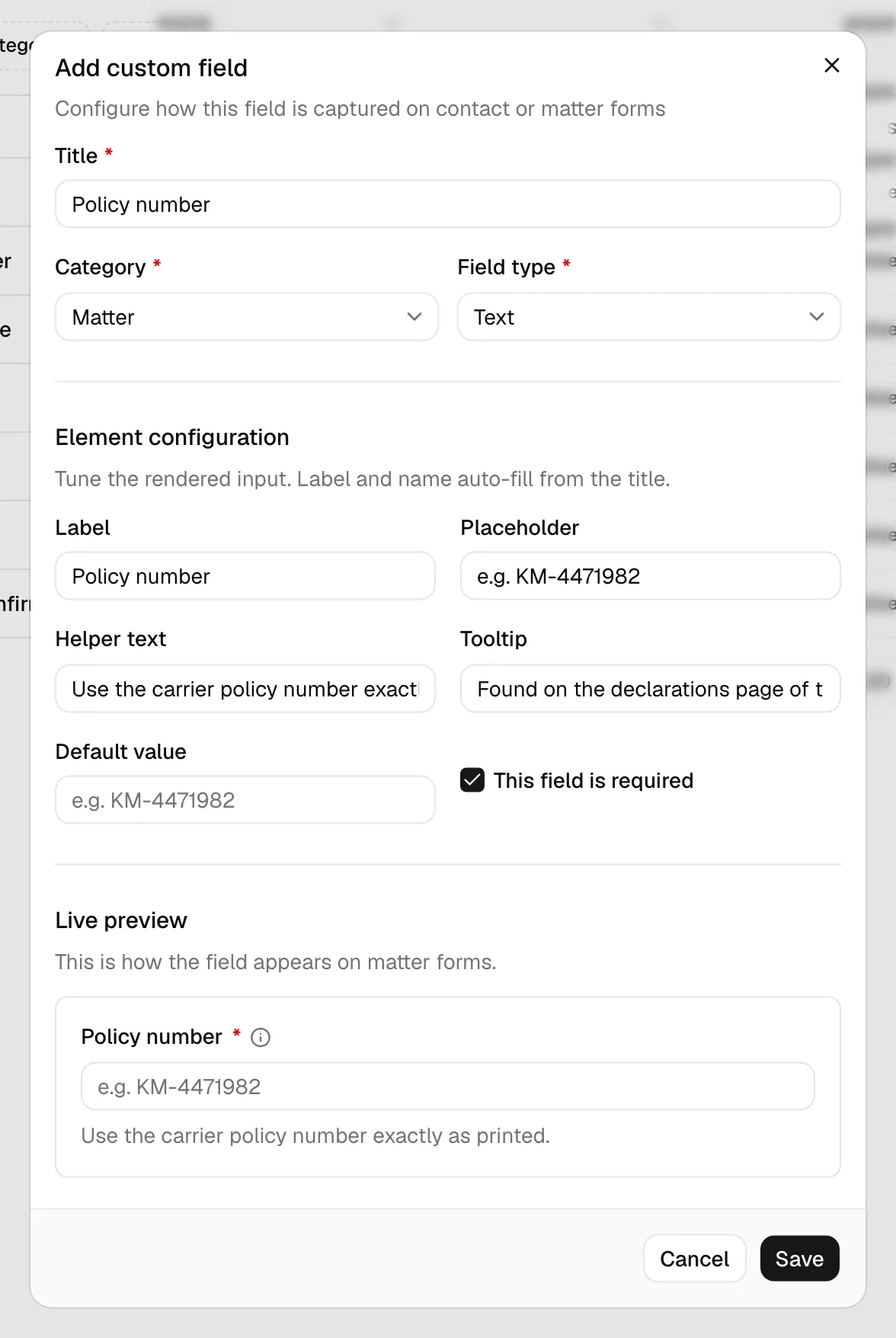
Tip: Use the Live preview to sanity-check your field before saving. If a dropdown's options look wrong or a placeholder reads awkwardly, you can fix it in the same dialog and see the change immediately.
Note: For a Phone or Address field, the Live preview (and the preview shown beside the field inside a field set) starts on your firm's country, the same as the real field will on a record. See How your firm's country sets phone and address defaults.
Choose an element type
The Field type decides what kind of input the field shows and what data it captures. You pick one type per field, and you cannot change the type after the field is created (you would create a new field instead). Choose the type that matches the data you want to collect:
- Text captures a single line of plain text. Good for short answers like a referral name or a reference number.
- Multiline captures several lines of plain text. Good for longer notes or descriptions.
- Rich text area captures formatted text (bold, lists, and so on) for longer, styled content.
- Number captures a numeric value only.
- Date captures a single calendar date.
- Date & time captures a date together with a time.
- Time captures a time of day on its own.
- Date range captures a start and an end date, for example a coverage period.
- Dropdown lets the user pick one value from a list of Options you define.
- Radio shows a set of choices as radio buttons, where the user picks exactly one. You define the Options.
- Checklist shows a list where the user can tick multiple choices. You define the Options.
- Checkbox is a single tick box for a simple yes/no.
- Switch is an on/off toggle for a simple yes/no.
- Email captures an email address.
- Phone captures a phone number. The country dial code preselects to your firm's country wherever the field is filled in, and whoever fills it in can pick a different country.
- Currency captures a monetary amount.
- Star rating captures a rating, shown as stars.
- Address captures a structured mailing address. Its Country dropdown preselects to your firm's country, and whoever fills it in can pick a different country.
- Name captures a person's name.
- List captures a repeating list of entries, where each line is the same kind of value (text, number, or multiline). See Configure the List element item type below.
Note: The Field type dropdown is locked when you edit an existing field. If you need a different type, create a new field and archive the old one.
Configure a field
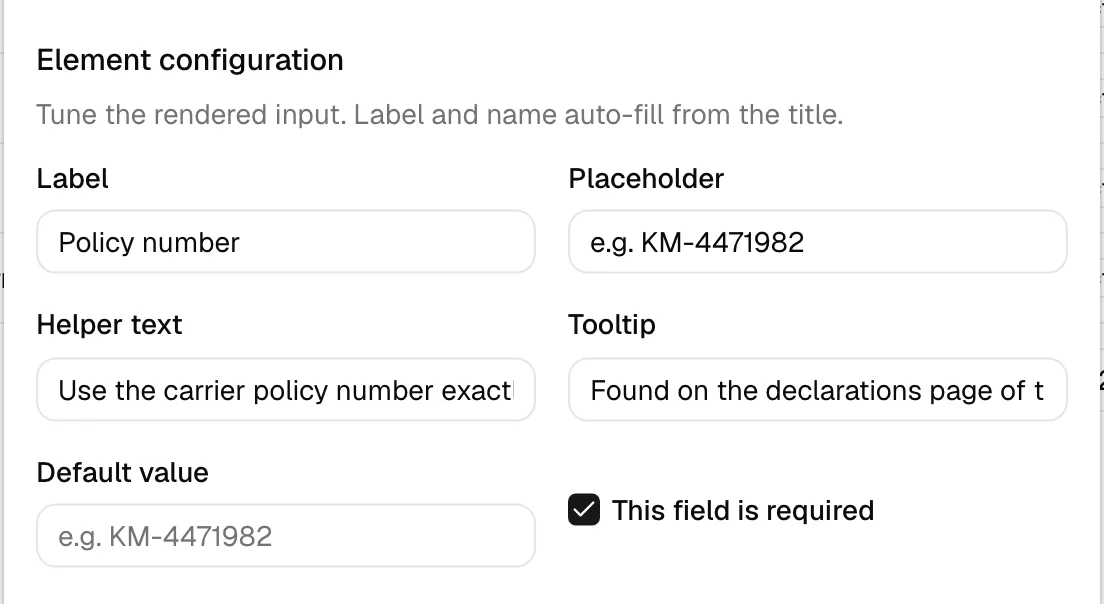
The Element configuration section shapes how the input behaves. Not every option appears for every field type; Esqase shows only the settings that make sense for the type you chose. Here is what each setting does:
- Label is the on-screen wording shown above the input on the record. It auto-fills from the Title but you can override it. For example, the title might be
Court countywhile the label simply readsCounty. - Placeholder is the faint hint text shown inside an empty input, for example
Enter your department. Use it to nudge users toward the right format. (Available on text-style inputs.) - Helper text is a short line of guidance shown beneath the input, for example
Choose the team you belong to. Use it for instructions that should always be visible. - Tooltip is extra explanation that appears when the user hovers over the field's help indicator. Use it for details that would clutter the form if shown inline.
- Default value pre-fills the field with a starting value so users do not have to type it every time. The control matches the field type (a date picker for a date field, a dropdown for a dropdown field, and so on). Leave it empty for no default.
- Options is the list of choices for Dropdown, Radio, and Checklist fields. See Add options below.
- This field is required marks the field as mandatory. When it is checked, a user must enter a value before they can save the record. Leave it unchecked to make the field optional.
Add options for choice fields
When you pick Dropdown, Radio, or Checklist, an Options section appears so you can define the choices.
- In the Options section, click the + (add) button to add a row.
- Fill in the Label (what the user sees, for example
Active). Esqase fills the matching Value for you automatically; you only need to change the value if you have a reason to store something different from the label. - Click + again for each additional choice.
- To remove a choice, click the trash icon at the end of its row.
Tip: Keep option labels short and consistent. They appear in dropdowns, filters, and reports, so Active and Inactive read better than long sentences.
Configure the List element item type
The List field type captures a repeating set of entries, all of the same kind. When you choose List, two extra controls appear.
- Set Each line is to choose what kind of value every entry holds:
- Text for short single-line entries.
- Number for numeric entries.
- Multiline for longer entries that span several lines.
- (Optional) In the Default value section, click the + (add line) button to seed starting lines that appear pre-filled on new entries. Each line uses the input style you chose in Each line is. To remove a seeded line, click the trash icon beside it.
- Finish the rest of the field as usual and click Save.
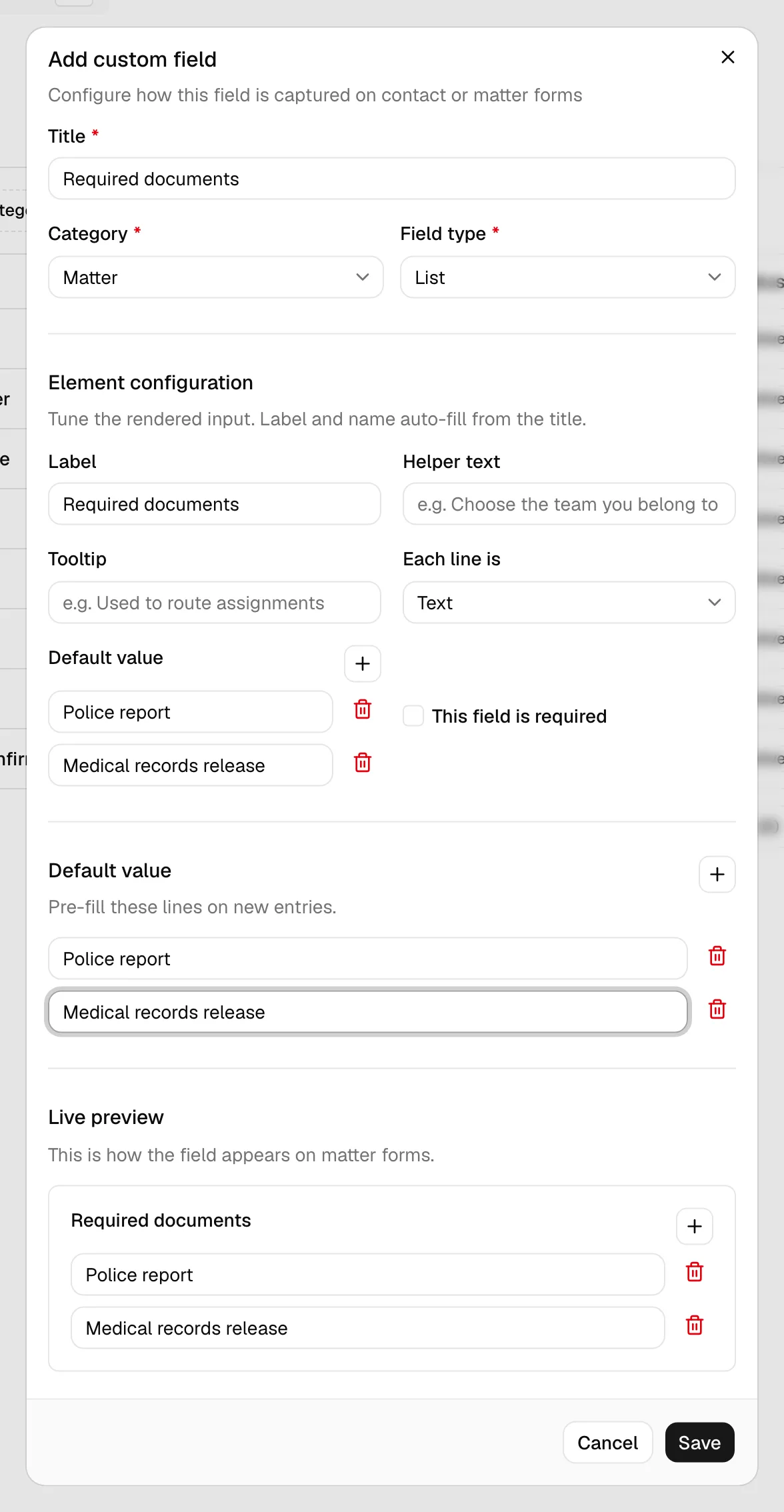
Note: Each line is applies the same input style to every entry in the list. You cannot mix text and number lines in one List field.
Edit a field profile
You can update most of a field's settings after it is created, including its title, label, options, default value, helper text, and whether it is required. The Field type stays locked.
- On the Individual fields tab, find the field in the table.
- Click Edit on its row. The Edit custom field dialog opens with the current settings filled in.
- Change any settings you need. The Live preview updates as you go.
- Click Save changes. Esqase confirms with Custom field updated and closes the dialog.
Important: Editing a field, including its options, does not change values already saved on existing records. For example, removing a dropdown option does not erase that choice from records where it was already selected. It only stops the option from being offered going forward.
Change a field's status
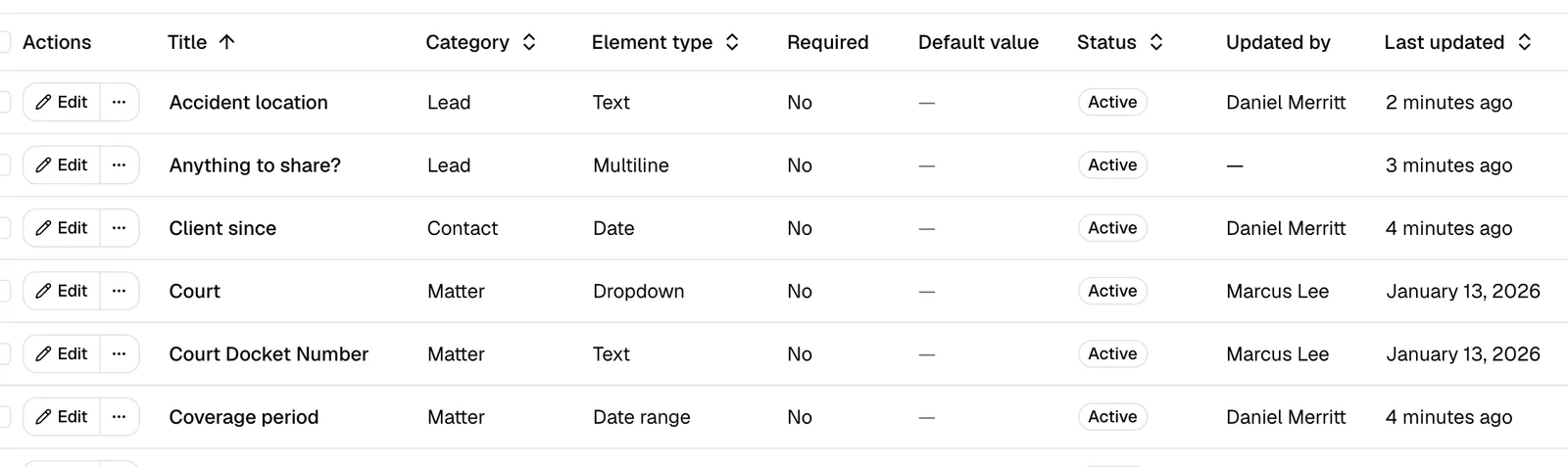
Each field has a status that controls whether it can be added to new records:
- Active means the field is available to add to records of its category.
- Archived means the field is hidden from new records but its existing values are kept. Use this to retire a field you no longer want people to add, without losing the data already captured.
- Draft is a not-yet-published state shown in the status filter. New fields you create are Active straight away, so in normal use you will move fields between Active and Archived.
New fields are created as Active, so they are immediately usable.
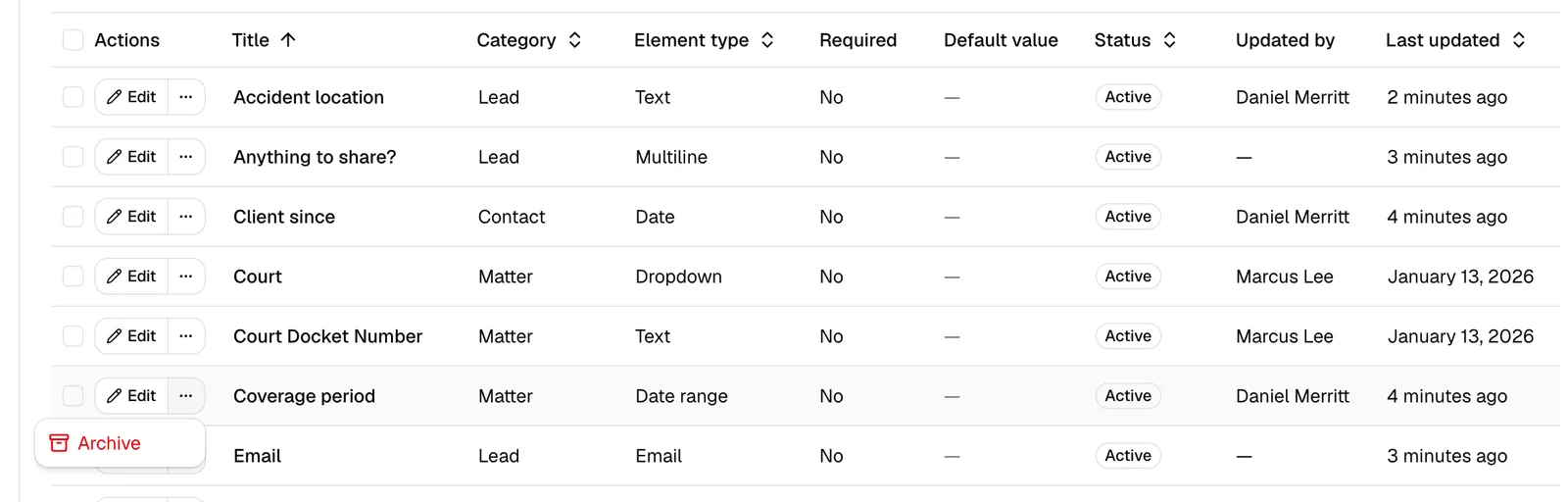
To archive a field:
- On the field's row, click the More actions (three-dot) button.
- Click Archive. Esqase confirms with
'<field name>' archivedand moves the field to the Archived view.
To bring an archived field back:
- Change the Status filter to include Archived (the table shows Active fields by default).
- On the archived field's row, open the More actions menu and click Restore. The field returns to Active and can be added to records again.
Tip: To archive or restore several fields at once, tick the checkboxes at the start of their rows and use the batch Archive or Restore action that appears above the table.
Filter by status and category
The table toolbar gives you quick ways to focus the list:
- Use the Search custom fields box to find a field by name.
- Use the Category filter to show only Contact, Matter, or Lead fields.
- Use the Status filter to show Draft, Active, or Archived fields. By default the table shows Active fields only.
- Click Clear filters to return to the default view.
Reorder custom fields
The order of fields controls how they appear when you add and fill them in on a record. You can sort the Individual fields table by any column heading (for example Title or Last updated) to find a field quickly. To control the order fields appear in within a field set, drag them into place on the field-set editor; see Field sets and using custom fields for that.
Note: Reordering within a field set arranges the fields that set adds to a record. For loose, individually added fields, sort the table to locate them, and rely on the field set when you want a fixed presentation order on a record.
Delete a custom field
Deleting permanently removes a field definition. Because this cannot be undone, Esqase requires you to archive a field first, then delete it. You need Delete access (owners, administrators, and attorneys have it by default).
- Archive the field first if it is still Active (see Change a field's status).
- Set the Status filter to include Archived so the field appears.
- On the archived field's row, open the More actions menu and click Delete.
- In the Delete custom field? confirmation, review the warning that the field will be permanently removed and that this cannot be undone.
- Click Delete custom field to confirm. Esqase confirms with
'<field name>' deletedand removes it from the table.
Important: Deleting a field definition removes it from your firm for good. Values previously captured on records are no longer tied to a managed field. If you only want to stop people from adding a field going forward, Archive it instead of deleting; archiving keeps the existing data.
Common questions
Why can't I delete a field directly? Delete only appears once a field is Archived. Archive it first, then delete. This two-step guard prevents accidental loss of a field that may still be in use.
I created a field but it does not show up on my contact (or matter or lead). Check three things: the field's Category matches the record you are on, the field's status is Active (not Archived), and you have actually added it to that record through the Custom fields panel. Defining a field makes it available, but you still add it per record. See Field sets and using custom fields.
Can I change a field's type later? No. The Field type is locked after creation. Create a new field with the type you need and archive the old one.
Why don't I see the Add custom field or Edit buttons? Those buttons require Create and Edit access for custom fields. If your role does not include them, you will see the list in a read-only view. A firm owner or administrator can adjust your access under Roles and permissions.