Settlement and disbursement
The Settlement tab turns a resolved case into money moved and money accounted for. You record what came in, what the fee is, what has to come off the top, and what the client takes home. Esqase does the arithmetic, plans the payments, and produces the settlement statement your client signs.
Before you begin
- Personal injury is part of the Professional plan. On the Standard plan the module is hidden: the Personal injury group is not in the sidebar and matters do not show the personal injury tabs. Only the firm owner can move the firm to Professional, from Settings > Billing. See Your Esqase subscription.
- Outside the Philippines, your firm owner also accepts an agreement once. Until that is done, the module opens on a Business Associate Agreement required card and nothing can be recorded. A firm registered in the Philippines accepts no agreement: the module opens as soon as the firm is on Professional. See Business associate agreement (BAA).
- Open the matter and click Settlement. The tab needs View access for Personal injury; starting a settlement needs Create, and everything on it needs Update.
- Recording a payout also needs a trust account and Create access for transactions. See Accounts, trust, and transactions.
- Generating the statement needs Create access for documents as well, because the statement is filed in the matter's document folder.
- Liens that came from a medical bill can only be edited by someone who also has Update access for Medical records and bills.
Note: A firm registered in the Philippines sees Contingent fee in place of contingency, Advanced litigation expenses in place of advanced case costs, and Claims and balances in place of liens and balances, plus two Philippine cautions on this tab. See Torts and damages (Philippines).
Start a settlement
Before you start one, the tab shows No settlement started yet and explains that the fee model and deduction order come from the case and can be changed at any time.
Click Start settlement. You will see Settlement started and the tab fills in, with the status badge reading Draft.
A matter has one settlement. Everything below happens inside it.
Choose the fee basis and the statement order
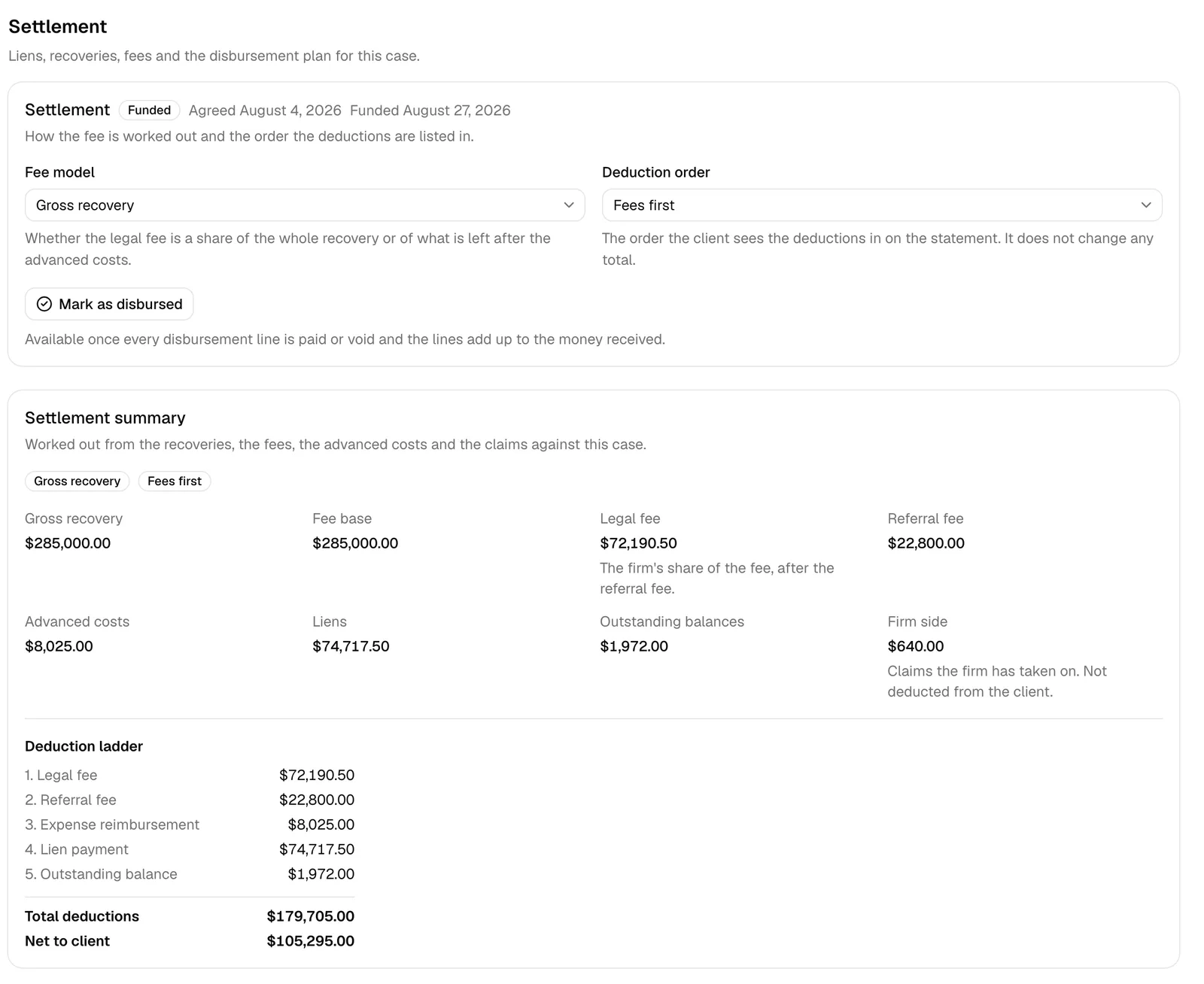
The card at the top carries two settings. Both save as soon as you change them (Settlement basis saved), and both start from the values on the case, which in turn start from your firm's defaults.
-
Fee model decides what the contingency percentage is calculated on:
- Gross recovery: the fee is a share of everything that came in.
- Net of expenses: the advanced case costs come off first and the fee is a share of what is left.
This is arithmetic. It changes the numbers.
-
Deduction order decides the order the client sees the deductions in on the statement:
- Fees first lists the legal fee, then the referral fee, then the expense reimbursement, then lien payments, then outstanding balances.
- Expenses first moves the expense reimbursement to the top and pushes the two fee lines down.
This is presentation. It never changes a total, which is why the field says so.
Tip: Set the pair once for your firm under Settings > Personal injury and every new case starts there. See Personal injury settings.
Record what came in
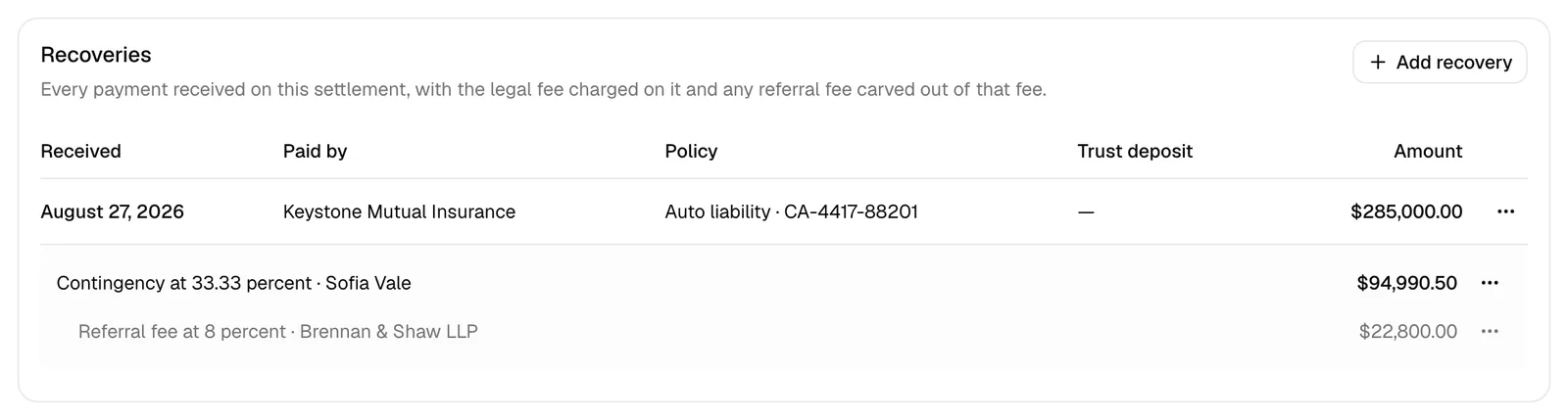
Recoveries ("Every payment received on this settlement, with the legal fee charged on it and any referral fee carved out of that fee") is the money side.
- Click Add recovery.
- Fill in the dialog:
- Amount (required).
- Received: the date the money arrived.
- Paid by: the carrier or payer, from your contacts.
- Policy: which of the case's insurance policies it came from.
- Trust deposit: link the trust deposit this money was banked into, so the register can pay out of it later.
- Description.
- Click Save recovery.
Add the legal fee
Each recovery holds its own fee. Open the recovery's "..." menu and choose Add legal fee:
- Fee kind (required): Contingency, Flat, or Hourly cap. The field explains it: "A contingency fee is worked out from the rate. A flat or capped fee is the amount you enter."
- Rate percent: only for a contingency fee.
- Discount: a reduction off the calculated fee.
- Fee amount: read only for a contingency fee, where it is worked out from the fee base and the rate. Typed for a flat or capped fee.
- Fee to: the member the fee belongs to.
Add a referral fee
A referral fee is a share of the legal fee that goes to referring counsel. It is a division of your fee, not another deduction from the client, so it never reduces what the client takes home.
Open a fee's "..." menu and choose Add referral fee:
- Referred by: the referring contact.
- Rate percent (required). The field tells you what it is carved out of, for example "Taken out of the legal fee, which is set at 33.33 percent."
- Referral fee amount: read only, and the field says why: "Worked out from the fee base and the referral rate. It comes out of the legal fee, never out of the client share."
Note: A referral fee rate can never exceed the legal fee rate it comes out of. Try it and you get "A referral fee rate cannot be higher than the legal fee rate it comes out of" and nothing is saved. The same rule applies in reverse: dropping a legal fee rate below a referral rate already recorded on it is refused too.
Liens and outstanding balances
Liens and balances is everything claimed against the recovery. It splits into three groups:
- Liens: claims asserted against the recovery, such as a provider lien or a health plan's subrogation claim.
- Outstanding balances: debts the client owes that you are settling out of the proceeds. These are always added by hand, because only a person can say a balance is a client debt rather than a claim on the recovery.
- Firm cost, not deducted from the client: anything marked as the firm's responsibility. It is shown so nothing is quietly dropped, but it never reduces the client's share.
Claims that come from a bill
A bill or a payer you flagged on the Medical tab appears here on its own, marked From a bill or From a payer, with a link back to the bill. Its holder, type, asserted amount, claim kind, and responsibility are fixed here, because they stay in step with the bill: change the bill and the claim follows; untick the flag and the claim comes off. The dialog says so.
What you record here is the negotiation: the reduction you got, the dates, and how it ended.
Add or edit a claim
- Click Add claim, or Edit on a row.
- Fill in the dialog:
- Claim kind (required): Lien or Outstanding balance.
- Claim type (required): Medical provider, Health plan subrogation, ERISA, Medicare, Medicaid, Hospital statutory, Workers compensation, Letter of protection, Litigation funding, Child support, Attorney, or Other.
- Holder: the contact holding the claim.
- Statutory basis: the statute or agreement the claim rests on.
- Asserted amount (required): what the holder is claiming.
- Reduction (required): No reduction, Fixed amount, or Percentage, then the value.
- Final amount: read only, "Worked out from the asserted amount and the reduction."
- Responsibility (required): Client or Firm, with the reminder that "A firm charge is not deducted from the client."
- Status (required): Asserted, Negotiating, Resolved, Waived, or Paid.
- Notice sent, Response due, Resolved, Linked document, and Notes.
- Click Save claim.
Tip: Set Response due on a lien you have given notice of. Esqase reminds you when it comes due, and the firm-wide liens register lists every response you are waiting on. See The personal injury workspace and reports.
Advanced case costs
Advanced case costs is read only. It gathers every expense on the matter that is flagged as an advanced client cost, grouped by category with a total.
An advanced client cost is money the firm has laid out on the client's behalf, such as a filing fee or a records charge, that is reimbursed from the settlement. You mark one when you record the expense: on the New expense dialog, tick Advanced client cost. See Time and expense tracking.
Because both this section and the settlement summary read the same flag, they can never disagree.
Read the settlement summary
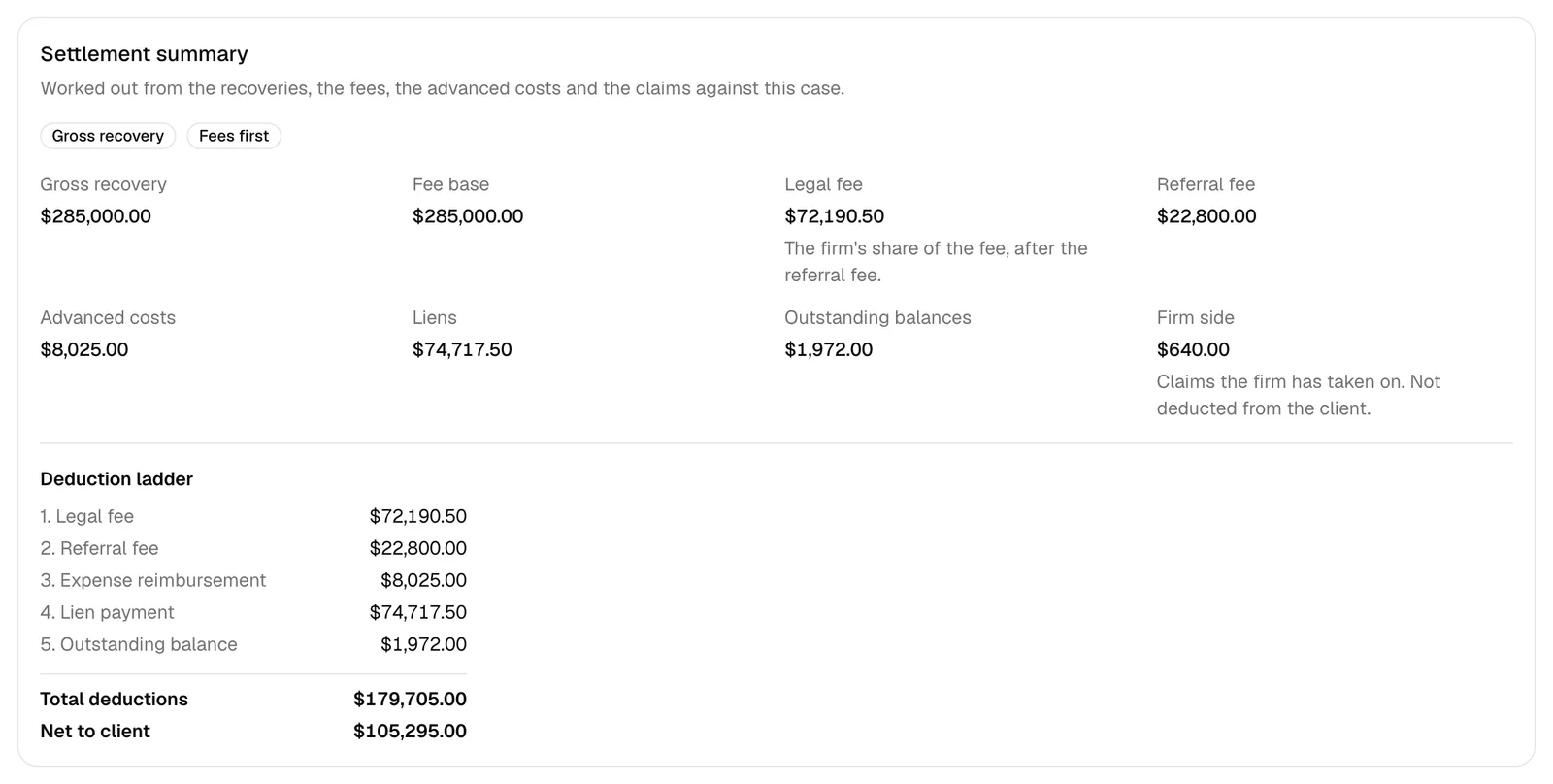
Settlement summary is the live calculation. It refreshes after every change on the tab, and it is what the statement prints.
| Figure | What it is |
|---|---|
| Gross recovery | Everything that came in |
| Fee base | What the percentage applies to. The same as the gross under Gross recovery; the gross less the advanced costs under Net of expenses |
| Legal fee | The firm's share of the fee, after the referral fee |
| Referral fee | The share going to referring counsel |
| Advanced costs | The advanced client costs being reimbursed |
| Liens | Client-responsibility liens, at their final amounts |
| Outstanding balances | Client-responsibility balances, at their final amounts |
| Firm side | Claims the firm has taken on. Not deducted from the client |
Below them, the Deduction ladder lists the deductions in your chosen order, numbered, with Total deductions at the end, and Net to client as the closing figure.
Three rules are worth knowing, because they are what makes the numbers add up:
- The referral fee is not a second deduction. The client's share is reduced by the whole legal fee once. The ladder then splits that one fee into the part the firm keeps and the part referring counsel receives, so the statement shows who gets what without charging the client twice.
- A firm-responsibility claim is the firm's cost. It is reported under Firm side and left out of the deductions and the net.
- Everything is rounded to cents, row by row, before it is totalled. That is what lets the payments you plan match the statement to the penny.
Plan and pay the disbursements
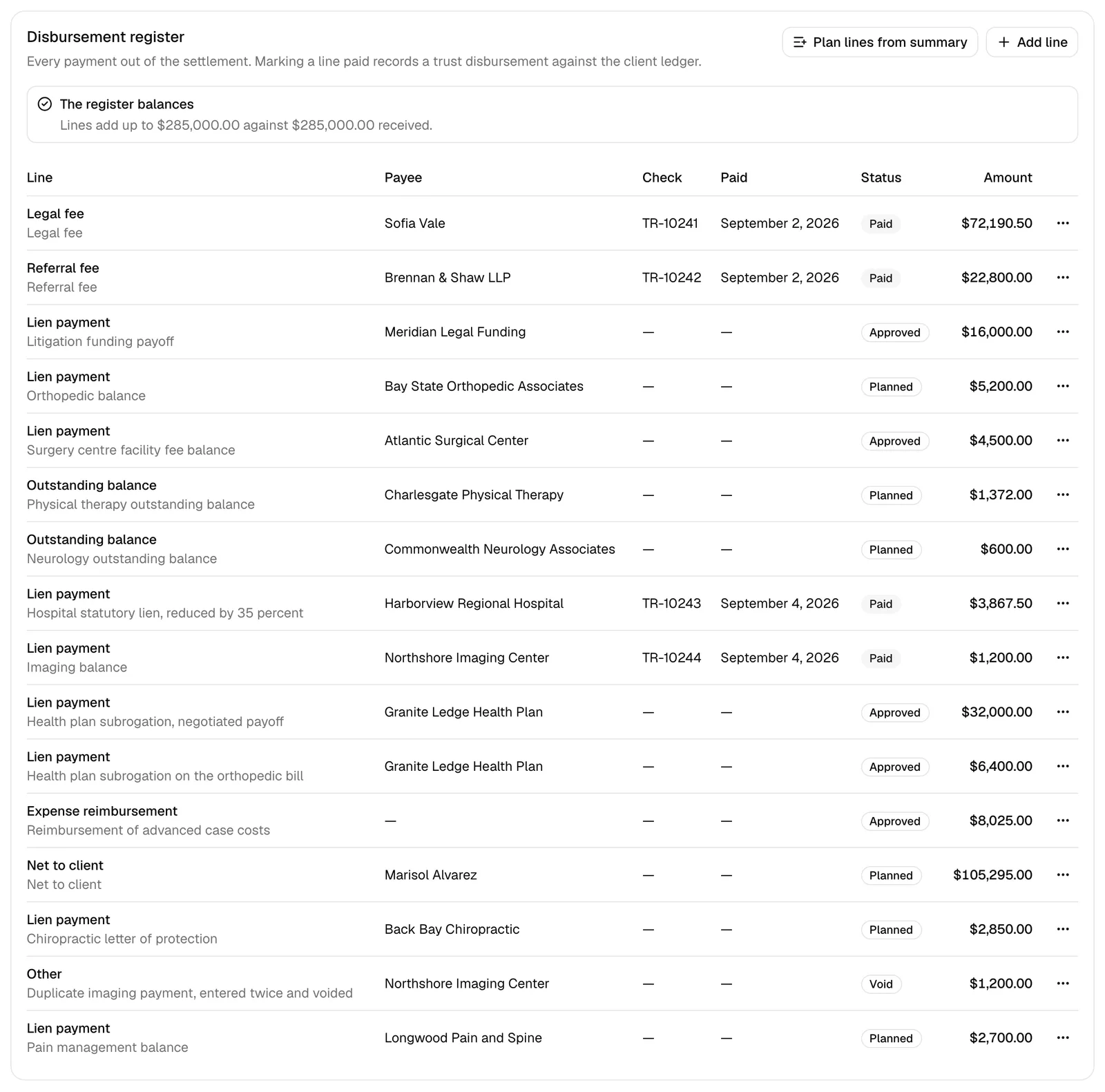
The Disbursement register ("Every payment out of the settlement. Marking a line paid records a trust disbursement against the client ledger") is where the money actually moves.
Plan the lines
Click Plan lines from summary. Esqase creates one Planned line for each step of the deduction ladder plus a Net to client line, with payees filled in where it can work them out. A message tells you how many were created.
An alert under the header compares the lines against the money received: The register balances when they match, or The register does not balance yet with both figures, so you can see the gap.
Note: You can only plan once. A second attempt is refused with "This register already has lines. Remove or void them before planning again". You can always add a line by hand with Add line, or edit any planned line.
Note: If the deductions come to more than the recovery there is nothing left for the client, so no client net line is planned and a red alert appears: The deductions exceed the recovery. Reduce a fee, a lien, or a balance and plan again.
Approve a line
Open a planned line's "..." menu and choose Approve. The status moves to Approved. This is the checkpoint between "this is what we think we owe" and "pay it".
Record the payout
- Open an approved line's "..." menu and choose Mark paid.
- The Mark paid dialog opens, explaining that "The money leaves the client ledger on the trust account you pick. A payout that would take that ledger below zero is refused."
- Fill in:
- Trust account (required).
- Client ledger (required): the client the money is held for.
- Amount: read only, and fixed at the line's amount ("A payout always covers the whole line").
- Date (required), which cannot be in the future.
- Payee (required), Check number, and Description.
- Click Record payout. You will see Payout recorded.
Esqase records a real trust disbursement against the client's ledger and links it to the line, so the money coming out of trust and the settlement statement are the same event, not two records that might drift apart. The line's status becomes Paid and its transaction appears on the matter's Transactions tab.
Important: A payout always covers the whole line. To pay part of a claim, split it into two lines first (edit the existing line down and Add line for the remainder), then pay each one. A partial amount is refused with "A payout has to be for the full amount of the line. Split the line first to pay part of it".
Note: Very occasionally the trust payment records but the line does not update, and you will see "The payment was recorded in trust but the line could not be marked as paid. Open the line and mark it paid before paying again". Do exactly that. Do not run the payout again, or the money will leave trust twice.
Void or remove a line
Void marks a line as cancelled and keeps it in the register as a record. Remove deletes it, and the register stops accounting for it. Use Void for a payment that was planned and abandoned, and Remove for a line that should never have existed.
The settlement statement
Settlement statement produces the document the client signs off on.
- Click Generate statement. You will see Settlement statement generated.
- The statement is filed as a PDF in the matter's document folder, named for the matter and the date, and the card shows a link to it.
The statement prints:
- The client, the matter, the settlement status, the fee basis, and the deduction order.
- Money received, one line per recovery, totalled as Gross recovery.
- Deductions, one line per ladder step, totalled as Total deductions.
- Net payable to the client, in a box.
- Paid by the firm, not deducted from the client, when there are firm-responsibility claims.
- Your firm's acknowledgment wording, set under Settings > Personal injury, immediately above the signature block.
- Client signature and Date lines.
Send it for signature
Click Send for signature. This opens the statement document, where you place the signature fields and send the request the same way you do for any other document. See Requesting eSignatures.
Note: The settlement tab does not track the signing. Once you have sent the request, follow it on the document itself or on the For signature tab. See Managing signature requests.
Tip: Generating again files a new statement and points the card at it. The earlier version is kept on purpose, so the copy you already sent a client stays exactly as they received it.

Move the settlement through its statuses
One button at the top advances the settlement, and each step asks you to confirm.
| Step | Button | What it does |
|---|---|---|
| Draft to Agreed | Mark as agreed | Records the date the settlement was agreed. Recoveries and fees stay editable |
| Agreed to Funded | Mark as funded | Records the date the money arrived. Record the trust deposit for each recovery so the register can pay from it |
| Funded to Disbursed | Mark as disbursed | Available once every disbursement line is paid or void and the lines add up to the money received |
| Disbursed to Closed | Close settlement | Closes the settlement. Nothing further is expected on it |
Marking a settlement Funded notifies everyone assigned to the matter.
Mark as disbursed is the one with teeth. It is refused with "Every disbursement line has to be paid or void before the settlement can be marked as disbursed" while anything is still planned or approved, and with "The disbursement lines do not add up to the money received, so this settlement cannot move on yet" if the register does not balance to the cent. That check is the point: a settlement that does not add up is not one you should be closing.
A worked example
A case settles for a single payment of 100,000.00. The firm's fee is a contingency at 33.3333 percent, with a 10 percent referral fee to the attorney who sent the case. The firm advanced 500.00 in case costs. Two provider liens of 4,000.00 each and one outstanding balance of 1,000.00 are all the client's responsibility. Fee model is Gross recovery and Deduction order is Fees first.
The summary card reads:
| Figure | Amount |
|---|---|
| Gross recovery | 100,000.00 |
| Fee base | 100,000.00 |
| Legal fee | 23,333.30 |
| Referral fee | 10,000.00 |
| Advanced costs | 500.00 |
| Liens | 8,000.00 |
| Outstanding balances | 1,000.00 |
| Total deductions | 42,833.30 |
| Net to client | 57,166.70 |
The whole legal fee is 33,333.30. The card shows 23,333.30 because it reports the firm's share after the 10,000.00 referral fee has been paid out of it. The client is charged the fee once: 33,333.30 plus 500.00 plus 8,000.00 plus 1,000.00 comes to 42,833.30.
The deduction ladder runs:
- Legal fee 23,333.30
- Referral fee 10,000.00
- Expense reimbursement 500.00
- Lien payment 8,000.00
- Outstanding balance 1,000.00
Plan lines from summary then creates seven planned lines that add up to exactly 100,000.00: the legal fee 23,333.30, the referral fee 10,000.00, the expense reimbursement 500.00, two lien payments of 4,000.00 each, the outstanding balance 1,000.00, and net to client 57,166.70. The alert reads The register balances.
Switch Fee model to Net of expenses and only the fee side moves. The fee base drops to 99,500.00 (the gross less the 500.00 advanced), the whole fee becomes 33,166.63, the referral fee becomes 9,950.00, the card's Legal fee reads 23,216.63, and the client's net rises to 57,333.37.
Switch Deduction order to Expenses first instead and the expense reimbursement moves to step 1 with the two fee lines behind it. Every amount, and the net, stays exactly the same.
Common questions
Why does the Legal fee on the card not match the fee I entered? The card shows the firm's share, which is the whole fee less any referral fee coming out of it. The whole fee is what the ladder's two fee lines add back up to.
A firm-responsibility lien is not reducing the client's net. Correct. Anything marked Firm is listed under Firm side and in its own group, because the firm has agreed to absorb it. Change Responsibility to Client if it should come off the client's share.
Mark as disbursed is refused and I cannot see why. Two things must both be true: every line is Paid or Void, and the lines add up to the money received to the cent. The alert above the register tells you which of the two is failing.
Can I regenerate the statement after a change? Yes. Click Generate again and a new PDF is filed. The previous one is kept.
Does the settlement show me whether the client has signed? No. Sending for signature hands you off to the document's own signing flow, and the signing status lives there rather than on this tab.
Do the amounts in the tables match the summary card? Under Net of expenses a fee stored against a recovery and the fee recalculated on the net base are different numbers. The tables deliberately show the summary's figure, which is the one the statement prints.