Invoice and billing settings
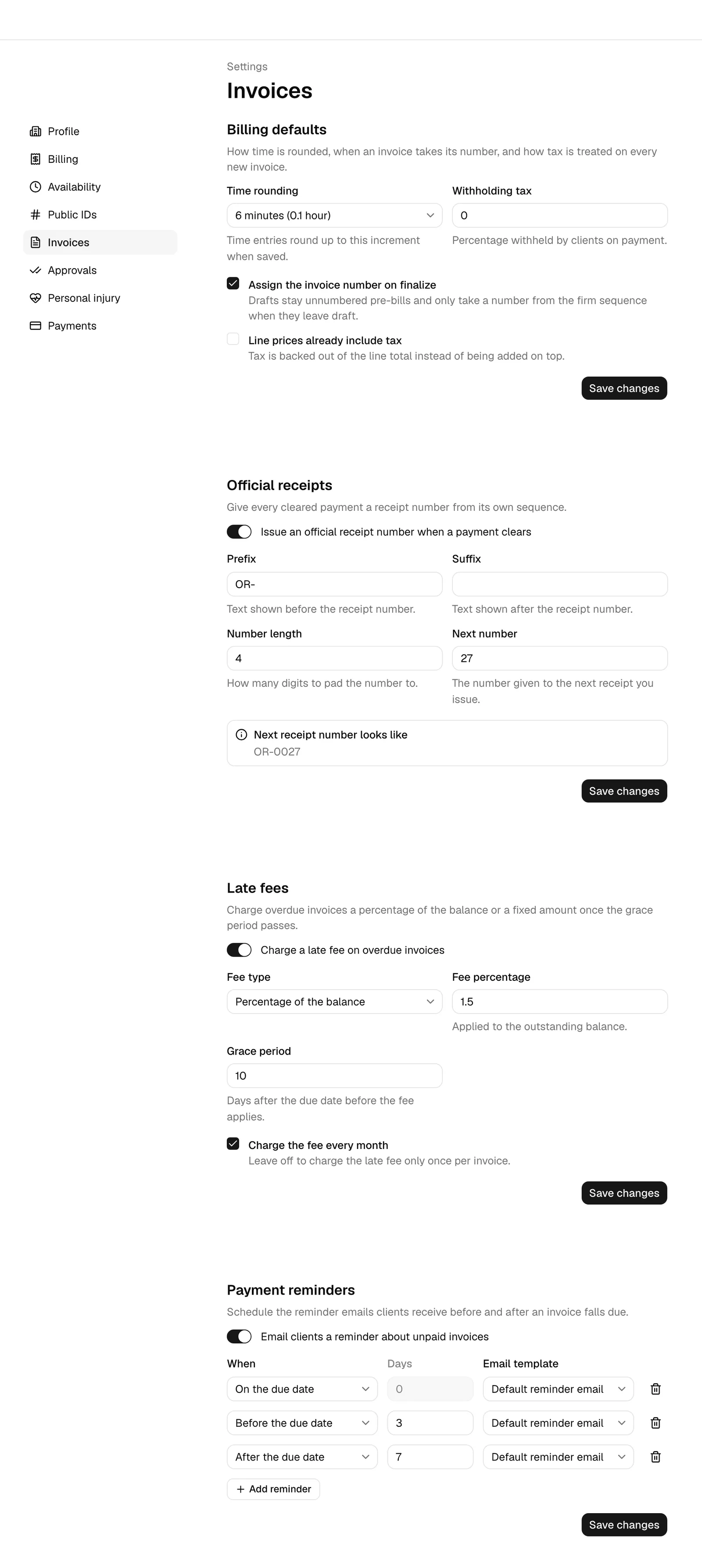
One screen holds the rules Esqase applies to every invoice your firm raises: how worked time is rounded, when an invoice takes its number, how tax is treated, whether cleared payments get an official receipt number, whether overdue invoices are charged a late fee, and when clients are emailed a reminder. This page walks through all four sections.
Before you begin
- Permission. You need View access for invoice settings to open the screen, and Edit access to change anything. Firm owners and administrators have both by default; attorneys and staff have neither, so they do not see the page at all. If you have View but not Edit, every field is visible but the Save buttons are disabled. See Roles and permissions.
- Where it lives. In the sidebar, open Settings, then Firm, then Invoices. You can also reach it from the settings home page, under the Firm group, on the Invoices card.
Note: These settings apply to your whole firm and take effect on the next invoice or payment. Nothing already issued is recalculated.
Billing defaults
The first section covers time rounding, invoice numbering, and tax treatment.
- Open Settings > Firm > Invoices.
- Set Time rounding. This is the increment worked time is rounded up to when a time entry is saved or a timer is stopped. Choose from No rounding, 1 minute, 6 minutes (0.1 hour), 10 minutes, 15 minutes (0.25 hour), 30 minutes, or 60 minutes (1 hour).
- Set Withholding tax. This is the percentage your clients withhold from their payments and remit to the tax authority on your behalf. Leave it at 0 if withholding does not apply to you. See Tax rates.
- Tick or untick Assign the invoice number on finalize. When it is on, drafts stay unnumbered pre-bills and only take a number from the firm sequence when they leave draft. When it is off, every invoice takes a number the moment it is created, including drafts you later abandon.
- Tick or untick Line prices already include tax. When it is on, the amounts on your rate cards are treated as tax-inclusive and the tax is backed out of the line total instead of being added on top.
- Click Save.
What time rounding actually does
Rounding shapes the billable quantity, never the recorded time. A 3 minute entry under a 6 minute increment still reads as 3m in the timer and on the entry, and bills 0.1 hour.
Rounding is applied when an entry is saved and when a timer is paused, so it is visible on the entry before it ever reaches an invoice.
Important: Rounding rounds up, always. That is the legal-billing convention: any part of an increment consumes the whole increment. No rounding bills the exact recorded time, which is how every entry recorded before you set an increment was billed.
Note: A fixed-price activity category ignores rounding entirely, because it charges one flat amount rather than an amount per hour. See Activity categories and rates.
What "assign the invoice number on finalize" does
Invoice numbers are the sequence your clients see, so gaps in them invite questions from auditors. With this setting on:
- A draft carries no firm number. It reads as Pre-bill wherever an invoice number would appear, in the Invoices list and at the top of the invoice's own page.
- The moment you finalize the draft, whether it goes to In review or straight to Pending, it takes the next number in the sequence and keeps it for good.
- A draft you never finalize, or delete, burns no number at all.
With the setting off, an invoice takes its number when it is first saved, so an abandoned draft leaves a hole in the sequence.
The number format itself, the prefix, suffix, padding, and whether the sequence restarts each year, is set separately. See Document and record numbering.
Tip: The year on a numbered invoice comes from its issue date, not from the day you pressed Save. Back-dating an invoice into December numbers it in December's year.
Official receipts
An official receipt is a numbered acknowledgement that money was received. In many jurisdictions it is the document a client needs for their own tax return, and its numbering has to be sequential and gapless.
- In the Official receipts section, switch on Issue an official receipt number when a payment clears.
- Fill in the sequence:
- Prefix. Text shown before the number, for example
OR-. Up to 8 characters. - Suffix. Text shown after the number. Up to 8 characters.
- Number length. How many digits to pad the number to, between 1 and 10. A length of 4 produces
0001. - Next number. The number the next receipt takes. At least 1. Set this to continue from a sequence you started elsewhere.
- Prefix. Text shown before the number, for example
- Click Save.
Once it is on, every payment that reaches Cleared is stamped with the next receipt number, and its receipt PDF is titled OFFICIAL RECEIPT and carries that number. Payments that cleared before you switched the setting on keep no number: their receipts are titled PAYMENT RECEIPT and are referenced by the payment instead.
Important: The combined length of the prefix, the padded number, and the suffix cannot exceed 24 characters. If it does, Esqase refuses to save and tells you so.
Note: Receipt numbers are consumed when a payment clears, not when it is recorded. A pending payment that later fails never takes a number, so the sequence stays gapless.
To download a receipt, see Recording and managing payments.
Late fees
Esqase can add a late fee to invoices that pass their due date. It is a firm-wide policy, checked once a day.
- In the Late fees section, switch on Charge a late fee on overdue invoices.
- Choose the Fee type:
- Percentage of the balance. The fee is that percentage of what is still outstanding at the moment it is charged. It cannot be more than 100%.
- Fixed amount. A flat amount, never more than the outstanding balance.
- Enter the Fee percentage or the Fee amount, whichever the type calls for. It has to be greater than zero.
- Set the Grace period: the number of days after the due date before the fee applies. 0 charges it the day after the invoice falls due. Up to 365 days.
- Decide whether to tick Charge the fee every month. Leave it off to charge the late fee only once per invoice. With it on, the fee repeats roughly every 30 days for as long as a balance remains.
- Click Save.
When the policy catches an invoice, the fee is added as a line on that invoice, described as a late fee with the date it was assessed, and the invoice total rises by that amount. Nothing is charged to a card: the client simply owes more, and pays it with the rest of the balance.
Important: A late fee needs a due date to work from. An invoice saved without Include due date ticked never falls due, so it is never charged a late fee.
Note: Once the balance reaches zero, no further fee is charged, even with Charge the fee every month on.
Note: An invoice with an active payment plan follows the plan's schedule instead of its own due date: it is charged a late fee only when one of its installments is past due (by the grace days) and unpaid, with no payment for it still processing. The fee is a percentage of the whole outstanding balance, as for any invoice, so the plan's unpaid installments no longer add up to the balance until you edit the plan to rebalance it. See Payment plans and autopay.
Payment reminders
Reminders are emails Esqase sends your client about an unpaid invoice. They are separate from the in-app alerts your own team gets about invoices coming due.
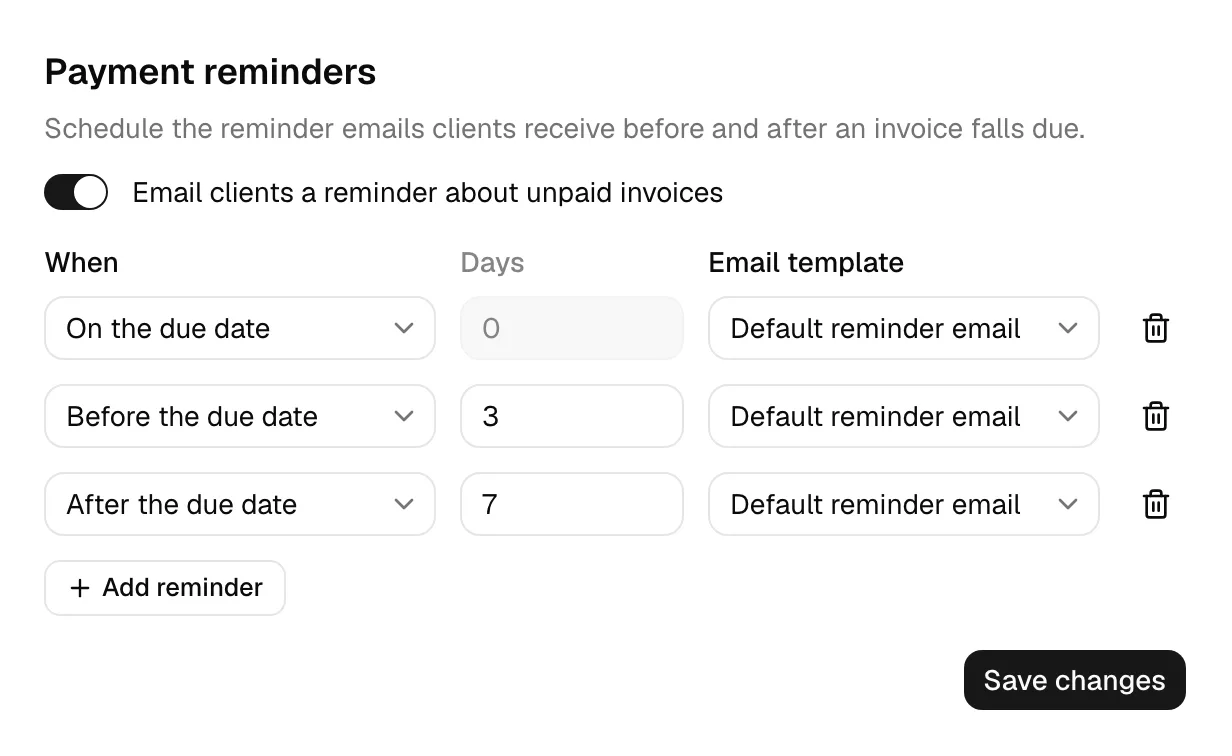
- In the Payment reminders section, switch on Email clients a reminder about unpaid invoices.
- Click Add reminder and fill in the row:
- When. Before the due date, On the due date, or After the due date.
- Days. How many days before or after. The field is fixed at 0 and disabled for an on-the-due-date reminder.
- Email template. Leave it on the default to send Esqase's built-in reminder, or pick one of your firm's email templates. See Email templates.
- Repeat for each reminder in the sequence. A typical schedule is 3 days before, on the day, then 7 and 14 days after.
- Remove a row with the bin button next to it.
- Click Save.
You can schedule up to 12 reminders. Two reminders cannot land on the same day, and an on-the-due-date reminder cannot carry an offset. Esqase tells you if either rule is broken.
What the client receives
Each morning Esqase works out which invoices are due a reminder and queues the emails. A reminder goes out only when all of the following hold:
- The firm has reminders switched on and at least one row scheduled.
- The invoice has a due date and is Pending or Partially paid, with a balance still outstanding.
- The invoice is not a proforma.
- The client has an email address on their contact record.
- No workflow is sending its own payment reminders for the invoice.
- If the invoice has an active payment plan, one of its installments is past due and unpaid, with no payment for it still processing. The plan sends its own reminder before each installment; see Payment plans and autopay.
The email names the invoice, the amount due, and the due date, and carries a link to the invoice's payment page when one exists and has not expired. If no payment link has been generated, the reminder still goes out, just without the link, so it is worth generating a link when you first send the invoice. See Creating and sending invoices.
Note: If you pick one of your own email templates and it uses a placeholder the reminder cannot fill in, for example your firm's postal address or a member's name, Esqase falls back to the built-in reminder for that send rather than emailing your client a half-filled message. Keep reminder templates to client, firm name, and invoice placeholders.
Important: Changing an invoice's due date makes it eligible again, so the reminder sequence follows the new date rather than staying suppressed against the old one.
Note: One reminder schedule at a time. An Invoice step in a workflow can send its own payment reminders, and while those are running for an invoice, the reminders on this page skip it. When the workflow's reminders pause or finish, this schedule picks the invoice up again. See Invoice step.
Common questions
Do reminders go out for invoices raised before I set the schedule? Yes, as long as they still have a due date, an outstanding balance, and a payable status. Esqase looks back over recent invoices rather than only at the ones raised since you saved the schedule.
Will my client get two reminders on the same day? No. Each scheduled reminder fires once per invoice, and Esqase will not let you schedule two on the same day.
I switched reminders off. Will queued ones still send? No. The daily job only looks at firms that currently have reminders switched on.
Does time rounding change entries that already exist? No. It applies when an entry is saved, so existing entries keep the quantities they were saved with.