Medical records and treatment
The Medical tab is where an injury case is built. It holds the incident record, every provider the client has treated with, the records and bills you have asked each one for, the records that came back, and the bills with whatever has already been paid against them. It is also where a bill balance becomes a lien on the eventual recovery.
Before you begin
- Personal injury is part of the Professional plan. On the Standard plan the module is hidden: the Personal injury group is not in the sidebar and matters do not show the personal injury tabs. Only the firm owner can move the firm to Professional, from Settings > Billing. See Your Esqase subscription.
- Outside the Philippines, your firm owner also accepts an agreement once. Until that is done, the module opens on a Business Associate Agreement required card and nothing can be recorded. A firm registered in the Philippines accepts no agreement: the module opens as soon as the firm is on Professional. See Business associate agreement (BAA).
- Open the matter and click the Medical tab. If the matter is not tracked as a personal injury case yet, see Personal injury overview.
- The incident details card needs View access for Personal injury. Everything below it needs View access for Medical records and bills. With the first but not the second you see the incident card and the message "Medical records are not shared with you".
- Adding, editing, and deleting on this tab need Create, Update, and Delete access for Medical records and bills. Editing the incident card needs Update for Personal injury.
- Nothing can be created on an archived matter, even with full access.
Note: A firm registered in the Philippines runs this tab as part of Torts and Damages, and What was requested offers the Philippine documents: a medico-legal certificate, a PNP traffic accident investigation report, a barangay blotter, a Certificate to File Action, a PSA death certificate, and income proof. See Torts and damages (Philippines).
A tour of the tab
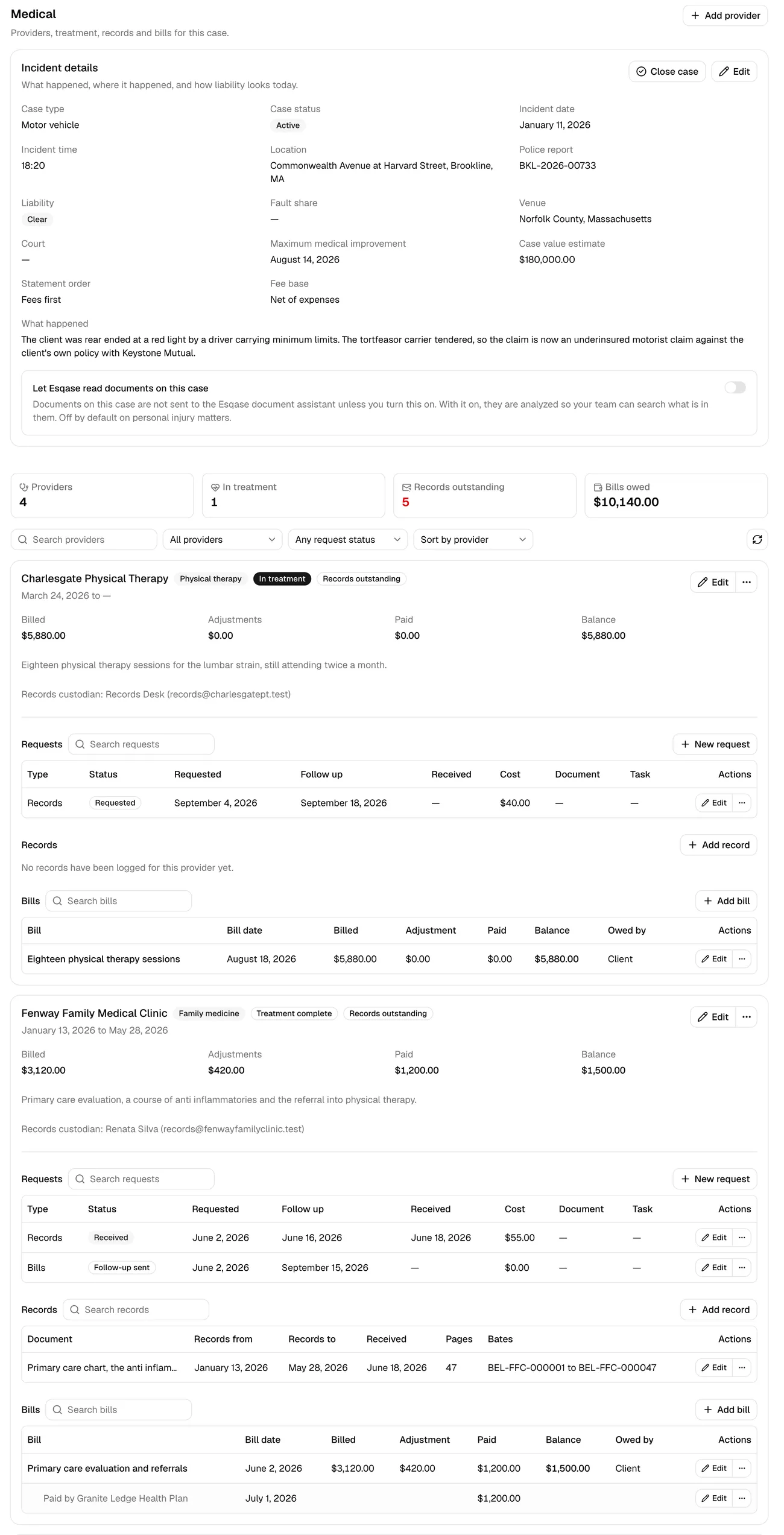
Under the heading Medical ("Providers, treatment, records and bills for this case") the tab stacks five things:
- Incident details, a card summarising what happened and how liability looks.
- Four stat cards: Providers, In treatment, Records outstanding (which turns red when anything is outstanding), and Bills owed.
- A treatment gap warning, when there is one.
- A toolbar for searching, filtering, and sorting the provider cards.
- One card per treating provider, each holding Requests, Records, and Bills.
Record the incident details
The Incident details card ("What happened, where it happened, and how liability looks today") is the case record itself.
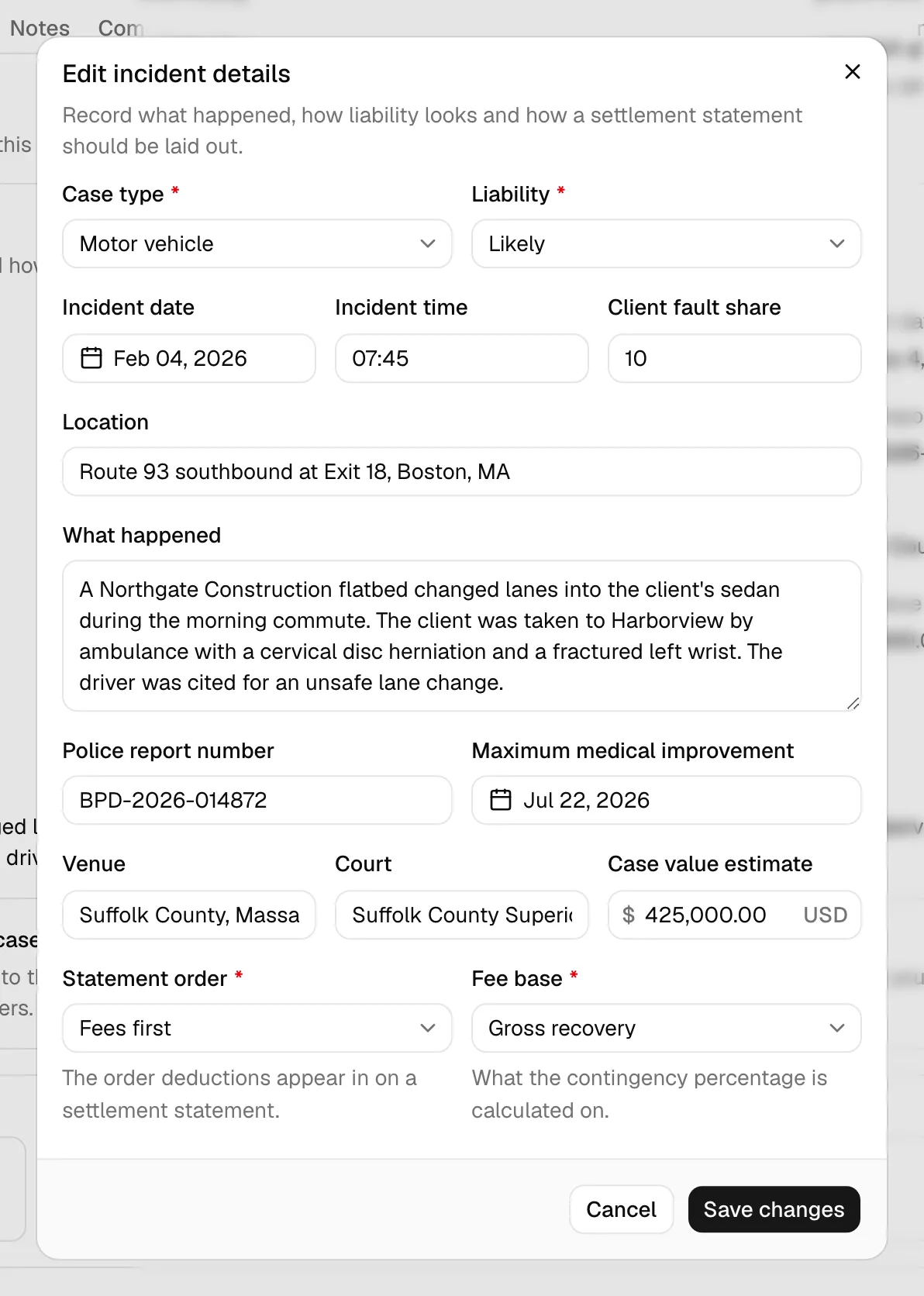
- Click Edit on the card. The Edit incident details dialog opens.
- Fill in what you know:
- Case type (required): Motor vehicle, Premises, Medical malpractice, Workplace, Product liability, Wrongful death, Dog bite, or Other.
- Liability (required): Clear, Likely, Disputed, Unfavorable, or Unknown.
- Incident date and Incident time (for example 14:30).
- Client fault share, the percentage of fault attributed to your client.
- Location, What happened, and Police report number.
- Maximum medical improvement, the date the client's condition stopped improving. Reaching it is usually the point at which you can value the claim.
- Venue, Court, and Case value estimate.
- Statement order (required), with the note "The order deductions appear in on a settlement statement." Choose Fees first or Expenses first.
- Fee base (required), with the note "What the contingency percentage is calculated on." Choose Gross recovery or Net of expenses.
- Click Save changes. You will see Incident details updated.
Statement order and Fee base are the starting values for this case's settlement. They are copied onto the settlement when you start one, and you can change them there without coming back here. See Settlement and disbursement.
Tip: The defaults for both come from Settings > Personal injury, so set them once for the firm rather than on every case. See Personal injury settings.
Close and reopen a case
When a case is finished, click Close case on the incident card and confirm. Closing takes the case out of the open lists and the reports; everything already recorded stays exactly where it is. The card's Case status reads Closed, and Reopen case puts it back.
Note: Edit, Close case, and Reopen case appear only with Update access for Personal injury.
Add a treating provider
Each provider the client has seen gets its own card.
- Click Add provider in the tab header (or use the Add provider button in the empty state, which reads "No providers yet").
- Fill in the Add provider dialog:
- Provider (required): the clinic, hospital, or practitioner, picked from your contacts. If they are not a contact yet, use the Add one on the Contacts page link, create them, then come back. See Working with contacts.
- Provider profile: optional. Links the records custodian details your firm keeps in the provider directory, so a records request does not start from scratch. Only active profiles are listed. See the provider directory below.
- First visit and Last visit.
- Notes.
- Also save this provider to the firm directory: creates a directory profile for this contact as you go. It appears only when no profile is linked.
- The client is still treating with this provider: on by default. Untick it when treatment is complete.
- Click Add provider. You will see Provider added, and a second message, Provider profile added to the firm directory, if you asked for one.
Each provider card shows the contact's name (a link to the contact), the specialty from the linked profile, the treatment date range, the records custodian, and running totals for Billed, Adjustments, Paid, and Balance.
The card also carries two badges: In treatment or Treatment complete, and a records badge that Esqase works out from the requests underneath it:
| Badge | What it means |
|---|---|
| Nothing requested | No requests yet, or all of them are still Not requested |
| Records outstanding | At least one request is still open |
| Records incomplete | Something came back incomplete |
| Records refused | A provider has refused a request. This wins over the others |
| Records complete | Every request is Received or Certified |
To change a provider, click Edit on its card. The card's "..." menu also offers New request, Add record, Add bill, and Delete. Deleting a provider removes its requests, records, and bills from the case (the entry stays on file for the audit trail) and takes away any lien worked out from its bills.
Request records and bills
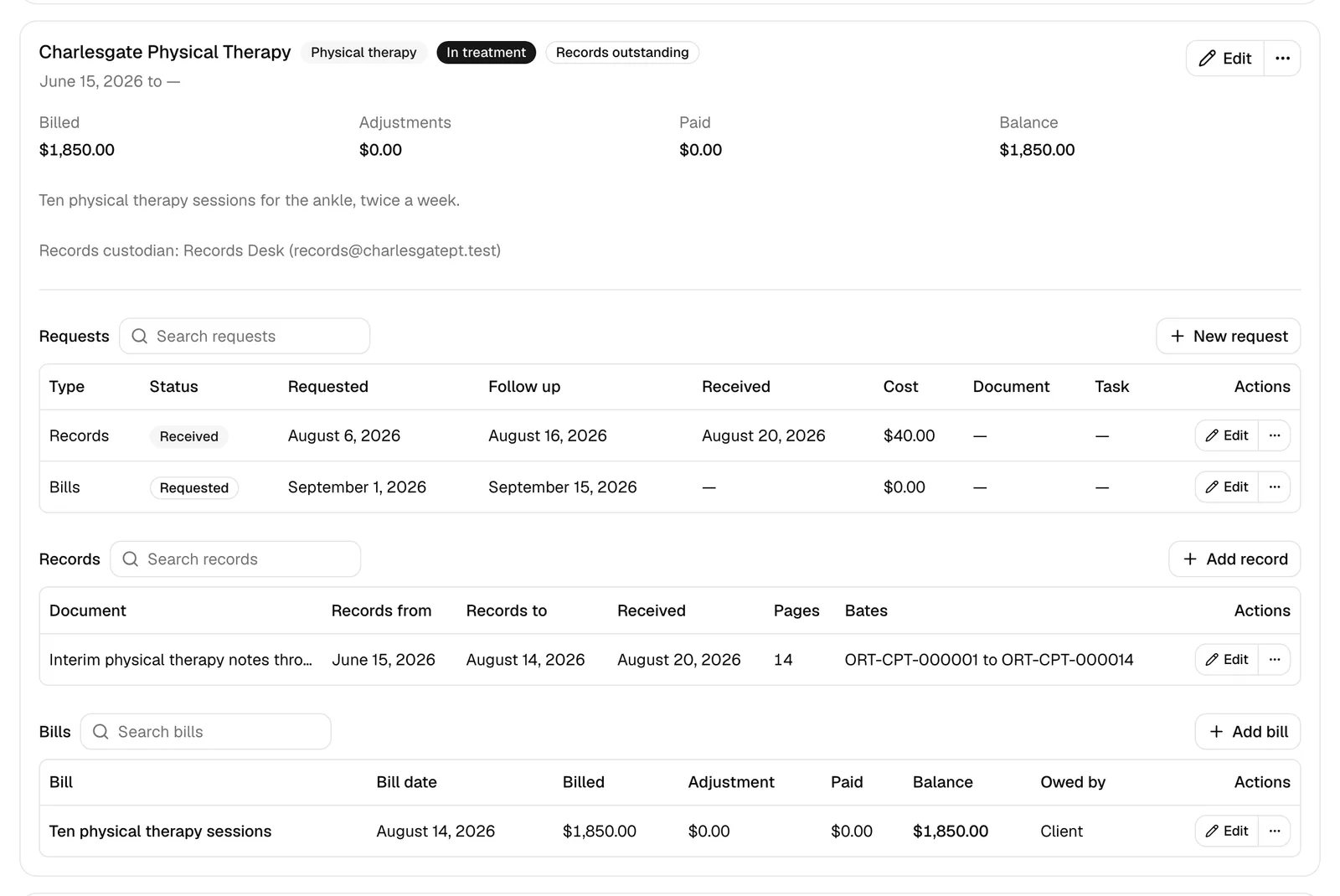
The Requests section on each provider card tracks what you have asked for and when to chase it.
- Click New request (on the section or in the provider card's "..." menu).
- Fill in the New request dialog:
- What was requested (required): Records, Bills, Imaging, Film, or Affidavit.
- Status (required): Not requested, Requested, Follow-up sent, Received, Incomplete, Certified, or Refused.
- Requested, Follow up, and Received dates.
- Cost and Vendor reference, for a retrieval service you are paying.
- Document: link the file this request produced, from this matter's documents.
- Notes.
- Create a follow-up task assigned to me: see below.
- Click Add request. You will see Request added.
The request row shows the type, its status, the three dates, the cost, the linked document, and the linked task.
The follow-up task
Tick Create a follow-up task assigned to me and Esqase creates a task called Follow up on records request, assigned to you, due on the Follow up date you entered, in the matter's first task stage. A second message, Follow-up task created, confirms it, and the request row's Task cell links straight to it.
The checkbox disappears once a request has a task, so you cannot end up with two.
Note: The task needs your firm to have task stages on the matter and task numbering configured. If either is missing, the request still saves but no task is created and you only see the Request added message. If you tick the box and no Follow-up task created message follows, check Task kanban, stages, and types and Document and record numbering.
Update a request as it moves
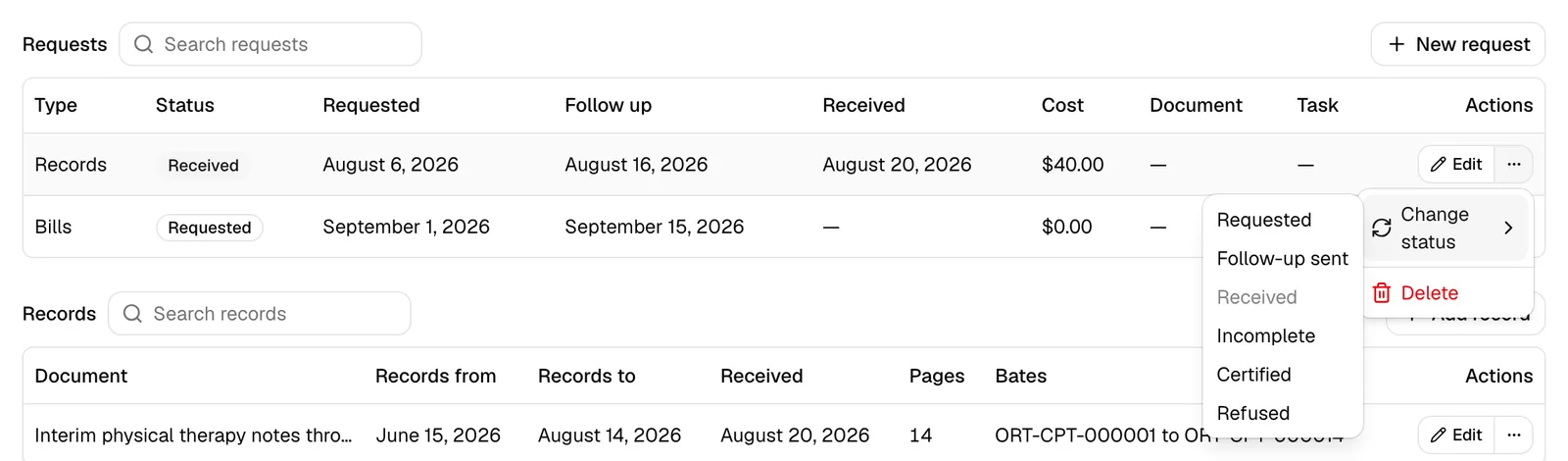
Open the request row's "..." menu and use Change status to pick the new status in one click. The row updates in place, the provider card's records badge follows, and you will see a short confirmation such as Request marked received.
The same menu holds Edit and Delete.
Tip: You do not have to work request by request. The firm-wide records worklist gathers every open request across every matter, with the overdue ones flagged and the same status dropdown on each row. See The personal injury workspace and reports.
Log medical records
Once records arrive, log them in the Records section so you know what you are holding.
- Click Add record.
- Fill in the Add record dialog:
- Document: the file the records live in, from this matter's documents.
- Came from: the request this answers. This field appears only if the provider has at least one request.
- Records from and Records to: the period the records cover.
- Received: when they arrived.
- Pages.
- Bates from and Bates to: the Bates numbering stamped on the pages. Bates numbers are the sequential identifiers used to reference a specific page in litigation.
- Description.
- Click Add record. You will see Record added.
Deleting a record removes the entry only. The linked document stays in the matter.
Record bills, payers, and liens
The Bills section holds what each provider charged and what is still owed.
- Click Add bill.
- Fill in the Add bill dialog:
- Bill name (required).
- Bill date and Received.
- Amount billed (required).
- Adjustment: a write-down the provider has already applied.
- Balance: read only. Esqase works it out, and the field says so: "Worked out from the amount, the adjustment and what payers have paid."
- Who owes the balance (required): Client or Firm. Choose Firm for a cost the firm has agreed to absorb; it is then listed apart on the settlement and never comes out of the client's share.
- Document.
- Treat the balance as a lien on the recovery: see below.
- Click Add bill. You will see Bill added.
How the balance is worked out
The balance is always amount billed, less the adjustment, less everything payers have paid. You never type it. Add a payer and the balance drops; delete that payer and it comes back. That is why the field is read only: a typed balance and a recorded payment would disagree the moment one of them changed.
Add a payer
A payer is anyone who has already paid part of a bill: a health plan, a med-pay carrier, or the client.
- Open the bill row's "..." menu and choose Add payer.
- Fill in the Add payer dialog:
- Payer (required): the health plan, insurer, or person, picked from your contacts.
- Amount paid (required).
- Paid on.
- This payer asserts a lien on the recovery: see below.
- Click Add payer. You will see Payer added.
Payers appear indented under their bill, each labelled "Paid by" and the contact's name.
Turn a balance into a lien
Two tick boxes create a claim against the settlement:
- Treat the balance as a lien on the recovery on a bill creates a Medical provider lien held by the treating provider, for whatever the balance is.
- This payer asserts a lien on the recovery on a payer creates a Health plan subrogation lien held by that payer, for what they paid.
Both appear on the Settlement tab under Liens, marked From a bill or From a payer, with a link back to this tab. You cannot edit their holder, type, or asserted amount there, because they stay in step with the bill: change the bill and the claim follows, untick the flag and the claim comes off the settlement. What you record on the settlement side is the reduction you negotiate and how it was resolved. See Settlement and disbursement.
Important: Ticking either box changes what the client takes home, because the claim is deducted from their share. Only a bill or payer marked Client does that; one marked Firm is listed separately as a firm cost. Anyone with Update access to Medical records and bills can tick these boxes, so treat that permission as a money permission, not a filing one.
Note: Occasionally you will see a warning after saving: "We saved the bill, but the lien register did not refresh. Open the Settlement tab to check it". Your bill is saved; only the lien list is out of step. Open the Settlement tab and it will be correct.

Find a provider on a busy case
The toolbar above the provider cards narrows a long list without reloading anything.
- Search providers matches on the provider's name.
- The first filter shows All providers, In treatment, or Treatment complete.
- The second filter, Any request status, narrows to providers that have a request at a given status, which is the fastest way to find everyone who has refused or come back incomplete.
- The sort control offers Sort by provider, Sort by first visit, Sort by last visit, and Sort by balance.
- Clear filters appears as soon as anything is set. If a filter hides everything, the tab reads "No providers match these filters".
- The refresh button reloads the cards from the server.
Mind the gaps in treatment
If the case has a break of more than 30 days between one provider's last visit and the next provider's first, a warning card appears above the cards, headed One gap in treatment or N gaps in treatment, with the note "A defense adjuster will look for breaks longer than 30 days between visits." Each gap is listed with its length and the two providers either side of it.
Gaps are not errors. They are the thing an adjuster will use to argue the injury healed and then recurred, so it is worth having an explanation ready for each one.
The provider directory
Providers you request from often are worth keeping in a firm-wide directory so the custodian details are ready every time.
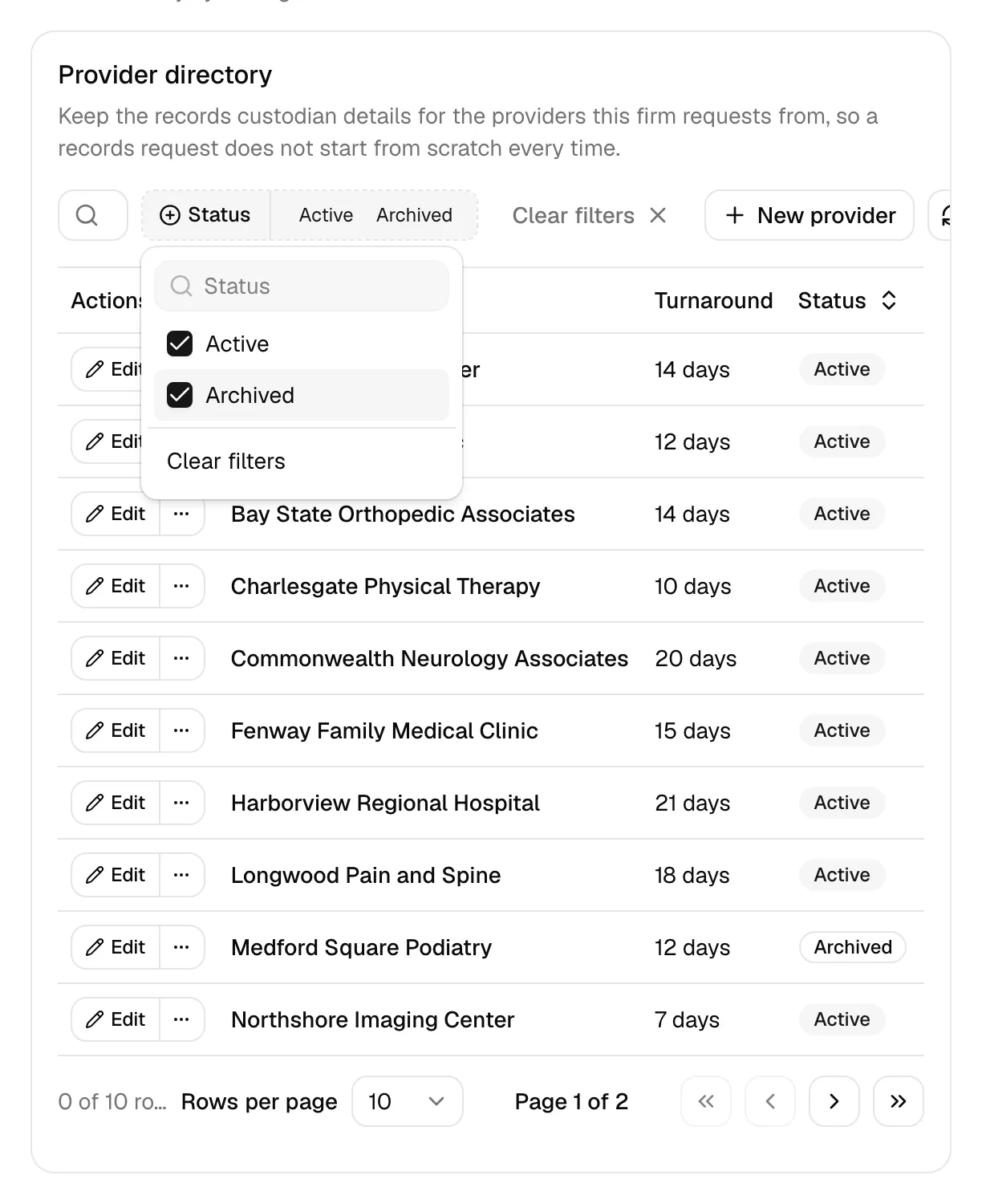
- Go to Settings > Personal injury, then click Open provider directory on the Provider directory card. You can also go straight to it.
- Click New provider profile and fill in:
- Provider (required): the clinic, hospital, or practitioner, as a contact.
- Specialty.
- Typical turnaround in days.
- Records custodian, Records email, Records phone, Records fax, and Records portal.
- Notes.
- Click Add provider profile. You will see Provider profile added.
The directory lists Provider, Specialty, Records custodian, Records email, Turnaround, Status, and Updated, with Records phone and Updated by available from the columns menu. Search by name, filter by Status, and use a row's "..." menu to Archive a profile you no longer use or Restore one you do.
Each contact can hold one profile per firm. Trying to add a second says "That contact already has a provider profile in this firm".
Note: The directory needs View access for Medical records and bills, and creating or changing a profile needs Create or Update.
Common questions
Why can I not type the bill balance? Because it is worked out from the amount, the adjustment, and every payment recorded against the bill. Adjust one of those and the balance follows on its own.
I deleted a payer and the balance went up. That is correct. Removing a payment gives the balance back, and any lien worked out from that balance is recalculated with it.
I ticked the follow-up task box but no task appeared. The request saved, but the task could not be created. That happens when the matter has no task stages, or when your firm has not set up task numbering yet. Fix either and tick the box again on the next request.
The document picker on a request is empty. It lists only documents filed in this matter's folder that you are allowed to see. If your role does not include View access for documents, or the matter has no files yet, there is nothing to offer.
Can I reorder the provider cards? Not by hand. Use the sort control in the toolbar to order them by provider, first visit, last visit, or balance.