Financial reports and exports
Esqase ships seven financial reports that answer the questions a firm gets asked at month end: who owes us money, how old is it, what have we done that we have not billed, how much of what we billed did we actually collect, who earned it, and does the trust account balance. Every report can be downloaded as a CSV.
Before you begin
- Permission. Each report has its own requirement, listed in the table below. You see only the reports you are allowed to see, and Esqase opens the first one you have access to. If you have access to none of them, the area shows a no-access message.
- Where it lives. In the sidebar, open the Billing group and click Reports. Each report is a tab across the top of the area: click one to switch.
| Report | You need |
|---|---|
| Aged receivables | View access for invoices |
| Work in progress | View access for time and expenses |
| Realization | View access for invoices |
| Revenue by member | View access for transactions |
| Revenue by practice area | View access for transactions |
| Trust ledger | View access for both accounts and transactions |
| Three way reconciliation | View access for both accounts and transactions |
Firm owners see everything.
The three way reconciliation also lists the account's past reconciliations. That part of the report needs View access for Reconciliations as well. Without it the balances and the differences still run, and a panel headed Reconciliation history is not available, with the reason underneath, takes the place of the reconciliation history.
How every report is laid out
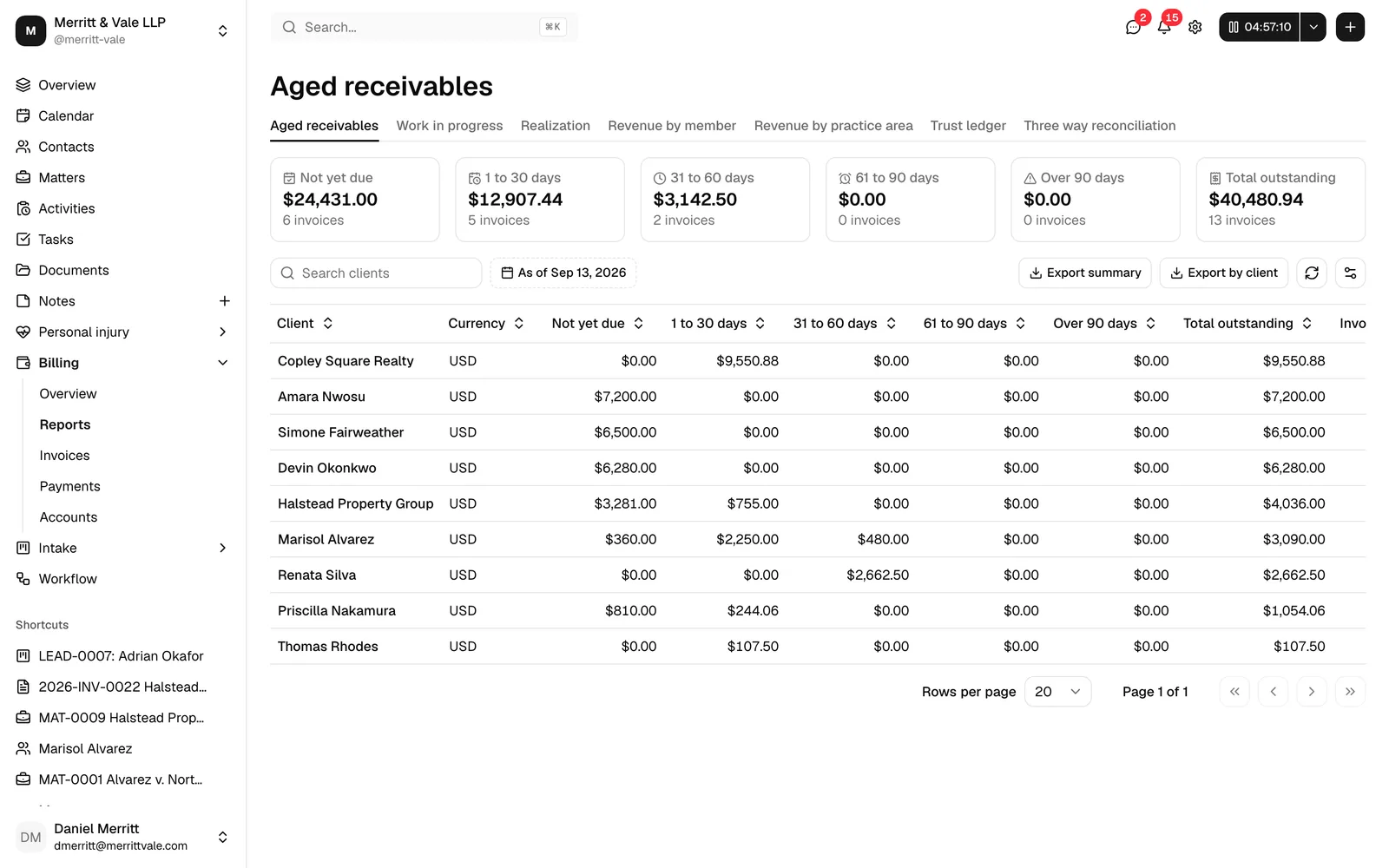
All seven reports read the same way, top to bottom:
- Summary cards. The headline figures for the whole report.
- The toolbar. The controls that shape the report and narrow it.
- The table. The detail behind the cards.
You see the answer first and the controls that shape it second. On the left of the toolbar sits a search box, and immediately to its right the report's date and account filters, so everything that changes what you are looking at is on one row. On the right sit the report's export button and the refresh and column controls. Refresh reloads the report without changing your filters. The column control lets you hide columns you do not need.
One report differs: Work in progress has no filters, so its toolbar is the search box and the buttons on the right, nothing more.
Search inside a report
The search box narrows the rows already on screen. Type a word or two and the table keeps only the rows that contain them. It ignores capitals and accents, and if nothing matches exactly it shows the closest matches instead, with a Showing closest matches note next to the box. Clear filters empties it.
Clear filters clears the search box and nothing else. A date range or an account you have chosen stays chosen, so clearing the search never quietly changes the period the report covers.
What each report searches:
| Report | Search matches |
|---|---|
| Aged receivables | Client name, currency |
| Work in progress | Matter number and title, client, practice area, currency |
| Realization | Month, currency |
| Revenue by member | Member name and email, currency |
| Revenue by practice area | Practice area, currency |
| Trust ledger | Client name, currency |
| Three way reconciliation | Statement date (as the row shows it, or typed the way you would type a date), status, and the name or email address of the member who last changed the reconciliation |
Note: This search only filters what the report has already loaded. It is not the firm-wide search you use on Contacts or Matters, so it will not turn up a client or matter that the report's filters exclude.
Filters
A report's filters sit on the toolbar row, immediately to the right of the search box. Reports use one of two date filters, depending on what they measure, and the two trust reports add an account picker.
- As of. A single date. The report is calculated as though today were that date. The button reads As of followed by the date you picked. Used by aged receivables, the trust ledger, and the three way reconciliation.
- Date range. A start and end date. The report covers everything in that window. The button reads Pick a date range until you choose one, then shows the range. Used by realization, revenue by member, and revenue by practice area.
- Account. The trust or bank account to report on. The button reads Select an account until you choose one. Used by the trust ledger and the three way reconciliation, which cannot run until you pick one.
Work in progress has no date filter at all. It always reports what is unbilled right now.
Aged receivables
Aged receivables answers "who owes us money, and how overdue is it". Unpaid invoice balances are bucketed by how long they have been outstanding on your chosen As of date.
The cards along the top give the firm total in each bucket: Not yet due, 1 to 30 days, 31 to 60 days, 61 to 90 days, Over 90 days, and Total outstanding.
The table below breaks the same figures down by client, with a column per bucket plus:
- Invoices. How many unpaid invoices that client has.
- Oldest. How many days overdue that client's oldest unpaid invoice is, or Not due when nothing has passed its due date yet.
- Total outstanding.
Two exports sit side by side above the table: Export summary downloads the firm-level buckets, and Export by client downloads the per-client breakdown.
Tip: An outstanding balance here is net of everything that has reduced it: payments received, credit notes issued, and amounts written off. It is what the client actually still owes. See Credit notes, write-offs, and discounts.
Work in progress
Work in progress (WIP) is billable work you have recorded and not yet put on an invoice. It is the pipeline of money you have earned but not asked for. This report is always live: it has no date filter, and shows what is unbilled right now.
The cards show Unbilled time, Unbilled expenses, Total unbilled, the number of Matters involved, and the number of Entries.
The table lists one row per matter, with its Client, Practice area, Hours, Entries, the date of the Oldest entry, and the amounts for Unbilled time, Unbilled expenses, and Total unbilled. Export by matter downloads it.
Tip: Sort by Oldest entry to find work that has been sitting unbilled the longest. That is usually where the write-offs come from.
Important: A matter you are not allowed to see reads as Restricted matter, with no number, no title, and no link. Searching cannot reveal any of those: the search box matches only what the row already shows, so typing the matter's real number or title will not bring it up. The amounts still count toward your totals, so the figures at the top are correct.
Realization
Realization compares what you billed with what you collected, month by month, over the range you choose. It is the report that shows whether discounts, credits, and write-offs are quietly eating your revenue.
Each month shows:
- Invoices. How many invoices were issued.
- Billed. What you invoiced.
- Collected. What you were paid.
- Credited. What you took back with credit notes.
- Written off. What you gave up on.
- Outstanding. What is still owed.
- Realization. The share of what you billed that survived credits and write-offs.
- Collection. The share of what you billed that you have actually been paid.
The cards above the table roll the whole range into one set of figures: Billed, Collected, Outstanding, Realization, and Collection. Export realization downloads the monthly table.
Note: Credited and written off are shown separately on purpose. A credit note says "we should not have billed this". A write-off says "we billed it correctly and will not be paid". They are different problems.
Revenue by member
Revenue by member attributes collected money to the firm member responsible for it, over the date range you choose.
The cards give the firm totals for Revenue, Refunds, Net, the number of Members, and the Top earner. Top earner names the member with the highest net for the range and shows that net figure underneath, so you can see who carried the period without reading the table. When no member has a positive net it reads None, with "No positive net in this range" underneath.
Each row shows the Member, the Currency, the number of Entries, then Revenue, Refunds, and Net. Export by member downloads the table.
Note: This report counts money that has actually cleared, not money invoiced. A payment that is still pending review does not appear until it clears. See Recording and managing payments.
Revenue by practice area
The same figures as revenue by member, grouped by the matter's practice area rather than by the member. Use it to see which kinds of work actually pay.
The cards give the firm totals for Revenue, Refunds, Net, the number of Practice areas, and the Top practice area. Top practice area names the area with the highest net for the range and shows that net figure and its share of the firm's net underneath, so you can tell whether one kind of work carries the firm or the revenue is spread evenly. When nothing has a positive net it reads None.
The table lists each area with its Practice area, Currency, Entries, Revenue, Refunds, and Net. Export practice areas downloads it.
Practice areas are set on the matter. See Practice areas and stages.
Trust ledger
The trust ledger shows whose money is sitting in a trust account on your chosen date. Pick the Account and the As of date.
If your firm has no active accounts yet, an information notice titled No active accounts yet appears at the top of the report: "Add a trust account in accounts to track client funds." The word accounts is a link that takes you to the Accounts page, where you can add one. See Accounts, trust, and transactions.
Five figures sit above the table:
- Book balance. What the ledger says the account held on that date.
- Sum of client ledgers. Every client's balance in that account, added together.
- Clients in overdraft. How many clients hold a negative balance in this account. It should always be zero, and the card turns red the moment it is not, because a client whose trust ledger has gone below zero has been paid out of another client's money. The line underneath names the lowest balance of the lot, so you can see how big the hole is.
- Held without a client. Money in the account that no client is attached to. This should be zero.
- Unreconciled entries. How many posted entries have not been matched to a bank statement.
The table lists each client with their Balance, Deposits, Withdrawals, Entries, and Last activity. Export by client downloads it.
For what to do when these numbers disagree, see Trust compliance and three-way reconciliation.
Three way reconciliation
The three way reconciliation compares the three figures a bar regulator expects to agree: the bank statement, your own ledger, and the sum of the individual client balances.
It is laid out like every other report. Groups of cards give you Balances, Differences, Reconciling items, and a Reconciliation history summary of how the account has been reconciled. Below them a table lists that account's reconciliations, with a View action on each row that opens it. The Account and As of filters, the search box, the Export reconciliation button, and the refresh and column controls all sit on that table's toolbar, exactly as they do on the other six reports. Once an account is selected, a Reconcile this account button sits in the page header at the top right, next to the Three way reconciliation title and above the report tabs, and opens that account's Reconcile tab. It appears on this report only.
If the account you picked has never been reconciled, a No reconciliations yet panel takes the place of the table. It invites you to start a reconciliation to match the bank statement against the recorded entries. On one row it carries a Reconcile this account button, which opens that account's Reconcile tab, and a Learn more link that opens Reconciling bank and trust accounts in a new tab. If the history cannot be loaded at all, the same spot reads Reconciliation history is not available with the reason underneath, and no buttons.
If your firm has no active accounts yet, an information notice titled No active accounts yet appears at the top of the report: "Add a trust account in accounts to run a three way reconciliation." The word accounts is a link to the Accounts page.
It is covered in full on Trust compliance and three-way reconciliation.
Export a report to CSV
Every report has an export button above its table, next to the refresh and column controls. The button is named for what it downloads, so you can tell two exports apart on the same report:
| Report | Export button |
|---|---|
| Aged receivables | Export summary and Export by client |
| Work in progress | Export by matter |
| Realization | Export realization |
| Revenue by member | Export by member |
| Revenue by practice area | Export practice areas |
| Trust ledger | Export by client |
| Three way reconciliation | Export reconciliation |
- Set the report's filters exactly as you want the export.
- Click the export button.
- The file downloads with the report name and the report date in its filename, for example
aged-receivables-2026-08-31.csv.
The export always matches what is on screen: the same filters, the same permission checks, and the same rows. It is never a wider extract than the report you are looking at.
Note: The export covers the whole report, not just the rows the search box has left on screen. Clear the search first if you want the two to agree.
Important: On the trust ledger, the export button stays disabled until you pick an account, because the report cannot be produced without one. The three way reconciliation opens on your first trust account instead, or on your first account if you have no trust account, and its toolbar appears once it has.
Tip: The file opens cleanly in Excel and Google Sheets, including accented characters in client names.
Restricted matters in reports
If your role does not give you access to a matter whose visibility is limited to specific members, that matter appears in work in progress as Restricted matter rather than by name, and it carries no link. The money is still counted, so your totals are correct; only the identity of the matter is hidden. The same applies in the CSV export. See Roles and permissions.
Common questions
Why does a report show nothing when I know there is data? Check the search box first, then the filters beside it: the As of date, the date range, and, on the trust reports, the account. Clear filters empties the search in one click, but it leaves the date and the account alone, so widen those yourself. A report with no account chosen shows a prompt rather than figures.
Why does the search find nothing I recognise? It only looks at what the report has already loaded, so it cannot reach a client or matter that the report's date and account filters exclude. Widen the filters, then search again. If the words you typed match nothing at all, Esqase falls back to the closest matches and says so above the table.
Why do the revenue reports and the invoice list disagree? They measure different things. The invoice list shows what you have billed. The revenue reports show what has cleared into an account. An invoice that is issued but unpaid appears in one and not the other.
Can I schedule a report to email itself? Not today. Reports are run and exported on demand.
Which date should I use for a month-end pack? Use the last day of the month for the As of reports, and the first to the last day of the month for the range reports, so both halves of the pack cover the same period.