Damages and claims
Two tabs cover the value of the case and the fight over it. Damages is the ledger of every loss you are claiming, with the medical figures behind it. Claims holds the insurance policies that could pay, the negotiation history, and the dates the case has to hit.
Before you begin
- Personal injury is part of the Professional plan. On the Standard plan the module is hidden: the Personal injury group is not in the sidebar and matters do not show the personal injury tabs. Only the firm owner can move the firm to Professional, from Settings > Billing. See Your Esqase subscription.
- Outside the Philippines, your firm owner also accepts an agreement once. Until that is done, the module opens on a Business Associate Agreement required card and nothing can be recorded. A firm registered in the Philippines accepts no agreement: the module opens as soon as the firm is on Professional. See Business associate agreement (BAA).
- Both tabs need View access for Personal injury. Adding, editing, and removing on them need Create, Update, and Delete for the same area.
- The Damages tab also reads the bills you have recorded on the Medical tab, so the medical figures on it stay at zero until those are entered. See Medical records and treatment.
- The Settlement authority figure in the negotiation log is shown only to members with Update access for Personal injury. Everyone else does not see the column or the field.
- Nothing can be added on an archived matter.
Note: A firm registered in the Philippines gets Philippine versions of both tabs: Civil Code damage heads with a loss of earning capacity calculator, Philippine insurance kinds with a CTPL helper, Claims against recovery in place of liens, and a Prescriptive period in place of the statute of limitations, with a picker of suggested periods in the deadline dialog. See Torts and damages (Philippines).
The Damages tab
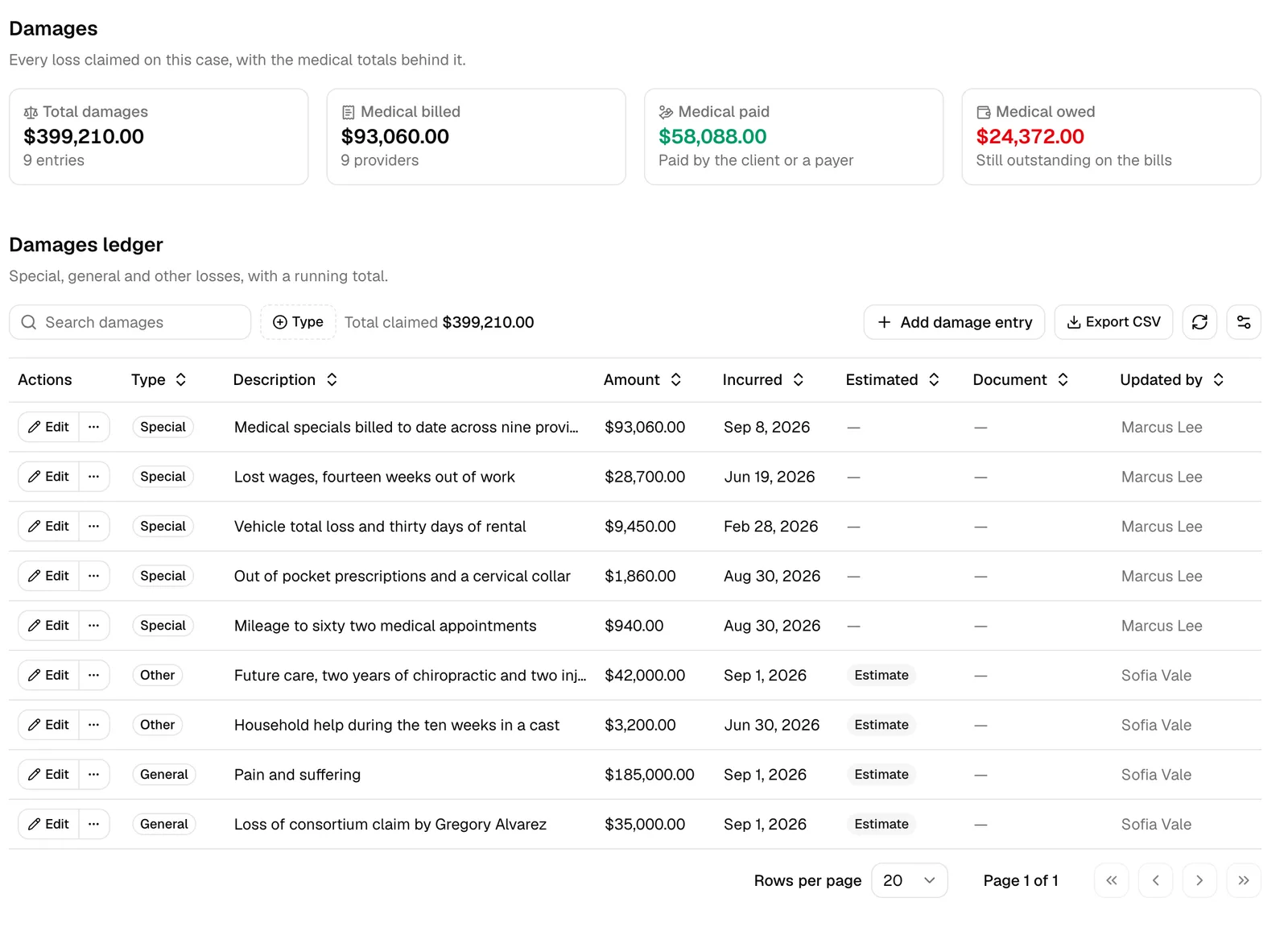
Open the matter and click Damages. The tab is headed "Every loss claimed on this case, with the medical totals behind it."
The summary cards
Four cards across the top give you the case's value at a glance:
- Total damages, with the number of ledger entries behind it in the hint.
- Medical billed, with the number of providers in the hint.
- Medical paid, hinted "Paid by the client or a payer".
- Medical owed, hinted "Still outstanding on the bills". This one is highlighted when anything is outstanding, because it is the figure that turns into liens at settlement.
The three medical cards come from the bills on the Medical tab, not from the ledger below. They are there so you can sanity-check the special damages you are claiming against what the providers have actually billed.
Add a damage entry
The Damages ledger ("Special, general and other losses, with a running total") is where you list what you are claiming.
- Click Add damage entry.
- Fill in the dialog:
- Damage type (required): Special, General, Other, Actual, Moral, Temperate, Nominal, or Exemplary. Special damages are the quantifiable losses (medical bills, lost earnings, property damage); general damages cover pain, suffering, and loss of enjoyment. The remaining types are there for jurisdictions that categorise damages differently.
- Description: what this loss covers.
- Amount (required).
- Incurred on: the date the loss was suffered.
- Linked document: a supporting file from this matter.
- This amount is an estimate: tick it while a figure is still provisional. The row then carries an Estimate chip, and the estimated total is reported separately on the damages report.
- Click Add damage entry. You will see Damage entry added.
The ledger shows Type, Description, Amount, Incurred, Estimated, Document, and Updated by, and carries a Total claimed line that always sums every entry.
Work the ledger
- Filter by Type to see one category at a time. Total claimed deliberately keeps showing the total for the whole ledger, not the filtered rows, so a filter can never make the case look smaller than it is.
- Clear filters appears as soon as a filter is set.
- Click a column heading to sort by it.
- Export CSV downloads the ledger as
damages-<date>.csv, with the columns Type, Description, Amount, Currency, Incurred date, Estimated, Document, Updated by, and Last updated. It respects the filters you have set. - Edit changes an entry. The "..." menu holds Remove, which asks you to confirm ("This entry stops counting toward the damages total. You can add it again later.").
Tip: The damages totals are available as merge fields, so a demand letter template can pull {{damages_total}} and the per-type figures straight in. See Document placeholders.
Medical bills by provider
At the bottom, Medical bills by provider ("What each treating provider billed, and what is still owed") lists Provider, Bills, Billed, Adjusted, Paid, and Owed for every provider on the case. It is read only; the numbers come from the Medical tab. Until you record bills there it reads "No medical bills yet".
The Claims tab
Open the matter and click Claims. The tab is headed "Insurance coverage, the negotiation log and the dates this case has to hit", and stacks three sections.
Insurance policies
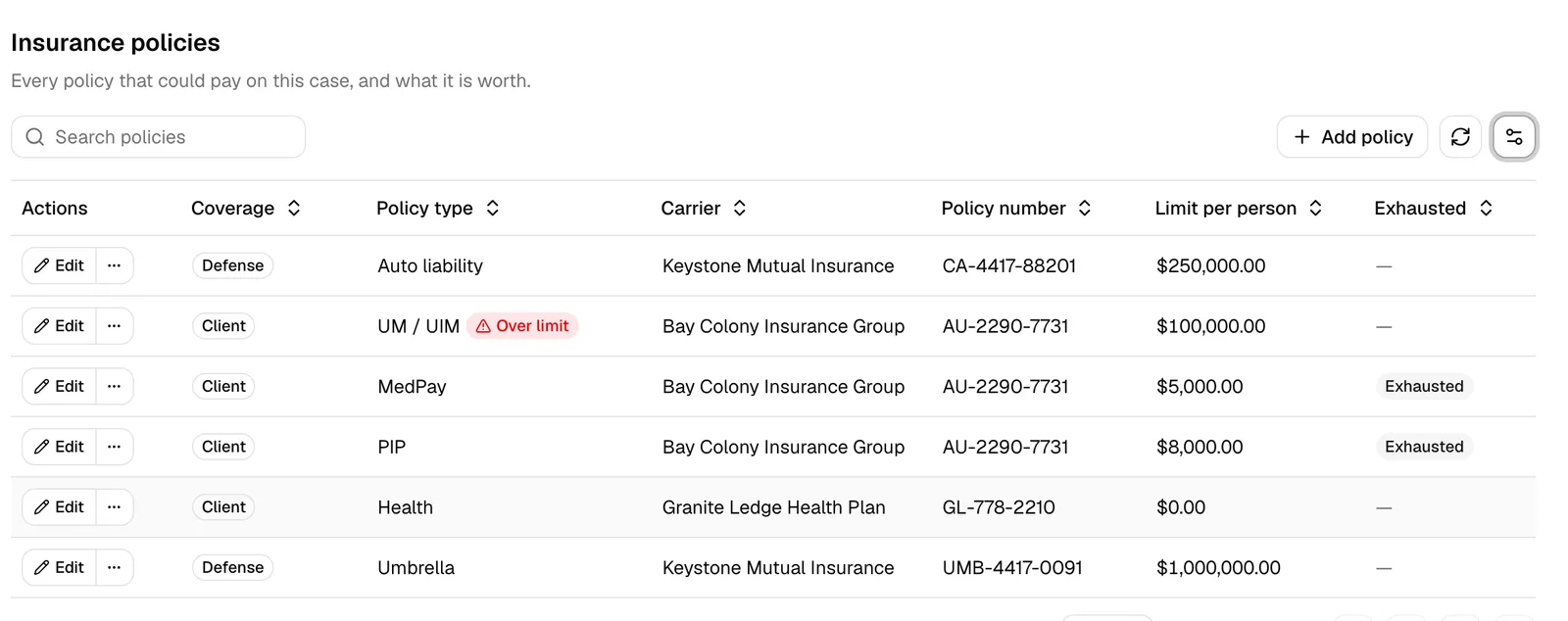
Insurance policies ("Every policy that could pay on this case, and what it is worth") is where you list the coverage in play, on both sides.
- Click Add policy.
- Fill in the dialog:
- Coverage side (required): Client, Defense, or Third party.
- Policy type (required): Auto liability, UM / UIM, MedPay, PIP, Homeowners, Commercial general liability, Health, Workers compensation, Umbrella, or Other.
- Carrier and Adjuster, picked from your contacts. Both render as links to the contact record.
- Policy number, Claim number, and Policy holder.
- Limit per person and Limit per occurrence.
- Notes.
- These limits are exhausted: tick it once the policy has paid out. The row then shows an Exhausted chip.
- Click Add policy. You will see Policy added.
Note: A red Over limit chip appears next to a policy's type when the highest open outbound demand or counter linked to that policy is above its Limit per person. It is a prompt to look for more coverage or to reconsider the demand, not an error. The chip needs a limit greater than zero to appear, and it clears when the entry that triggered it is closed.
The negotiation log
Negotiation log ("Demands, offers and counters in the order they happened") is the running history of the settlement conversation, newest first.
- Click Log entry.
- Fill in the dialog:
- Direction (required): Demand sent, Offer received, Counter sent, Counter received, Accepted, Rejected, or Withdrawn.
- Status (required): Open, Responded, or Closed.
- Counterparty, picked from your contacts.
- Policy: the case policy this exchange is about, or No policy.
- Amount (required).
- Settlement authority: what your client has authorised you to accept. It is labelled "Internal only. Never shared outside the firm."
- Sent, Received, and Response due.
- Linked document and Notes.
- Click Log entry. You will see Negotiation entry added.
Two quick actions live in each row's "..." menu:
- Mark responded flips the status to Responded and stamps a Received date if there is not one already. It never overwrites a date you entered.
- Close entry flips the status to Closed and leaves the dates alone.
Important: The Settlement authority column and the Settlement authority field are shown only to members with Update access for Personal injury. For everyone else the column is not on the table and the field is not in the dialog, and the figure is never sent to their browser. There is no message telling them something is hidden.
Tip: Set a Response due date on a demand you have sent. Esqase sends you a reminder when it comes due. See Notifications.
Deadlines
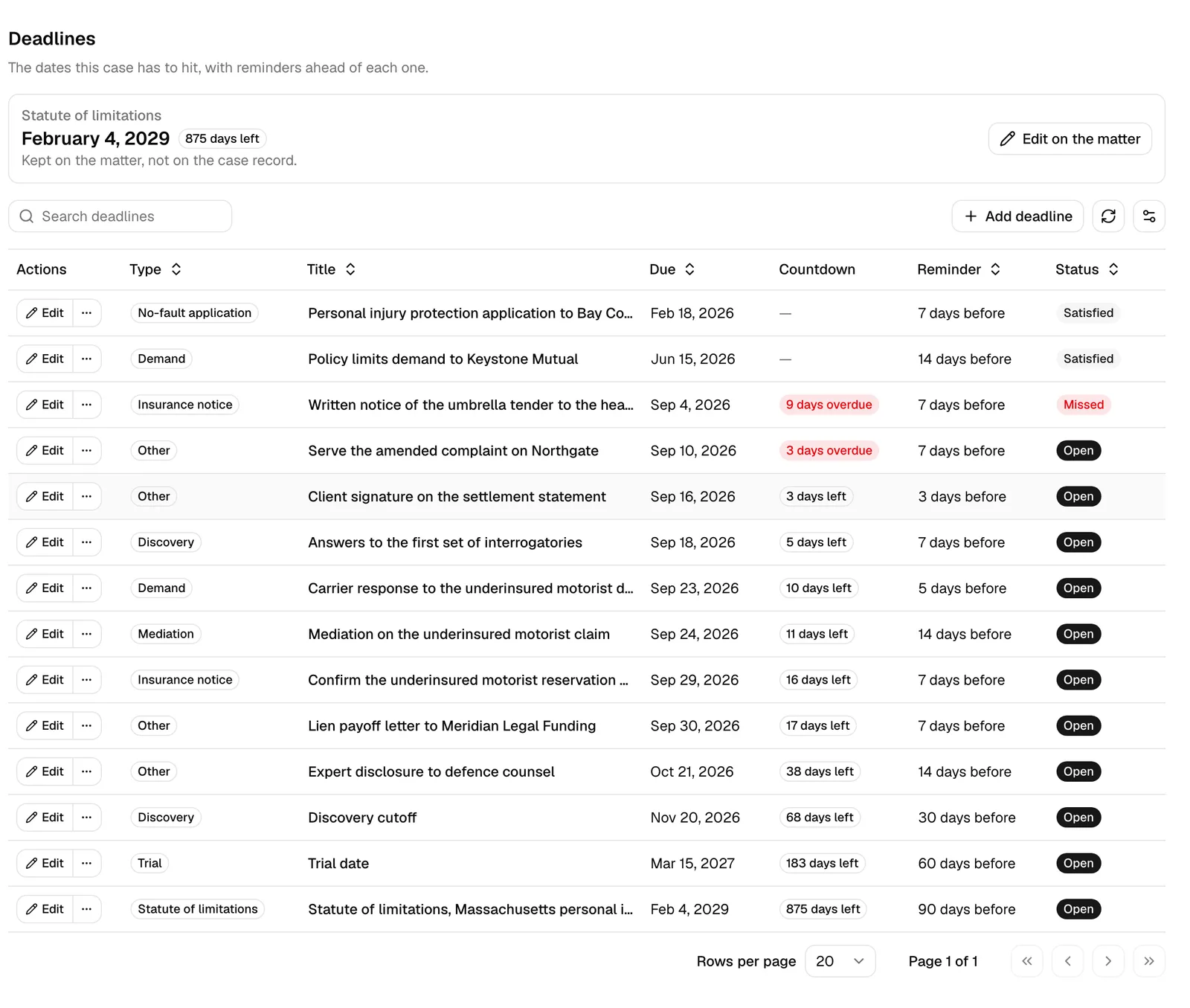
The Deadlines section ("The dates this case has to hit, with reminders ahead of each one") has two parts.
The statute of limitations card
At the top, a read-only Statute of limitations card shows the matter's statute date with a chip counting the days left, or the days past if it has gone by. The statute of limitations is the legal deadline for filing the claim; miss it and the claim is barred.
The card notes that this date is "Kept on the matter, not on the case record", and offers Edit on the matter to change it. With no date set it reads Not set and shows no chip.
Statute reminders are set on the matter too, and Esqase sends one as each reminder you configured comes due. Reminders stop once the date has passed or the matter's statute is marked satisfied, at which point the firm-wide overview's statute card is what surfaces a missed date. See The personal injury workspace and reports.
Every other deadline
- Click Add deadline.
- Fill in the dialog:
- Deadline type (required): Statute of limitations, Notice of claim, No-fault application, Insurance notice, Discovery, Mediation, Trial, or Other.
- Title (required), for example "File the notice of claim".
- Due date (required).
- Remind days before: how far ahead you want the reminder. Leave it empty for no reminder.
- Notes.
- Click Add deadline. You will see Deadline added.
The table lists Type, Title, Due, Countdown, Reminder, and Status. The countdown reads N days left in ordinary type, and Due today or N days overdue in red. The reminder column reads N days before, or a dash where none is set.
Use the row's "..." menu to Mark satisfied when the deadline is met, or Reopen if it turns out it was not. A satisfied deadline shows no countdown.
Note: Mark satisfied is the way to close a deadline. Editing a satisfied deadline and setting Status back to Open in the dialog leaves it looking satisfied in your records, so use Reopen instead.
Note: A deadline reminder is sent once, inside the window between its due date and the number of days you set in Remind days before. Change the due date and the reminder arms again for the new date.
Common questions
Why does Total claimed not change when I filter the ledger? By design. The filter narrows the rows you are reading, but the total is the whole case, so it cannot be made to look smaller by hiding rows.
A policy shows Over limit but the demand looks reasonable. The chip compares the highest open outbound demand or counter on that policy against its Limit per person. Close the entry (or correct the limit) and the chip clears on the next refresh.
My colleague sees an Authority column that I do not. That column needs Update access for Personal injury. Ask an administrator if you need it.
I set a reminder but never got one. Check three things: that the deadline is still Open, that the reminder window has actually arrived (it fires between the due date and your Remind days before), and that the in-app or push channel for Personal injury deadline due is on under Settings > Notifications.
Can I add a statute of limitations here instead of on the matter? You can add a deadline of type Statute of limitations, and it behaves like any other deadline. The matter's own statute date is the one that drives the statute reminders and the firm-wide statute card, so set that one too.