Recurring invoices and pre-bills
A recurring invoice bills a client on a schedule without anyone having to remember. Each run picks up whatever unbilled work exists at that moment and builds an invoice from it. This page also covers pre-bills (drafts that have not taken an invoice number yet), proforma invoices, and the consolidated invoices a client-wide schedule produces.
Before you begin
- Permission. Recurring invoices are their own permission, listed as Recurring invoices in the role grid. View access opens the list, Create access adds a schedule, Edit access changes, pauses, archives, and restores one, and Delete access removes an archived one. Firm owners and administrators have full access, attorneys have full access by default, and staff can view only. See Roles and permissions.
- A client. Every schedule bills one client.
Note: Schedules do not hold any money or any amounts. They decide when to bill and who to bill. What goes on the invoice is worked out at each run from the work that is actually unbilled at that point.
Open the recurring invoices list
- In the sidebar, open Invoices.
- Click the ... button next to New invoice, then Recurring invoices.
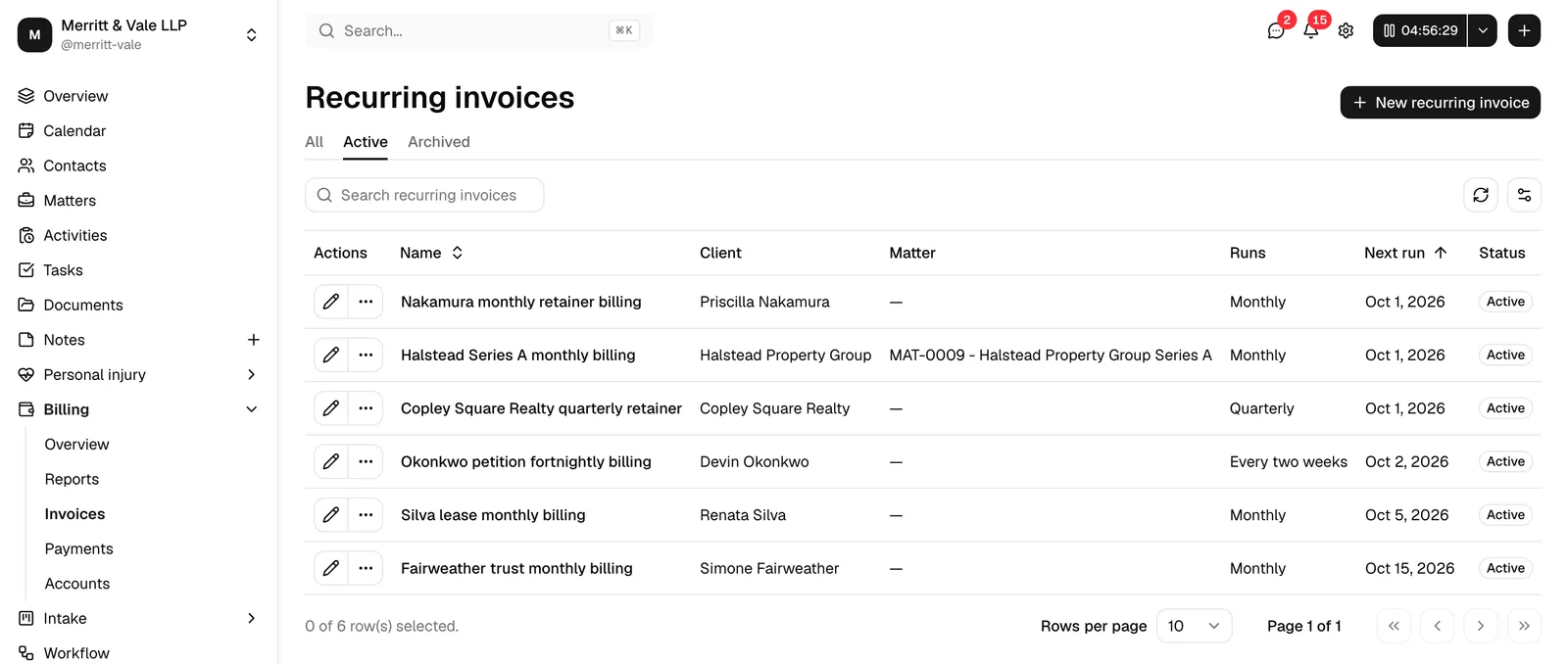
The list shows each schedule's Name, Client, Matter, Runs (its cadence), Next run, and Status. Matter is empty on a schedule that bills the client across all of their matters, which is what the dialog creates.
Create a recurring invoice
- On the Recurring invoices page, click New recurring invoice.
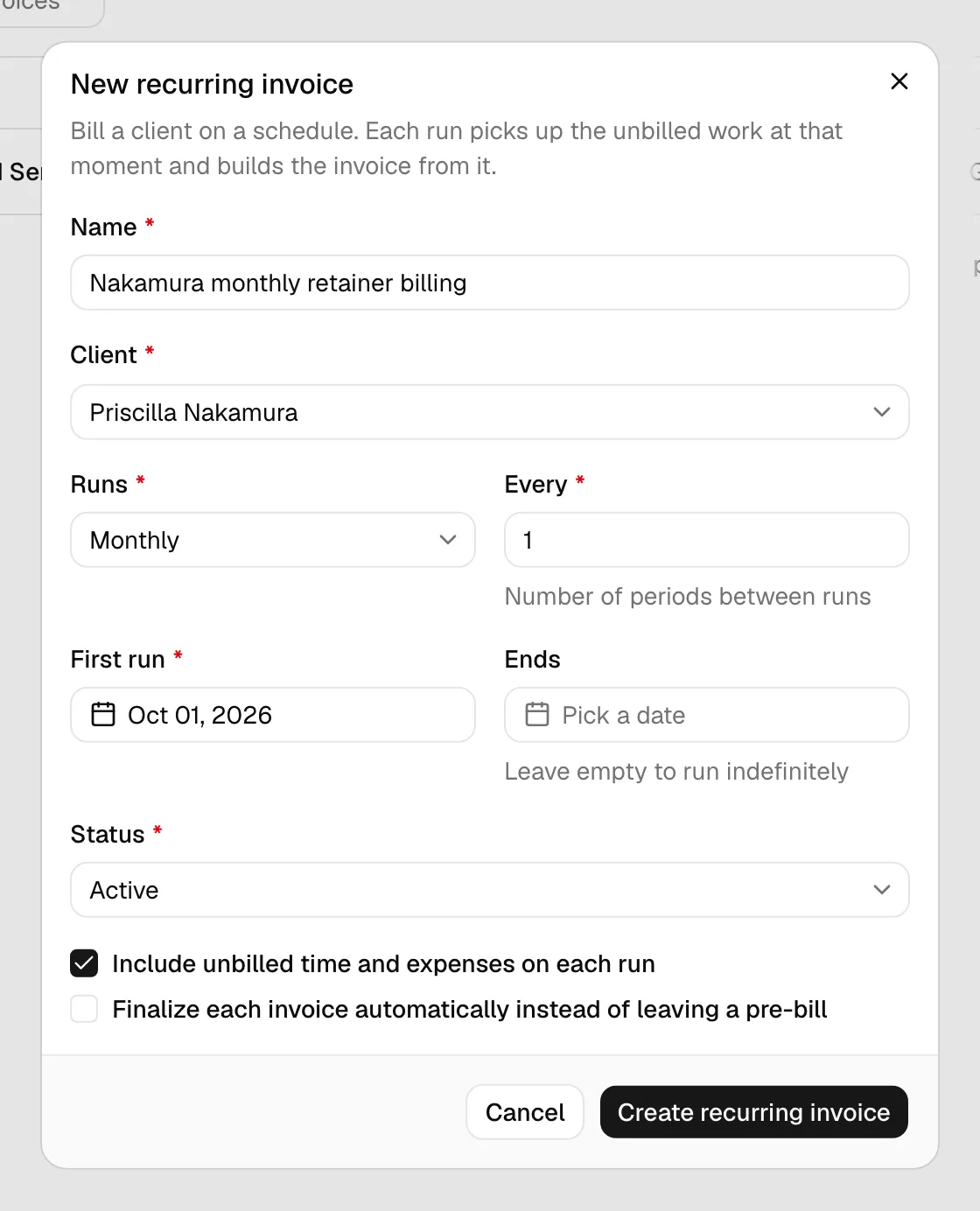
- Fill in the dialog:
- Name. What this schedule is for, for example "Monthly retainer". Up to 128 characters. Required.
- Client. Who is billed. Search by name. Required.
- Runs. The cadence: Weekly, Every two weeks, Monthly, Quarterly, Every six months, or Yearly.
- Every. How many of those periods between runs. 1 means every period, 2 means every other, and so on, up to 52.
- First run. The date of the first invoice. Required.
- Ends. The date to stop. Leave it empty to run indefinitely. It cannot be earlier than the first run.
- Status. Active to start running, or Paused to set it up now and start later.
- Include unbilled time and expenses on each run. Leave this ticked. It is what gives the run something to bill.
- Finalize each invoice automatically instead of leaving a pre-bill. Tick this to have each run produce a finished, numbered invoice. Leave it unticked to have each run leave a draft pre-bill for someone to check and finalize by hand.
- Click to save.
Tip: Leave Finalize each invoice automatically off for the first month or two. You get the invoice built for you, but you still read it before the client does.
What happens on a run
Every morning Esqase looks for schedules that are Active and due, and runs each one:
- It gathers that client's unbilled, billable time entries and expenses up to the run date, across every matter where that client is the bill recipient.
- It builds an invoice from them, applying the same rates, taxes, and rounding a manual invoice would.
- It saves the invoice as a Draft pre-bill, or as Pending if Finalize each invoice automatically is on.
- It advances Next run by the cadence, and stops when it passes the Ends date.
If there is nothing unbilled to bill, the run produces no invoice and simply moves Next run forward. Nothing is lost: the work is picked up by the next run that finds it.
Important: An invoice produced by a schedule carries no due date, because a schedule has nowhere to record your payment terms. That has a knock-on effect: an invoice with no due date is never chased by a payment reminder and never charged a late fee. If you rely on either, open the generated invoice and set a due date on it. See Invoice and billing settings.
Note: A schedule bills recorded time and expenses. A matter billed as a pure flat fee or on contingency has no unbilled time entries behind it, so a schedule on that matter produces nothing. Bill those with a manual line on an invoice instead. See Creating and sending invoices.
Pause, edit, archive, restore, and delete
- Edit. Click the pencil button on the schedule's row. Changing the cadence or the first run date changes when it next fires.
- Pause. Edit the schedule and set Status to Paused. It stops running and keeps everything else. Set it back to Active to resume.
- Archive. Use the ... menu on the row. An archived schedule never runs and drops out of the active list.
- Restore. Use the ... menu on an archived schedule.
- Delete. Only offered on an archived schedule, and only with Delete access. Invoices the schedule already produced are not affected.
Pre-bills
A pre-bill is a draft invoice that has not taken a number from your firm's invoice sequence yet. It is what you circulate internally, or to the billing partner, before the client ever sees a number.
While an invoice is a pre-bill:
- Its number reads Pre-bill wherever an invoice number would appear, in the Invoices list and at the top of the invoice's own page.
- It consumes nothing from the firm sequence, so a pre-bill you abandon leaves no gap.
- It can be edited freely, including its client, matter, dates, and lines.
The moment you finalize it, by clicking Save in the invoice editor rather than Save draft, it takes the next number in the sequence and keeps it.
This behaviour is controlled by Assign the invoice number on finalize in Invoice and billing settings. With that setting off, every invoice takes a number as soon as it is created, drafts included.
Tip: Pre-bills and the review workflow work well together. If your role requires approval for invoices, finalizing a pre-bill sends it to In review, and it takes its number at that point rather than waiting for the approval. See Approvals for invoices and documents.
Proforma invoices
A proforma is a request for payment that is not a tax invoice. Many firms use one to ask for funds on account, or to show a client what a bill will look like before it is issued for real.
- Build the invoice as usual.
- In the Invoice details panel, tick Issue as a proforma.
- Save.
The invoice is labelled Proforma in front of its number in the Invoices list and at the top of its own page, so nobody on your team mistakes it for the real thing.
Note: A proforma is deliberately left out of the automatic payment reminder sequence, so a client is never chased over a document that is not yet a bill.
Consolidated invoices across matters
A consolidated invoice bills one client for work on several matters at once, with each line carrying its own matter.
Esqase produces these from a recurring invoice. A schedule bills the client, not one matter, so its run gathers unbilled work across every matter where that client is the bill recipient, and the resulting invoice shows the client at the top with the matter named on each line.
On a consolidated invoice:
- The Matter field on the invoice itself is empty, because it covers more than one.
- Each line item names its own matter.
- Recording a payment works normally. The Matter filter in the record-payment dialog is optional, so a consolidated invoice can be found and paid like any other. See Recording and managing payments.
Note: The manual invoice builder always bills one matter. To bill several matters on one invoice, use a client-level recurring invoice. To raise separate invoices for many matters in one go, use Batch invoicing instead.
Common questions
Can I see which invoices a schedule produced? Open the Invoices list and filter by the client. There is no per-schedule invoice history view yet.
Does a paused schedule catch up when I resume it? No. It runs from its next run date forward. Work that went unbilled while it was paused is still unbilled, so the next run picks it up.
What time of day does a run happen? Early each morning. Dates are compared in your firm's timezone, set on your firm profile. See Your firm profile and details.
Can two schedules bill the same work twice? No. Once an entry is on an invoice it is no longer unbilled, so the next run skips it.