How clients get portal notifications
Your clients have their own signed-in area of Esqase, the client portal, where they can follow the matters you are handling for them. Every portal client also has a notification inbox there: a bell in the portal header and a Notifications page listing everything their firms have told them. Clients who use the Esqase Client app have the same inbox and settings on their phone, and can get alerts on the phone as well. This page explains which of your everyday actions notify a client, what the notification looks like on their side, and what they can change.
Client notifications are separate from your own. Nothing on this page affects what lands in your dashboard bell. For the firm-side inbox and your own preferences, see Notifications.
Before you begin
- A client receives portal notifications once they have an Esqase account with a confirmed email address that matches the one on their contact record. Signing in anywhere is enough to create that account, including the automatic sign-in on an invoice, a document or a meeting page, so many clients have one without ever filling a form in. A missing, out-of-date, or misspelled email on a contact means no match and no notification. See How clients sign in.
- You do not switch notifications on for a client. They are produced by the work you already do (assigning, sharing, sending, scheduling), so there is no per-client or per-matter setting to enable.
- Clients choose their own channels. Notification settings belong to the person, not to your firm, so you cannot change them on a client's behalf.
- Notifications link to portal pages only. Secure links (form links, signing links, scheduling links, payment links) are never placed in a notification. Those still travel by email.
- Notifications are one-way. A client cannot reply to one, and reading or archiving a notification changes nothing on your side.
Note: A client who works with more than one firm on Esqase sees a single combined inbox. Every entry is labeled with the firm it came from, so your notifications are always attributed to your firm by name.
What notifies a client
Tasks
- Assigning a task to a client. Creating a task with a contact as an assignee, or adding a contact assignee when you edit one, notifies that person with A task was assigned to you. Opening it takes them to the Tasks page of that matter, where the task is listed with its due date. A task on a lead, which has no matter behind it, opens their list of matters instead.
- A deadline coming up. Esqase checks once a day and reminds a client whose task falls due within the next 24 hours, or is already past due, with A task is due soon or A task is past due. Each due date is reminded once: if you push the deadline back, the client is reminded again for the new date. Private tasks, completed tasks, and tasks on an archived matter or a closed lead are skipped. The reminder opens the matter's Tasks page, the same as the assignment notification does.
Tip: Only contact assignees are notified here. Assigning the same task to a colleague notifies them through your firm's own notifications instead. See Creating and managing tasks.
Matters
- Changing a matter's key details. Editing a matter's Title, Open date, Close date, or Practice area notifies the matter's clients with Your matter was updated, naming what changed. Opening it takes them to that matter's home page in the portal. Other edits (billing settings, the matter team, custom fields, and so on) notify nobody, so routine internal housekeeping does not reach the client.
Documents and signatures
- Sharing a document with a named recipient. Creating a share link set to A specific recipient notifies that person with A document was shared with you. A public Anyone with the link share notifies nobody, because there is no recipient address to match. See Sharing documents and How clients view shared documents.
- Requesting a signature. Adding a contact as a signer, whether when you first send the request or when you add a signer later, notifies them with Your signature is requested.
- A document finishing. Once the last signer has signed, the signers are told A signed document is ready, so the client knows the executed copy is available. See How clients sign documents.
Appointments
- Booking on your public page. A client who books a meeting themselves is emailed a confirmation at the address they gave, with the times in their own time zone, a calendar attachment, and add-to-calendar links. That email goes out whether or not the client has a portal account, so it is not one of the portal notifications below. See How clients book meetings.
- Scheduling. Creating an event with a contact as a guest, or adding a contact guest to an existing event, notifies them with An event was scheduled with you.
- Changes. Editing a client-visible detail on the event notifies the guests already on it with An event was updated. Moving the event to a different time sends An event was rescheduled.
- Cancellation. Deleting or canceling the event sends An event was canceled.
- Reminders. Each guest gets You have an upcoming event at the lead time set in the event's Notification field, once for each occurrence: a repeating appointment reminds the client before every one of them, and moving an appointment reminds them again for the new time. Choose None there for an event nobody should be reminded about. See Calendar and events.
- Asking a client to pick a time. Sending a scheduling request notifies them with Your firm asked you to pick a time, or Your firm asked you to pick a new time when you are moving an existing appointment. The notification points them at their email, where the secure scheduling link is.
Invoices and payments
- Sending an invoice. Marking an invoice Sent notifies its client with You have a new invoice, naming the invoice number.
- A due date arriving. A daily check sends An invoice is due today, or An invoice is past due once the date has gone by.
- A payment landing. When a client reports a bank transfer or QR payment through a payment link, they get We received your payment as a receipt. When they pay by card or from their bank account through your firm's LawPay or Confido Legal account, they get Payment received once it has gone through, or Payment processing first for a bank payment that takes a few days to clear, followed by Payment received when it clears. A payment you record by hand in the dashboard does not notify the client, so tell them yourself if they are waiting on confirmation. See How clients pay invoices.
Messages
- Messaging a client. Sending a message in a conversation a client is part of notifies them with New message, and opens that conversation in their portal. A quick back-and-forth is grouped rather than raising an alert per line. The client also gets the message email they have always had, which carries no message text. See Messaging clients.
Forms
- Sending a form to a client. Using Send to client on a matter or a lead notifies them with A form is waiting for you. As with scheduling, the notification points them at their email, where the secure form link is.
Important: Forms and scheduling requests are opened through a secure single-use link, and that link only ever appears in the email. The portal notification tells the client to check their inbox rather than carrying the link itself. If a client says they cannot find the link, resend the email rather than looking for it in the portal.
Note: The three reminders (task due, invoice due, and appointment reminders) are produced on a schedule rather than by someone clicking, so they reach the client even when nobody at your firm is signed in.
What a notification looks like to your client
The bell
The bell sits in the portal header on every page, so a client sees new activity without going looking for it.
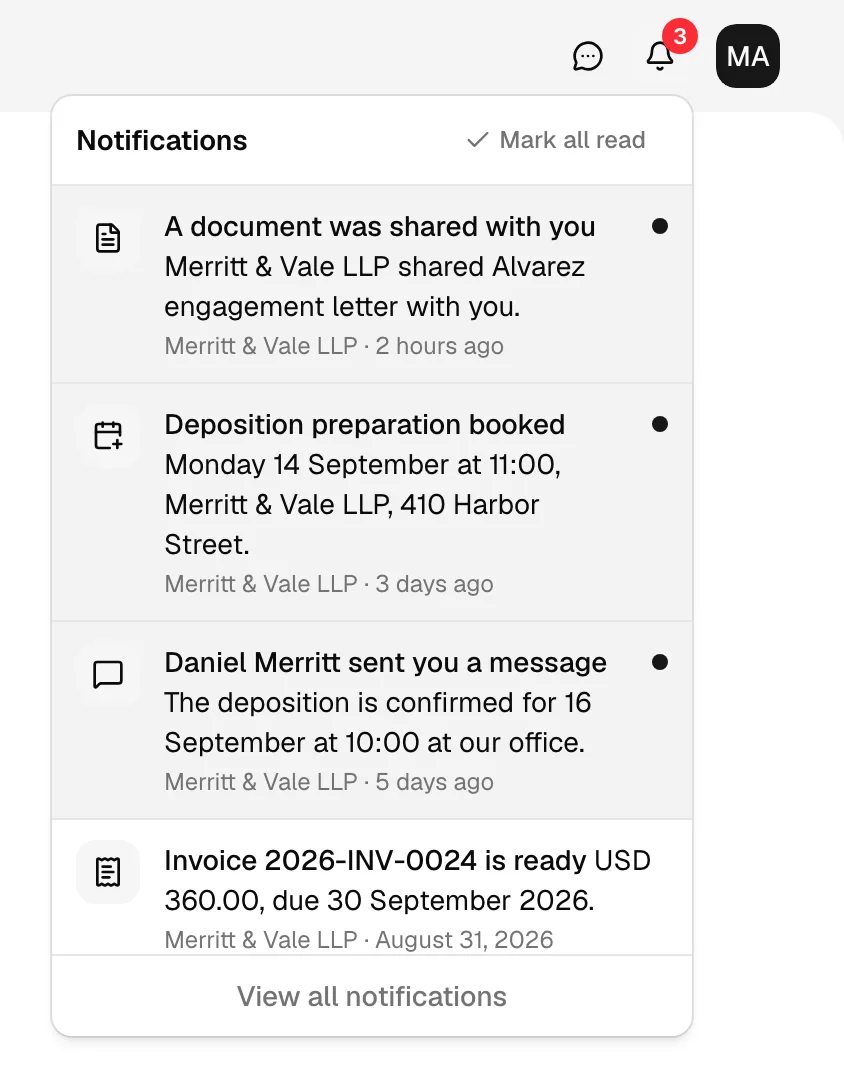
- A red badge on the bell shows the number unread, and reads 99+ past ninety-nine.
- Clicking the bell opens a panel headed Notifications, newest first.
- Each row shows an icon for the kind of event, a bold title with a short detail after it, and a second line with your firm's name and how long ago it arrived. Unread rows are highlighted and carry a small dot.
- Clicking a row marks it read and opens the page it points to, inside the matter it belongs to: Invoices for an invoice or a payment, Forms for a form, Files for a document or a signature, Events for a meeting, Tasks for a task assigned or falling due, the matter's home page for a matter update, and the conversation itself for a message. The client lands on that matter's page rather than on a list, so the record is already in front of them. A notification whose record has no matter behind it, and every older notification sent before the portal moved to this shape, still works: it opens the client's list of matters, or the right page of the right matter where Esqase can tell which one it was. See The client portal.
- Mark all read appears at the top of the panel while anything is unread, and View all notifications at the bottom opens the full page.
New notifications also appear as a brief message in the corner of the screen while the client has the portal open. Esqase shows at most three of these per check, so a batch of activity never buries the screen, and the rest wait in the bell.
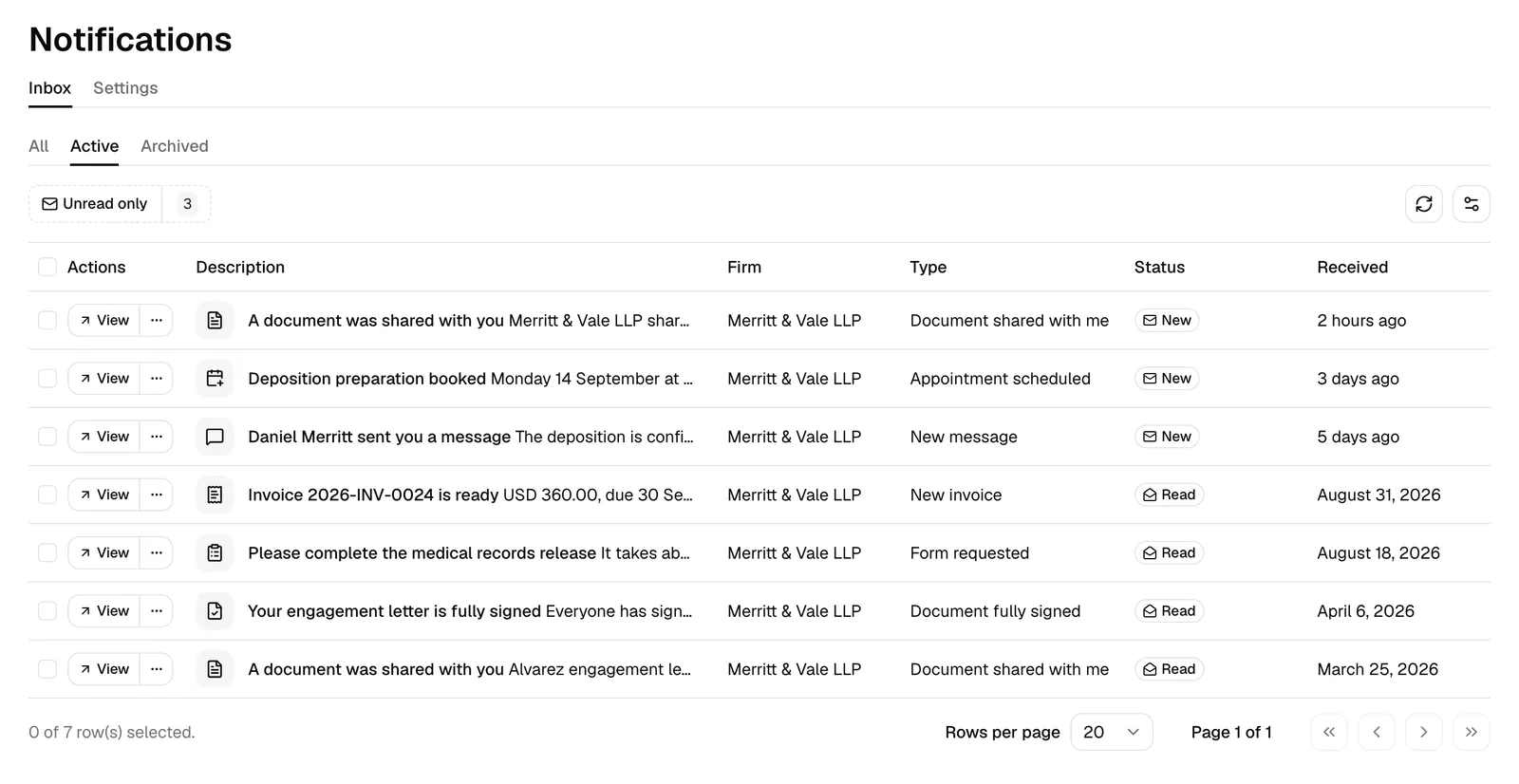
The Notifications page
The full page is the client's Inbox, with a Notification settings link beside it that opens their settings.
The inbox is a table of everything they have received, across every firm they work with.
- Three tabs above the table filter it: All, Active (the working inbox), and Archived.
- An Unread only toggle narrows the list to what they have not read yet, with a count beside it.
- The columns are Description, Firm, Type, Status (a New or Read badge), and Received.
- Each row has View, plus a menu with Mark as read, Archive, Restore, and Delete. The same actions are available in bulk once rows are selected with the checkboxes.
- Delete is only offered on an archived notification, it asks for confirmation, and it cannot be undone.
Note: Times in a client's inbox are shown in the client's own time zone, not your firm's, because their inbox may span several firms.
In the Esqase Client app, the same inbox is Inbox on the account screen, which opens from the client's initials at the top left of Home. It has the same All, Active and Archived tabs, Unread only and Mark all read. Tapping a notification opens what it is about, swiping marks it read or archives it, and an archived notification can be restored or deleted. A dot on the client's initials means something is unread.
Alerts outside the portal
A client can also get an alert from their browser or operating system, the kind a calendar app raises before a meeting. They switch these on themselves: on their notification settings page there is an Enable desktop notifications button, and clicking it is what makes their browser ask permission. The portal does not ask on its own, because Firefox and Safari ignore a request that does not follow a click. A client answers once per browser on each device.
The same line on that page tells a client where they stand: Desktop notifications are on for this browser, Desktop notifications are blocked in this browser. Allow them in your browser settings., or This browser does not support desktop notifications.
Once allowed, alerts arrive whether the portal tab is in the background, behind another program, or closed. Clicking the alert opens the portal at the linked page. If the client declines, nothing else changes: notifications still reach the bell and the Notifications page.
Important: If your firm holds a compliance agreement, a client's desktop alerts and notification emails carry no detail either. They read the kind of event and Open your client portal to see it. (or Open Esqase to see it. when the alert arrives while the portal is closed), with no matter, document, or invoice named. The client's portal inbox still shows the full text. Alerts on a client's phone carry no detail whether or not your firm holds an agreement. See Business associate agreement (BAA).
📷 Screenshot: A desktop alert from the client portal showing a notification title and detail, next to a browser window.
Alerts on a phone
A client who uses the Esqase Client app can get alerts on their phone.
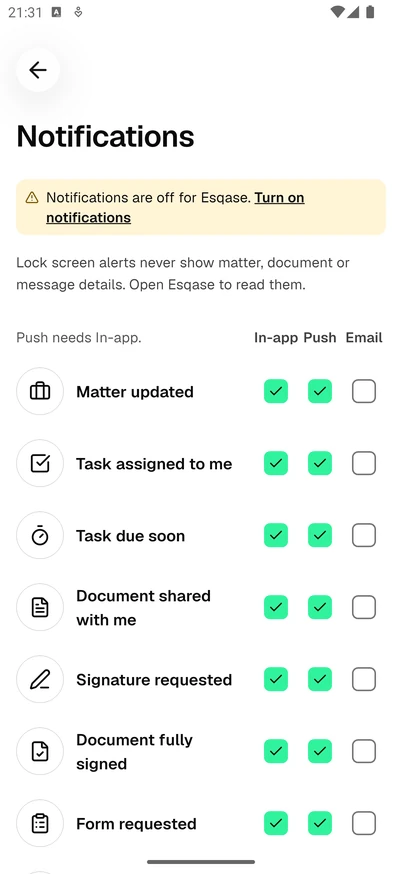
- Right after their first sign-in, the app asks STAY ON TOP OF YOUR MATTER with Turn on notifications and Not now. Turn on notifications brings up the phone's own permission prompt.
- A client who said Not now, or said no to the phone, can turn alerts on later under Notifications on the account screen, which offers Turn on notifications or Open settings while they are off.
A phone alert never names your firm, the matter, the document or the person who wrote. It carries only the kind of event, such as New invoice, Signature requested, Appointment reminder or New message, and the line Open Esqase to see it. That holds for every firm, whatever your firm's own settings, because a phone's lock screen can be read by anyone holding it. Tapping the alert opens the page it is about in the app, switching to that matter for the moment when it belongs to another one, and the client's inbox shows the full text. An alert tapped while the app is locked or signed out opens once the client unlocks or signs in. On an iPhone, the app icon also shows the number of unread notifications.
While the client has the app open, a new notification appears as a short message inside the app with View, instead of a phone alert.
Only the account signed in on the phone gets its alerts. A client who switches accounts in the app, or signs out, stops getting that account's alerts on the phone.
How clients choose what they receive
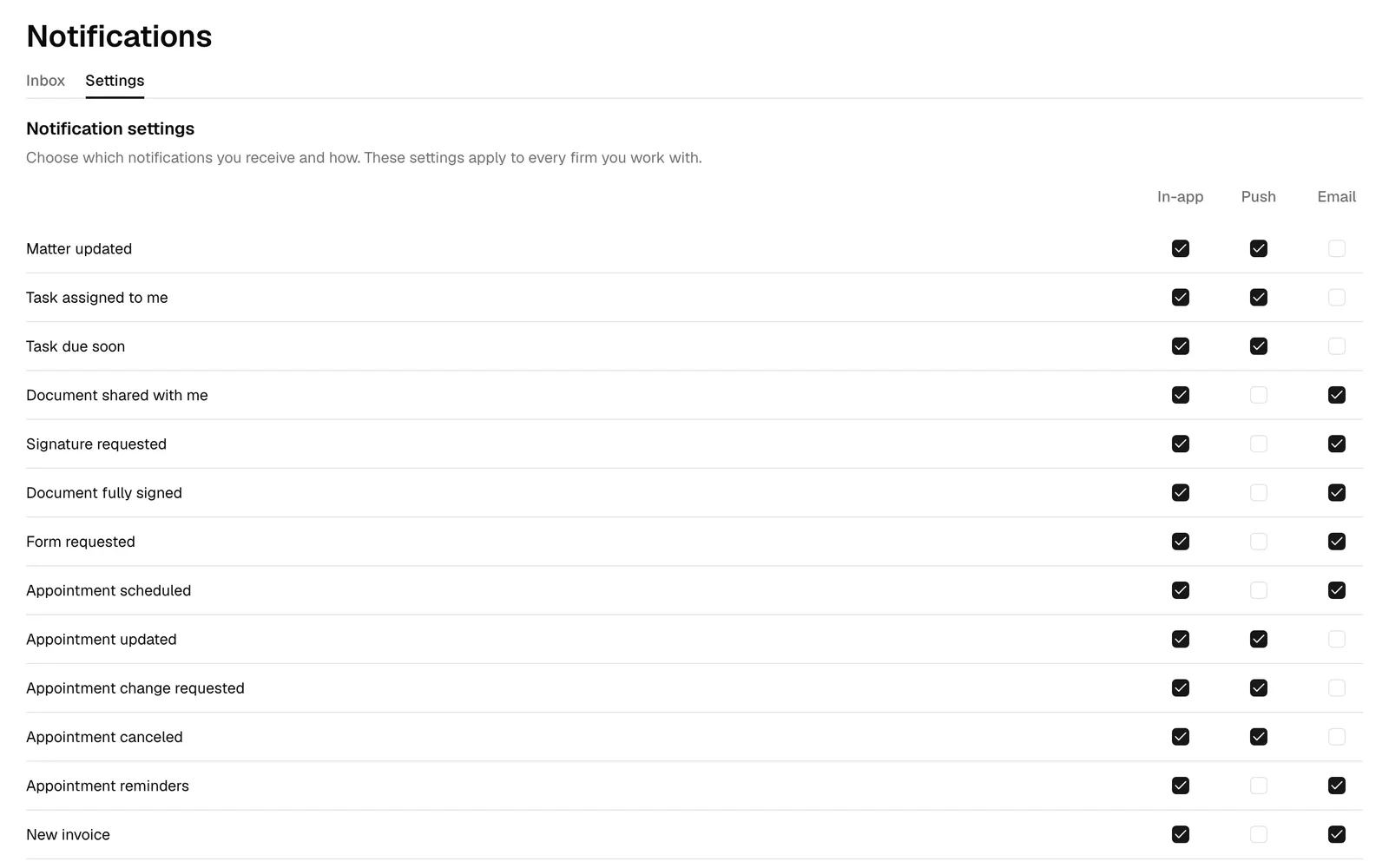
Clients manage this themselves in Settings, under Notifications, reachable from their account menu or from the Notification settings link on the Notifications page. It reads "Choose which notifications you receive and how. These settings apply to every firm you work with."
- The client opens Settings from their account menu and chooses Notifications.
- Each row is one kind of event, with three checkboxes: In-app, Push, and Email.
- Ticking or unticking a box saves immediately, confirmed by a Notification settings updated message. There is no separate save step.
The defaults are In-app on, Push on, and Email off, so a client is notified in the portal and on their desktop from the start, and is never emailed unless they ask to be.
Push covers the browser and the phone alike. The same grid is Notifications on the account screen of the Esqase Client app, and a change in either place applies to both.
Important: Push needs In-app, and the page says so above the list. In-app is the master switch for an event: unticking it empties and greys out the Push box, and stops the bell entry, the corner message, and every alert for that event. A client who wants a record without interruptions should leave In-app on and turn Push off.
The list of events a client can control includes:
- Matter updated
- Task assigned to me
- Task due soon
- Document shared with me
- Signature requested
- Document fully signed
- Form requested
- Appointment scheduled
- Appointment updated
- Appointment change requested
- Appointment canceled
- Appointment reminders
- New invoice
- Invoice due
- Payment received
- New message
Note: These settings belong to the client and follow them across every firm they work with on Esqase. If a client turns off Invoice due, they stop getting that reminder from all of their firms, not just yours.
Common questions
My client says they never got a notification. Work through these in order. First, check the email address on their contact: Esqase matches a client to a contact by email address, so an address that differs from the one they sign in to the portal with means no match. Second, confirm they have actually signed in to the portal at least once. Third, remember the client may have turned that event off in their own settings, which you cannot see or change. Finally, check that the action itself notifies at all: a public document link, a manually recorded payment, and most matter edits deliberately notify nobody.
Which email address does Esqase use? The email addresses on the contact record. A contact with several email addresses is matched on any of them, so keeping the record tidy is worth doing. Names are not used for matching.
Can I see a client's notifications, or send them one by hand? No. There is no way to compose a notification, and a client's inbox is private to them. To tell a client something directly, email them from the matter. See Sending email.
What happens while our firm's subscription is paused? The portal is unavailable to your clients while your firm is paused, and your firm's notifications are hidden from their inbox for that time. Nothing is lost: once the subscription is active again, the portal and those notifications come back. See Your Esqase subscription.
Does a client see notifications for matters they are not part of? No. Every notification is addressed to a specific person: the assignee of the task, the recipient of the share, the signer, the guest on the event, the client on the invoice. Nobody else receives it.
Do clients get notified about our internal work? No. Internal comments, staff assignments, approvals, and everything else in your dashboard stay on your side. The events listed above are the complete set a client can receive.
Can a client stop everything at once? Not with one switch. They untick In-app on the events they do not want, which silences those events on every channel. Anything still ticked keeps arriving.