Signing in to the Esqase Client app
Your clients sign in to the Esqase Client app with an emailed code, Google or Apple, and can then use Face ID or a fingerprint and keep several accounts.
It is the same Esqase account they use in the client portal on the web. The code has 6 digits, Apple is offered on an iPhone, Face ID, Touch ID or a fingerprint can also lock the app, and up to five accounts fit on one phone. This page explains each step as the client sees it, how long a sign-in lasts, and what happens when they sign out or switch accounts, so you can answer a client who is stuck. How the web portal handles sign-in is on How clients sign in.
Before you begin
- There is nothing for your firm to set up, and nothing you can do on a client's behalf. The client signs in with their own email address, and the app shows what firms on Esqase hold against that address.
- The address on the contact record is still the key. Signing in grants a client nothing on its own. A client who signs in with an address that is not on any contact record sees an empty app. See How clients sign in.
- There is no password. A client signs in with a code, Google or Apple, and there is nothing to set, forget or reset.
- One account works everywhere. The account a client uses in the app is the same one they use in the client portal and on the links you email them.
The first screen
The app opens on three short slides about what it does, each with a line of explanation. They move on by themselves every few seconds, and the client can swipe between them. The sign-in buttons sit underneath:
- Continue with email, which every client can use.
- Continue with Google.
- Continue with Apple, on an iPhone only. On an iPhone, Continue with Google appears only when Continue with Apple does too.
- Sign in with Face ID, Sign in with Touch ID or, on Android, Sign in with biometrics, once a client has turned that on for an account on this phone. See Face ID, Touch ID and fingerprint sign-in.
Under the buttons is the line "By continuing, you agree to the Esqase Terms of Service and Acceptable Use Policy, and acknowledge the Privacy Policy and Data Processing Agreement.", with each of the four documents as a link. It is the same set of documents the web portal's sign-in names.
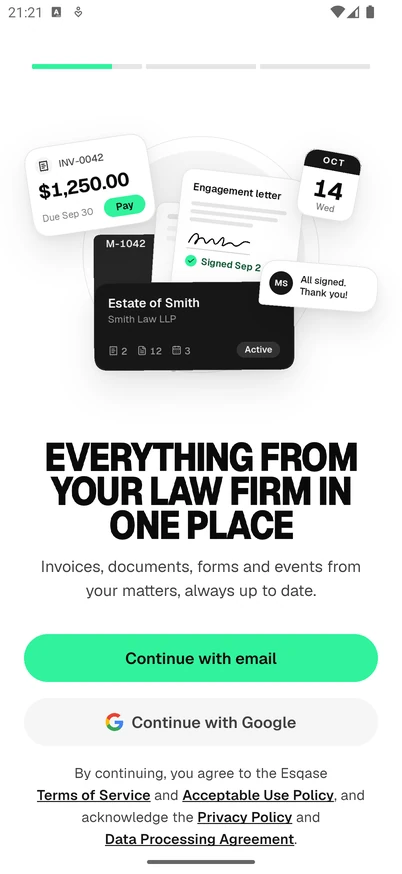
Note: If Continue with Google or Continue with Apple is not on the screen, that method is switched off for the app. The emailed code is always there.
Signing in with an emailed code
- The client taps Continue with email.
- On Sign in to Esqase, they type the email address your firm has for them into Email and tap Continue.
- Esqase emails them a 6-digit code. The code is good for 10 minutes, and the email reminds them to enter it only on an official Esqase page or in the Esqase app.
- On Check your email, they type the code into Sign-in code. The app signs them in as soon as the sixth digit lands, and Continue does the same.
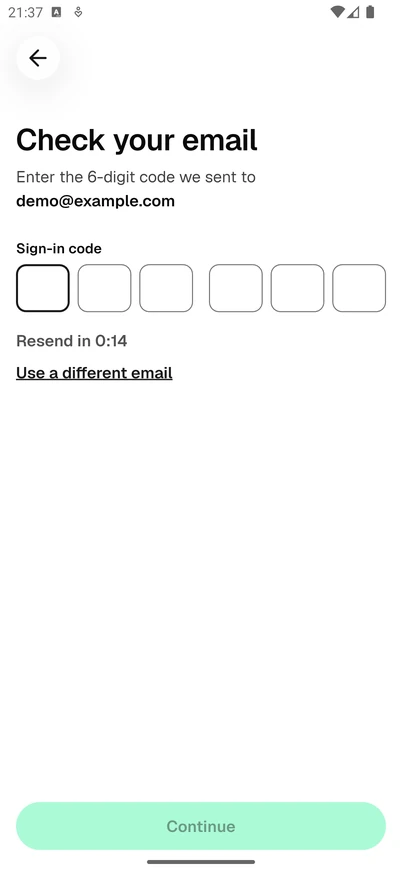
Two links sit under the code boxes:
- Resend in counts down from 30 seconds and then becomes Resend code. The app confirms with "A new code is on its way to your inbox."
- Use a different email goes back to the first step.
A wrong or expired code shows "That code is incorrect or has expired, so you are not signed in yet. Check the digits and try again, or request a new code below." After five wrong tries the code stops working, and the client asks for a new one.
Important: A code belongs to the app that asked for it. A client who asks for a code in the app types it into the app, not into a browser, and a code asked for in a browser does not work in the app. If the app says "Start again on this device. Enter your email address to get a new code.", the client asks for a fresh code in the app.
Signing in with Google or Apple
Continue with Google and Continue with Apple open the phone's own Google or Apple sign-in, and bring the client straight back. A Google or Apple account that has never been used with Esqase gets an Esqase account, exactly as an emailed code would.
What decides access does not change: the records that appear are the ones held against the email address the Google or Apple account uses. A client who signs in with Apple and chooses Hide My Email signs in with an address your firm does not have, and sees an empty app. They should sign in with the emailed code instead, using the address your firm has.
Adding a name the first time
A client signing in for the first time, with no name on their account yet, sees Complete your profile and "Add your name to continue.", with First name and Last name filled in from the contact record your firm holds. Most clients only need to tap Continue.
What the app asks after the first sign-in
Right after signing in, the app asks two things, one screen each. The client can answer Not now to both and change their mind later.
- Face ID or fingerprint. On a phone with Face ID, Touch ID or fingerprints set up, the app offers Turn on Face ID (or Turn on Touch ID, or on Android Turn on biometric unlock).
- Notifications. STAY ON TOP OF YOUR MATTER offers Turn on notifications, which brings up the phone's own permission prompt. See How clients get portal notifications.
Face ID, Touch ID and fingerprint sign-in
Once it is on, a client signs in by looking at the phone or touching the sensor, instead of waiting for a code. One switch covers two things:
- Signing in. The first screen shows Sign in with Face ID (or Sign in with Touch ID, or Sign in with biometrics on Android) for the account on this phone.
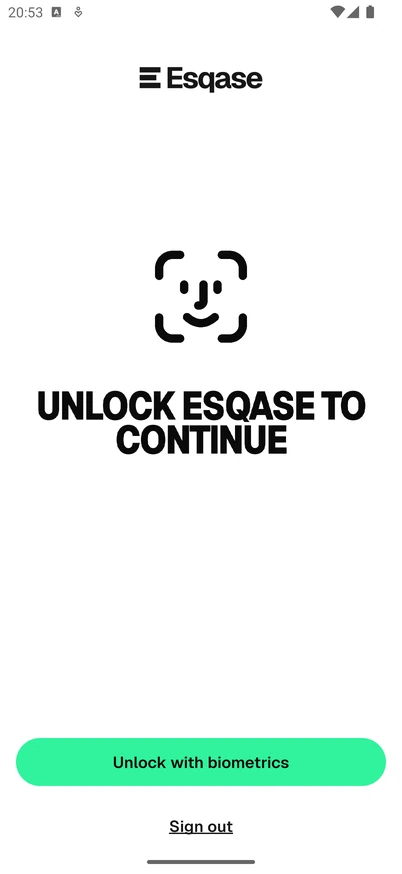
- Locking the app. When the client comes back to the app after a minute or more away, or opens it fresh, it shows UNLOCK ESQASE TO CONTINUE and asks for Face ID or a fingerprint before it shows anything. Sign out under the button signs out instead.
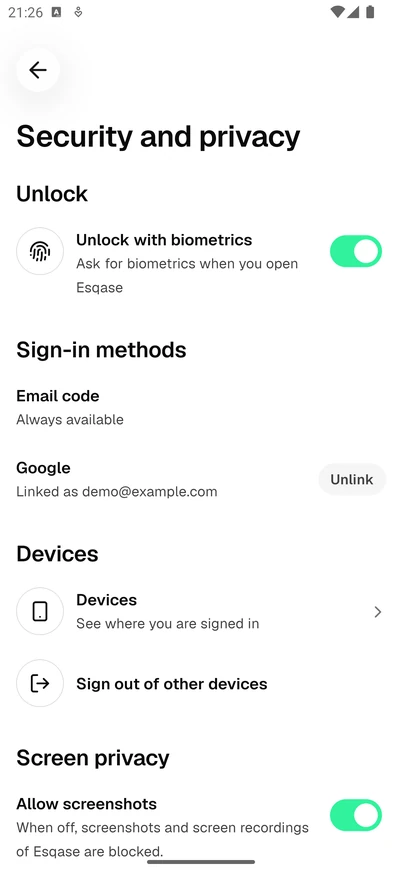
To turn it on or off later, the client opens their account from the initials at the top left of Home, then Security and privacy, and uses the switch under Unlock: Unlock with Face ID, Unlock with Touch ID, or on Android Unlock with biometrics. A phone with nothing set up shows "Set up Face ID in your device settings to use it here." instead of the switch. Esqase emails the client whenever it is turned on for a phone.
What to know about it:
- The phone checks the face or fingerprint, not Esqase. Esqase never receives a face or a fingerprint. The app keeps a sign-in key on the phone that the phone releases only after it recognises its owner, and Esqase holds only the matching public key.
- It lasts 30 days from the last full sign-in on that phone. A full sign-in is an emailed code, Google or Apple. After 30 days the app asks for a full sign-in once, and Face ID works again after it.
- It never stands in for confirming who the client is. Turning it on, changing sign-in methods, signing out other devices and deleting the account need a sign-in or a confirmation with an emailed code, Google or Apple in the last 15 minutes. See Confirming it is you.
- It is per account and per phone. Each account on the phone has its own, and a new phone starts without it.
- Some events turn it off. Turning the switch off, signing out on this phone, Sign out of other devices used from another phone or the web, a deletion request, and a change to the faces or fingerprints set up on the phone all turn it off. The client can turn it on again after their next sign-in.
- Signing out of the web portal asks for one full sign-in. The next time, the app asks for a code, Google or Apple before Face ID works again.
If Face ID does not recognise the client, the lock screen says "Face ID did not recognise you. Try again." After too many tries the phone locks the sensor, and the app says "Biometrics are locked after too many attempts. Unlock your device, then try again."
Confirming it is you
Some changes need a fresh proof that the person holding the phone is the account owner. If the client has not signed in with a code, Google or Apple in the last 15 minutes, the app shows Confirm it is you before it goes ahead:
- turning on Face ID, Touch ID or fingerprint sign-in;
- linking or unlinking Google or Apple;
- signing out of other devices;
- deleting the account.
The client taps Email me a code and types the code, or uses Continue with Google or Continue with Apple if that is linked to the account. Face ID and fingerprints do not count here.
Staying signed in
A sign-in in the app lasts as long as the client keeps using it, within two limits:
- One hour without activity. Five minutes before the hour is up, a banner reads "For your security, you will be signed out in 5 minutes." with Stay signed in. Taps and typing count as activity. Leaving the app open on a table does not.
- 12 hours in all. However active the client is, the sign-in ends 12 hours after it began.
When a sign-in ends, the app shows SIGN IN AGAIN TO CONTINUE with the reason:
| The app says | Why |
|---|---|
| "Your session ended after an hour without activity, to keep your information safe." | Nobody used the app for an hour |
| "Sessions end automatically after 12 hours." | The 12-hour limit was reached |
| "This session was ended from another device or by a change to your account." | The client signed out of the web portal, used Sign out of other devices somewhere else, or signed this phone out from another one |
| "We could not reach the sign-in service. Check your connection and try again." | The phone could not reach Esqase; Try again checks again |
The client taps Sign in, or Sign in with Face ID when that is on for the account, which starts a new sign-in within the 30-day window. Use your email instead goes to the emailed code.
📷 Screenshot: The SIGN IN AGAIN TO CONTINUE screen after an hour without activity, showing the reason line, the Sign in with Face ID button, the Use your email instead link and Sign out.
Signing out
- The client taps their initials at the top left of Home.
- They scroll to the bottom of the account screen and tap Sign out.
- They confirm Sign out of Esqase on this device? with Sign out.
Signing out in the app signs out that phone only. It stops notifications to that phone and turns off Face ID or fingerprint sign-in for the account on it. The next sign-in needs a code, Google or Apple, and the app keeps the email address ready to fill in.
Signing out in the app does not sign the client out of the web portal or their other phones. A client who wants that uses Sign out of other devices, below. It works the other way in the web portal: signing out there ends every sign-in on the account, including the app's, and the app then shows SIGN IN AGAIN TO CONTINUE.
Signed-in phones and browsers
Security and privacy has a Devices section:
- Devices lists every phone signed in to the account, with the kind of phone, the app version, how it signed in and when it was last active. The phone in hand is marked This device. Any other phone can be signed out on its own with Sign out. A second list, Biometric sign-in, shows which phones have Face ID or fingerprint sign-in on, each with Turn off.
- Sign out of other devices signs the account out of every other phone and every browser, and turns off Face ID or fingerprint sign-in on the other phones. The phone in hand stays signed in. Esqase emails the client to say it happened.
Browsers where the client uses the web portal are not listed, but Sign out of other devices signs them out too. It is the right answer to a lost phone: the client signs in on another phone, or in the web portal, and signs everything else out.
Using more than one account
A client with more than one email address, for example a personal one and one for a family trust, can keep up to five accounts on one phone.
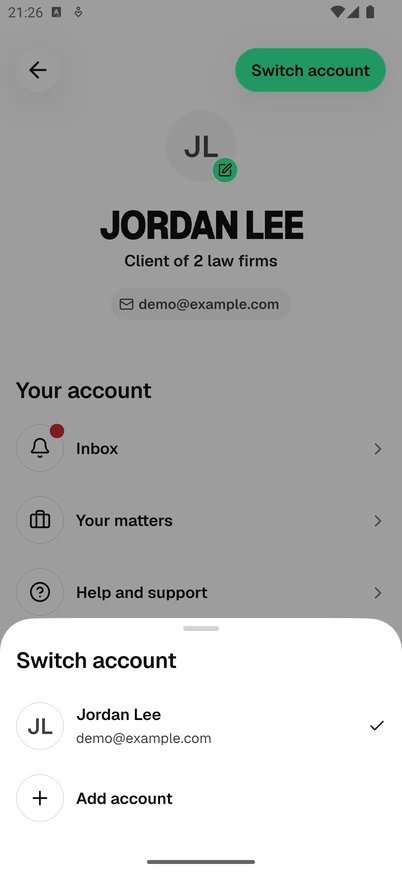
- The client opens their account from the initials at the top left of Home and taps Switch account.
- The sheet lists every account on the phone, with a tick beside the one in use.
- They tap another account. The app signs the current one out on this phone and signs in to the chosen one with Face ID or a fingerprint if it is on for that account, or with an emailed code, the address already filled in.
Add account signs the current account out and starts a fresh sign-in. Swiping an account and tapping Remove takes it off the phone. Only the account in use gets notifications on the phone.
Linking Google or Apple
Under Sign-in methods in Security and privacy, Email code is always available. Google, and Apple on an iPhone, show Link or, once linked, the address and Unlink. A client can link only a Google or Apple account that uses the same email address as their Esqase account, so an Apple Hide My Email address cannot be linked. Esqase emails the client whenever a method is linked or removed.
Unlinking Apple stops the app using it, but Apple keeps its own record of the connection. The app reminds the client to remove Esqase in their Apple ID settings as well.
Common questions
Does Face ID replace the emailed code? For signing in, yes, for up to 30 days after the last full sign-in on that phone. It never replaces the code for the changes listed under Confirming it is you.
A client changed phones. They install the app on the new phone and sign in with a code, Google or Apple, then turn on Face ID or fingerprint sign-in again if they want it. The old phone stays signed in until it signs out, times out, or is signed out from Devices or Sign out of other devices.
A client lost their phone. They sign in on another phone, or in the web portal under Settings, Security, and use Sign out of other devices. See Client account settings.
Does signing out on the web sign out the app? Yes. Signing out of the web portal ends every sign-in on the account, the app's included, and so do Sign out of other devices and a deletion request. Signing out in the app ends only that phone's sign-in.
Can a client use the app and the web portal at the same time? Yes. They are separate sign-ins to the same account, although signing out of the web portal ends both.
Why was the client asked to sign in again after a day? Every sign-in ends after 12 hours, and after one hour without use. Face ID or a fingerprint makes the next one quick.
Troubleshooting
- The code never arrives. Ask the client to check spam, and confirm that the address on your contact record is the one they typed.
- The code is refused. Codes last 10 minutes and work once, and only the app that asked for the code can use it. Ask the client to tap Resend code and use the newest email.
- "Too many attempts have been made recently." The client asked for too many codes, or tried too many wrong ones, in a short time. It clears on its own after a few minutes.
- Google or Apple sign-in shows an empty app. The Google or Apple account uses an address your firm does not have. Ask the client to sign in with the emailed code, using the address on your contact record.
- "This email already has an Esqase account." The client tried to sign in with Apple using an address that already has an account. They sign in with their emailed code, then link Apple under Security and privacy.
- Face ID is not offered, or it leads to the emailed code. Face ID, Touch ID or fingerprints are not set up on the phone, the client turned the switch off or signed out on the phone, or 30 days have passed since the last full sign-in on that phone.
- The client keeps being signed out. The app ends a sign-in after an hour without use. Ask whether they leave it open without touching it, and whether someone used Sign out of other devices.