The Esqase Client app
The Esqase Client app is the client portal on a phone, where your clients follow their matters, pay invoices, sign documents and message your firm.
On an iPhone or an Android phone, a client also sees what needs their attention, fills out forms and answers meeting invitations. The app uses the same Esqase account, the same records and the same email rule as the client portal on the web, so there is nothing for your firm to set up. This page describes what a client sees in the app, so you can answer "where is that in the app?" when a client asks.
Before you begin
- There is nothing for your firm to turn on. A client who installs the app and signs in sees the same matters and records they would see in the client portal. See The client portal.
- The email address on the contact record still decides everything. The app shows what your firm (and any other firm on Esqase) holds against the address the client signs in with. If a client says something is missing, check that address first. See How clients sign in.
- The app is organised by matter. A record that is not attached to a matter does not appear in the app, exactly as on the web.
- A paused firm disappears from the app too. While a firm's Esqase subscription is paused, its matters and records stop appearing, and they come back once it is active again.
- What a client needs: the Esqase Client app from the App Store or Google Play, an iPhone with iOS 15 or later or an Android phone with Android 7.0 or later, and an internet connection.
Getting the app
- The client searches for Esqase Client in the App Store on an iPhone, or in Google Play on an Android phone. The app is published by Esqase, Inc.
- They install it and open it.
- They sign in with the email address your firm has on file for them.
The app is made for phones and works in portrait. There is no separate app for your firm to install for a client, and no invitation to send: signing in is enough.
Signing in
The first screen offers Continue with email, which emails the client a 6-digit code, Continue with Google, and on an iPhone Continue with Apple. On an iPhone, Continue with Google appears only when Continue with Apple does too, and the emailed code is always there. After the first sign-in the app offers to turn on Face ID or fingerprint sign-in, then asks whether to turn on notifications. The client can say Not now to both.
Everything about signing in, staying signed in, the app lock, signing out and using more than one account is on Signing in to the Esqase Client app.
Moving around the app
Four tabs sit in a floating bar at the bottom of the screen:
- Home, what needs the client's attention in the matter they are looking at.
- Matters, every matter the client has, across every firm they work with.
- Events, the meetings they are invited to, as a calendar or a list.
- Messages, their conversations with your firm. A dot on the tab means something is unread.
The client's account is not a tab. It opens from the circle with the client's initials at the top left of Home, Matters, Events and Messages, and the circle carries a dot while they have unread notifications. The account screen holds the Inbox (their notification history), Your matters, Help and support, Security and privacy, Notifications, Appearance, Personal details, Terms and privacy, Rate the app, Report a problem, Switch account, Delete account and Sign out, along with the app version and the client's account ID with a Copy button. See Client account settings.
Invoices, Files, Forms and Tasks are lists the client opens rather than tabs. They are covered in Invoices, Files, Forms and Tasks below.
Home: what needs the client's attention
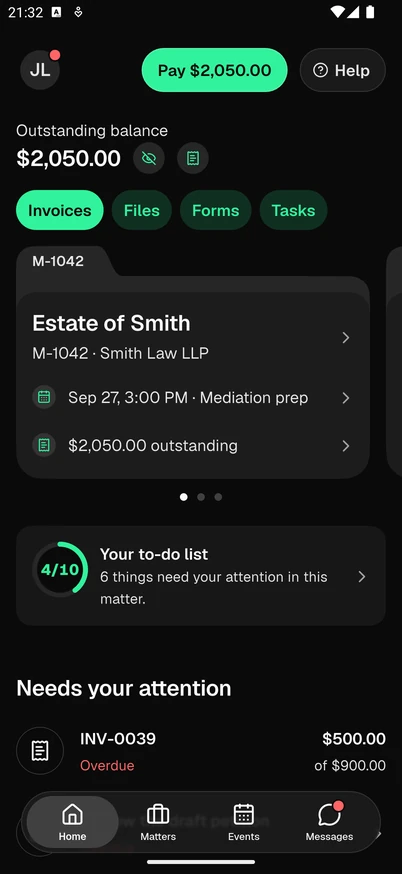
Home shows one matter at a time, and answers two questions: what does the client owe, and what are they waiting on.
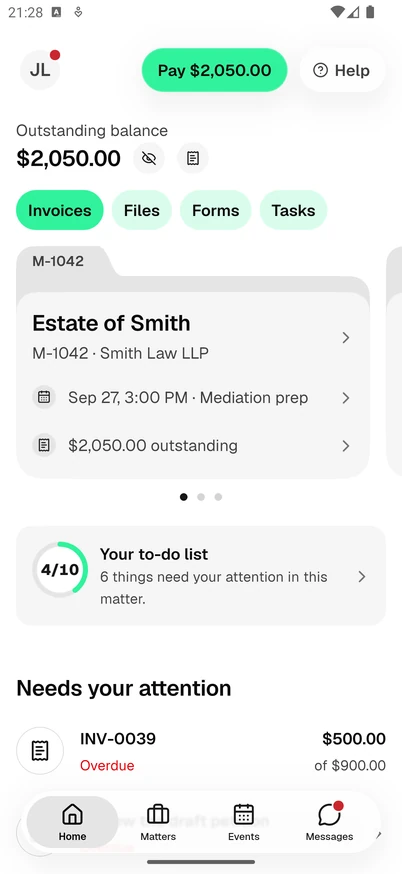
From the top:
- The header. The client's initials open their account. A Pay pill with the amount appears when there is an invoice to pay, and opens the unpaid invoices. Help opens Help and support.
- Outstanding balance. What is still owed on the matter. The eye button beside it hides and shows every amount in the app (Hide amounts and Show amounts), and the phone remembers the choice. A client whose invoices are in more than one currency sees the main one with "+ 1 other currency" or "+ {n} other currencies" beside it.
- Four chips, Invoices, Files, Forms and Tasks, which open those lists for the matter. The first one with something waiting is highlighted.
- The matter folder, a folder whose tab shows the matter number. It holds the matter title, the matter number and your firm's name, the next event on the matter (or "No upcoming events") and the amount outstanding (or "Nothing to pay"). Tapping the folder opens Matter details. A client with several matters swipes the folder sideways to move to the next one.
- Your to-do list, a ring that counts what the client has finished against everything that was asked of them on this matter: paid invoices, signed documents, completed forms and completed tasks, against those plus the ones still waiting. Events and messages are not counted. The line under it reads, for example, "3 things need your attention in this matter." or "You are all caught up." When nothing has been asked of the client on the matter, the ring shows a check instead of a count.
- Needs your attention, the list itself.
The Needs your attention list
Each row is something the client can act on now, in this order: anything overdue first, then whatever is due or starts soonest.
| What appears | When | What the row shows |
|---|---|---|
| An invoice | It is unpaid or partly paid and has a payment link | "Due" and the date, or Overdue, with the balance and the total |
| A document | It is waiting for the client's signature | "Signature requested" and the date, with a Sign button |
| A form | You asked the client to fill it out | "Form requested" and the date, with a Fill out button |
| A task | It is assigned to the client and still open | "Due" and the date, or Overdue |
| An event | It is in the next 7 days and needs the client's reply, or starts within 24 hours | The date and time with "Reply requested" or "Starts soon" |
| A conversation | It has a message the client has not read | "New message" and when it arrived |
Tapping a row opens the record in the app. When the list is empty, Home reads "You are all caught up" and "Nothing needs your attention in this matter right now."
A client with no matters at all sees "Nothing here yet", with a line explaining that what a law firm shares with their email address appears here, and that a client using a different address with their firm should sign out and sign in with that one.
Choosing a matter
Home, Events and the record lists show one matter at a time: the one the client chose last. Messages and the Inbox cover every matter and every firm.
- The first time, the app opens the client's first active matter, or their most recently opened one if none is active.
- After that, it remembers the last matter the client chose on that phone, for each account, as long as the matter still exists.
A client switches matters in any of three ways:
- Swipe the matter folder on Home sideways. The folder that settles becomes the current matter.
- Open the Matters tab and tap a matter. The app selects it and goes back to Home.
- In any record list, or on the Events tab, tap the button with three dots at the top right, then Switch matter.
The Matters tab lists every matter with the matter number and the firm, and adds Done to a closed matter. It filters with All, Active and Done, and Search matches as the client types. The current matter is pinned at the top as Current matter. A line at the top reads "Missing a matter? Contact your law firm." The button with three dots at the top right offers Contact your law firm (it opens Messages), Help and support and Switch account.
Matter details, opened by tapping the matter folder on Home, shows the Matter number, Status (Active or Done), Practice area, Opened and Firm, then an Activity list of the matter's invoices, documents, forms, tasks and events, newest first and grouped by day.
Invoices, Files, Forms and Tasks
Each list opens from the chips on Home, from the matter folder, or from the bar at the bottom of Matter details. The matter's number and title sit under the list's name, after the firm's name when the client has matters with more than one firm. A floating bar at the bottom moves between Invoices, Files, Forms and Tasks without going back. The bar stays in place while the list above it changes, and each list keeps its filter, search and scroll position while the client stays in the lists. Every list has Search, and a filtered list with nothing in it reads "No results found."
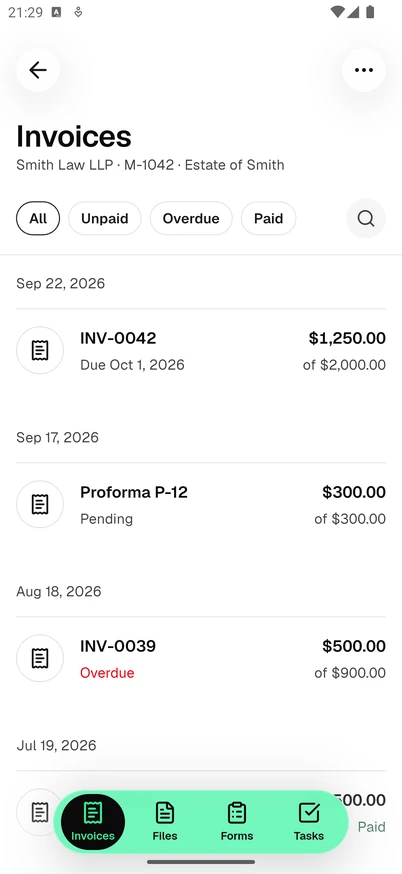
| List | Chips | What each row shows | Buttons on the record |
|---|---|---|---|
| Invoices | All, Unpaid, Overdue, Paid | The invoice number, "Due" and the date or its status (Pending, Partial paid, Paid, Overdue), and the balance of the total | Pay when the invoice has an active payment link, otherwise View |
| Files | All, To sign, Signed, Shared | The document name, and "For signature" with its status (Awaiting signature, Signed, Declined) or Shared or Expired | Sign while a signature is waiting, View for a shared document |
| Forms | All, Pending, Completed, Cancelled | The form name, when it was requested, and its status | Fill out while it is pending, View once it is completed |
| Tasks | All, Open, Completed | The task, its due date or Overdue, and the stage it sits in on your board, grouped under Overdue, Open and Completed | None: a task is a view only |
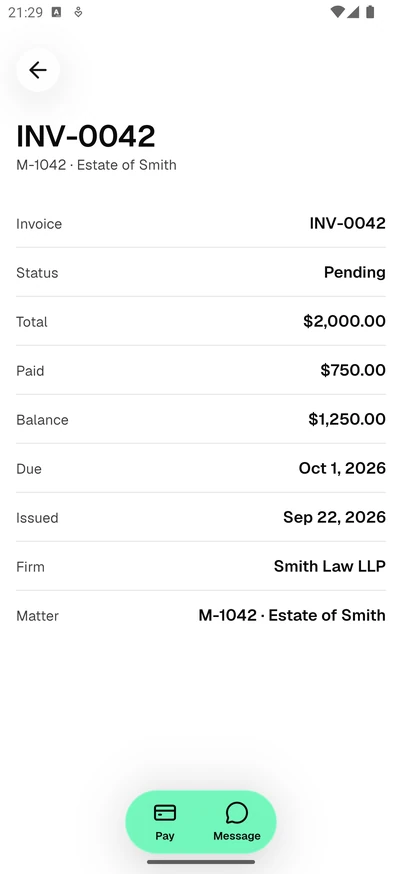
Tapping a row opens the record on its own page, with the same details the web portal shows: for an invoice, Status, Total, Paid, Balance, Due, Issued, Firm and Matter; for a task, everything down to its Description. Each record page also has a Message button, which opens Messages.
As on the web, a client never sees a draft invoice, an invoice in review, a cancelled or written-off invoice, or a task that is not assigned to them. An expired share stays on the list with no button, so the client can ask you for a fresh link.
Pay, Sign, View and Fill out open your firm's page inside the app
Pay, Sign, View and Fill out open the same payment, signing, shared document, form and meeting pages your clients use on the web, inside the app, with a close button at the top left.
- The client does not sign in again. The app opens the page already signed in with the account the client is using.
- Everything on the page works as it does in a browser, so the steps on How clients pay invoices, How clients sign documents, How clients view shared documents, How clients fill intake forms and How clients book meetings apply unchanged.
- When the client finishes, by reporting a payment, signing or declining, submitting a form, or changing their reply to a meeting, the app closes the page and refreshes the record. A short message confirms it, for example "Thanks. Your law firm will confirm your payment.", "Document signed" or "Form submitted". If the page stays on its own confirmation screen, Done at the top right does the same.
- Files the client downloads, such as an invoice PDF or a shared document, come to the phone, which opens them or offers to save or share them.
- A link that leaves Esqase, such as a video meeting link, opens outside the app, and the app says "Opened in your browser".
- Closing the page, or signing out, clears what the page stored on the phone.
If a page cannot be opened this way, the app explains why rather than showing a blank screen:
- "This is for another email address" means the record was sent to a different address from the one the client signed in with. They should sign in with the right address, or contact you.
- "Open this from your email" means the page could not be opened in the app. The link in the email you sent still works.
- "This page could not load" usually means the phone lost its connection. Try again reloads it.
Note: A client can open up to 30 of these pages in 10 minutes. Anyone who reaches that limit waits a few minutes, or uses the link in your email.
Events
The Events tab shows the meetings on the current matter that the client is a guest on. At the top are the client's initials, a toggle between Calendar view and List view, and a button with three dots that offers Go to today and Switch matter. While the client looks at another day, a Today button appears there too.
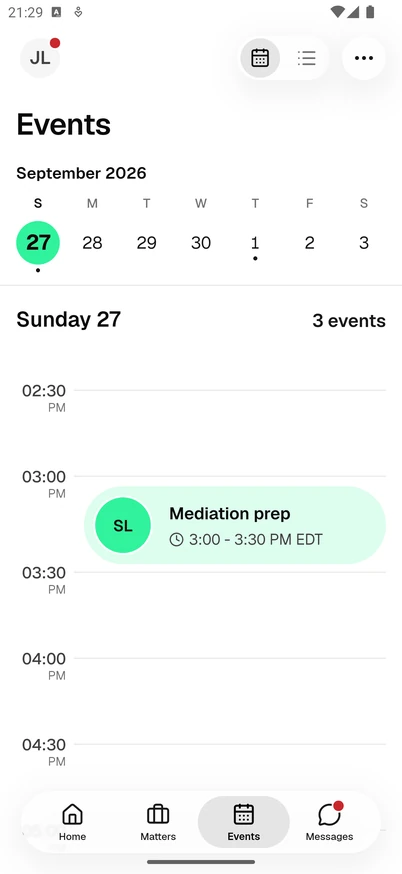
- Calendar view shows the month and a week strip, which the client swipes to move a week at a time. Today is circled, and a dot under a day means it has meetings. Below the strip, the chosen day's meetings sit on a time rail with a line marking the current time, and "No events on this day" shows when the day is empty. When the client opens Events, picks a day or swipes to another week, the day scrolls to its next meeting, or to the current time once that day's meetings are over.
- List view filters with All, Upcoming and Past, groups meetings under Today, Tomorrow and later dates, and shows the time with Online or the location, and the client's reply: Pending, Accepted, Declined or Tentative.
- Times are shown in the meeting's time zone, with the zone added (for example "EDT") when the client's phone is set to a different one.
Tapping a meeting opens it with When, Your RSVP, Status, Location, Firm and Matter. View opens your firm's meeting page inside the app, where the client replies to the invitation or asks for a different time. See How clients book meetings.
Messages
The Messages tab is the same conversation your firm sees in the dashboard. The list filters with All and Unread and has Search. At the top are the client's initials, Mark all read while something is unread, and a button with three dots that offers Notification settings and Report a concern to Esqase. A conversation opens with a tap.
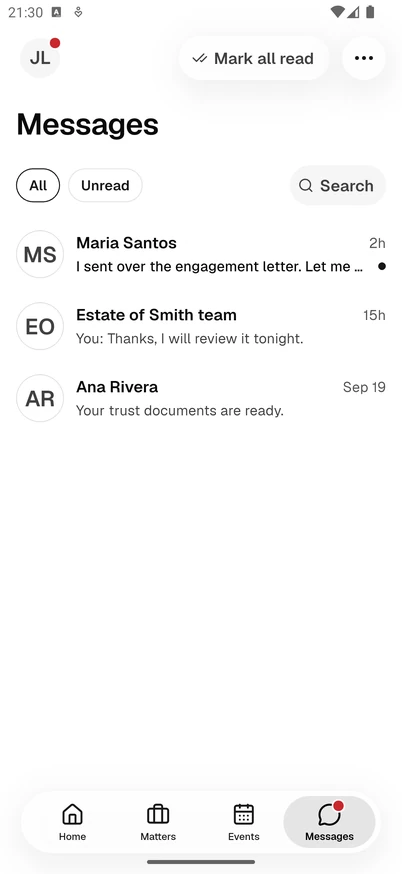
In a conversation, a client can:
- write and send a message, and reply to a single message so it is quoted above their answer;
- press and hold a message to react with one of the six emoji, Reply, Edit (their own, within 5 minutes of sending), Copy text, Delete for everyone (their own) or Delete for you;
- attach up to 10 files to a message, up to 25 MB each, from the Photo library, the Camera or Files;
- see when your team is typing, and open Members to see who is in the conversation.
A client cannot start a conversation: your firm always opens it, and until then the tab reads "No conversations yet". Report message on someone else's message, and Report a concern to Esqase under Members or in the menu at the top of the tab, open an email to Esqase support. See Messages.
Notifications and alerts
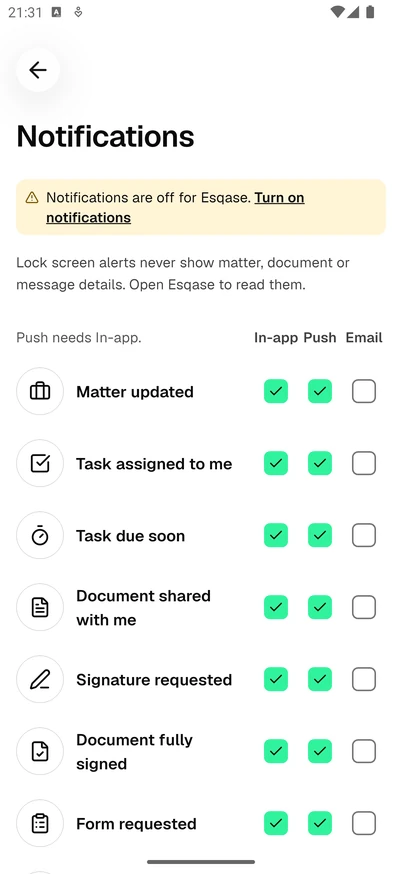
- Phone alerts. After the first sign-in the app asks whether to turn on notifications (Turn on notifications or Not now). Alerts on the phone never show the matter, the document or the message: they name the kind of event, such as "New invoice" or "New message", and read "Open Esqase to see it." Tapping one opens the page it is about: the invoices, files, forms or tasks list or a single task, the matter's page for a matter update, the Events tab for a meeting, or the conversation for a message. If it belongs to another matter, the app switches to that matter for the moment, and the matter the client usually sees stays their default. An alert tapped while the app is locked or signed out opens once the client unlocks or signs in, and an alert for a different account opens Home.
- The Inbox. The client's notification history is Inbox on the account screen, with All, Active and Archived, Unread only and Mark all read. Tapping a notification opens what it is about. Swiping a row marks it read or archives it, and an archived notification can be restored or deleted. On an iPhone, the app icon shows the number of unread notifications.
- Choosing what arrives. Notifications on the account screen is the same In-app, Push and Email grid as on the web, and a change in either place applies to both. It also shows whether notifications are on for the app on this phone.
See How clients get portal notifications.
Light and dark mode
The app follows the phone's light or dark setting. A client who wants one look all the time picks it under Appearance on the account screen:
- Same as device, the default, which "Uses light or dark mode depending on your device settings."
- Light
- Dark
The choice applies at once and stays on that phone.
When the app needs an update or is unavailable
- "You are offline. Showing what was last loaded." appears at the bottom of the screen when the phone has no connection. The client can read what is already on screen, and once the connection is back, pulling down on a screen refreshes it.
- "UPDATE ESQASE TO CONTINUE" appears when the installed version is no longer supported. The client updates the app from the App Store or Google Play, and Update takes them there when it is shown.
- "BACK SOON" appears while Esqase is down for maintenance, with Try again.
- "A new version is available" with Update appears on the account screen when a newer version is out but the installed one still works.
Common questions
Is the app different from the web portal? It is the same account, the same matters, the same records and the same rules. The app arranges them for a phone: Home shows what needs attention instead of the four money cards, and the account screen replaces the web portal's Settings.
A client cannot see an invoice in the app. Check the same four things as for the web portal: the invoice has been sent, it is billed to a contact whose email matches the address the client signs in with, that contact is active, and the invoice is attached to a matter. Also check that the client is looking at the right matter.
Can a client use the app with two firms? Yes. The Matters tab lists matters from every firm, and each matter carries its firm's name.
Can a client use two accounts on one phone? Yes, up to five, with Switch account. See Signing in to the Esqase Client app.
Does the app work without a connection? It needs a connection to load anything new. While offline it keeps showing what was last loaded, with a banner saying so.
Can a client pay, sign or fill out a form without the app? Yes. Every link you email still opens in a browser, and the web portal still works. The app is an extra way in, not a replacement.
Troubleshooting
- The client cannot sign in. See the troubleshooting list on Signing in to the Esqase Client app.
- The client gets no alerts on the phone. They may have said Not now, turned notifications off for the app in the phone's settings, or turned off Push for that kind of event. Notifications on the account screen shows which, with Turn on notifications or Open settings.
- A page says "This is for another email address". The record was sent to a different address. Compare the address on the contact record with the one the client signs in with.
- The app shows the wrong matter. The client can swipe the matter folder on Home, or tap the matter on the Matters tab.