Connect Claude to Esqase
Esqase has a connector for Claude, Anthropic's AI assistant. Once you connect it, you can ask Claude about your firm's matters, contacts, leads, tasks, calendar, time, invoices, and documents from claude.ai, the Claude desktop app, or Claude Code, and ask it to make changes for you, such as creating a task, logging time, or updating a contact. Claude works as you: it sees and does only what your role in Esqase allows, every change waits for your confirmation unless your Approvals setting says otherwise, and each change is recorded under your name, the same as a change you make yourself.
The connector is separate from the AI Assistant inside Esqase. Claude runs on your own Claude plan, so it uses no AI credits and none of your firm's API keys.
This page explains who can connect, how to connect from claude.ai, the Claude desktop app, and Claude Code, what Claude can do, how changes are confirmed, how to disconnect, how your firm's data is handled, the limits, and what to do when something goes wrong.
Before you begin
- A Claude plan with connectors. You add Esqase to Claude as a custom connector. Claude's Free plan allows one custom connector; Pro, Max, Team, and Enterprise allow more. On a Team or Enterprise plan, an Owner of your Claude organization adds the connector first, and then each member connects with their own Esqase account (see On a Team or Enterprise plan).
- Your own Esqase account. Each person connects with their own Esqase sign-in. To connect, your role needs View access for AI Assistant (owners, administrators, and attorneys have it by default), and Claude then has exactly your access: if your role cannot see invoices, for example, Claude cannot read or create them for you either. See Roles and permissions.
- The AI Assistant turned on for your firm. Claude can connect only while your firm's Use the AI Assistant switch is on and your firm's plan includes the AI Assistant (see Turn the assistant off or on).
- No Esqase BAA. If your firm has accepted the Esqase BAA, no one in your firm can connect Claude. This holds even when your firm turns the AI Assistant back on.
- A verified email and two-factor authentication. Esqase asks you to verify your email address before you connect, and to set up two-factor authentication first if your firm requires it.
- One firm per connection. A connection is for the firm you have open in Esqase when you approve it. If you belong to several firms, switch to the right one in Esqase before you connect (see Use Claude with another firm).
- What applies from your AI Assistant settings. Your Approvals setting and your firm's Members can turn off approvals switch apply to Claude, the same as in the AI Assistant (see How changes work). When your firm turns off Use the AI Assistant, Claude cannot connect and existing connections stop working; the same happens when your role no longer includes AI Assistant. The rest of the assistant's settings, such as Use Esqase AI, AI credits, and API keys, do not apply.
Important: What Claude reads in Esqase is sent to Anthropic under your own Claude plan, not under any agreement with Esqase. Esqase's business associate agreement (BAA) does not cover it, and Anthropic's business associate agreement does not cover connectors either. Do not use the connector with protected health information. If your firm has accepted the Esqase BAA, no one in your firm can connect Claude, whether or not your firm's AI Assistant is on. Personal injury matters are never available to Claude (see How your firm's data is handled).
Connect from claude.ai or the Claude desktop app
The connector's address is:
https://app.esqase.com/mcp
A connector you add on claude.ai is also available in the Claude desktop app when you are signed in to the same Claude account, so you only add it once.
On a Free, Pro, or Max plan
- In Claude, go to Customize > Connectors.
- Click Add custom connector.
- Enter a name, for example Esqase, and the address
https://app.esqase.com/mcp. Leave the OAuth client ID and secret empty: Esqase needs neither. If Claude asks how it should identify itself, choose Use Claude's published identity, and if it asks when to sign in, choose Sign in now. - Click Add.
- Next to the new connector, click Connect. A browser tab opens on Esqase.
- Sign in to Esqase if asked, the same way you always do (including your two-factor authentication code if you use one).
- Esqase shows the Connect Claude to Esqase page. Check the firm, choose what Claude may do (see The Connect page), and click Approve.
- You return to Claude, and the connector shows as connected. Start a new chat and ask Claude something about your firm, for example "Which of my tasks are due this week?".
On a Team or Enterprise plan
An Owner of your Claude organization adds the connector once for everyone:
- In Claude, go to Organization settings > Connectors.
- Click Add, then Custom. If Claude asks for the connector type, choose Web.
- Enter the address
https://app.esqase.com/mcp, and leave the OAuth client ID and secret empty. - Click Add.
Each member then connects with their own Esqase account:
- In Claude, go to Customize > Connectors and find the Esqase connector, which has the Custom label.
- Click Connect, then follow steps 6 to 8 above.
Note: Adding the connector to your Claude organization does not give anyone access to Esqase. Each member signs in to Esqase and approves their own connection, and Claude then works with that member's access only.
The Connect page
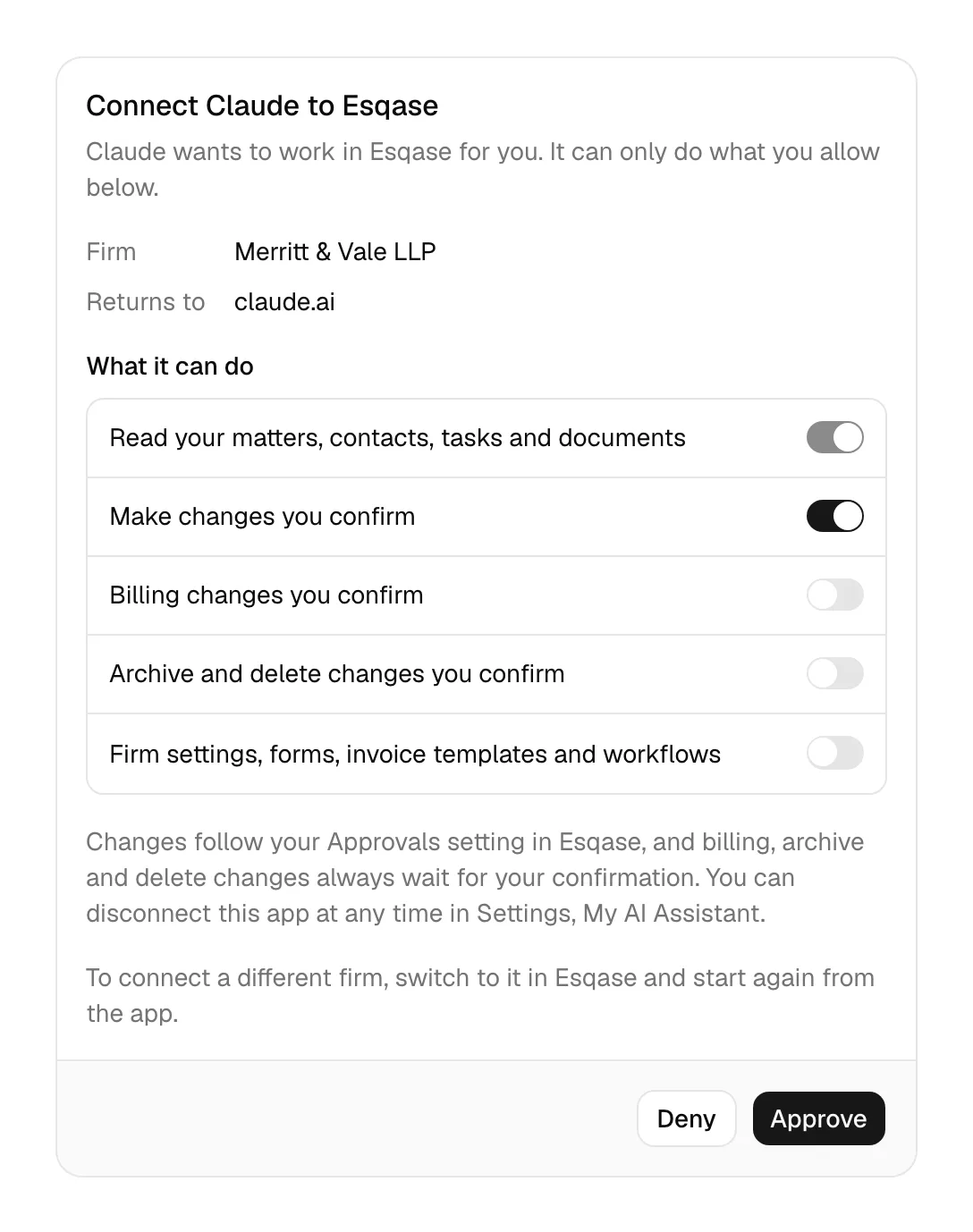
When Claude asks to connect, Esqase opens a page titled with the app's name, for example Connect Claude to Esqase, with "Claude wants to work in Esqase for you. It can only do what you allow below." It shows:
- Firm: the firm this connection is for, the one you have open in Esqase.
- Returns to: where Esqase sends you back after you decide: claude.ai for claude.ai and the desktop app, or localhost with a port number followed by on this computer for Claude Code. If it is not a place you expect, click Deny.
- What it can do: one row and switch for each kind of access.
| Switch | What it lets Claude do | When you connect |
|---|---|---|
| Read your matters, contacts, tasks and documents | Find and read your firm's records, as far as your role can see them. | Always on |
| Make changes you confirm | Create and update records, such as matters, contacts, leads, tasks, events, time and expense entries, notes, and comments, and send an email from your connected mailbox. | On |
| Billing changes you confirm | Create and change invoices, issue credit notes, and write off invoices. | Off, unless Claude asked for it |
| Archive and delete changes you confirm | Archive a matter or a contact, cancel an event, delete a tag, move a document to Trash, revoke a share link, and other changes that archive, cancel, remove, or delete something. | Off, unless Claude asked for it |
| Firm settings, forms, invoice templates and workflows | Change your firm's setup (tags, lead sources, practice areas, custom fields, task list templates, activity rates, business and working hours), build forms, invoice templates, and workflows, and add or run workflows on matters and leads. | Off, unless Claude asked for it |
Turn on only what you want Claude to be able to do. A change still needs the matching permission in your role, and the switches only ever narrow what your role allows. To build a workflow, for example, Claude needs both Make changes you confirm and Firm settings, forms, invoice templates and workflows, and to delete a tag it needs Archive and delete changes you confirm as well.
Below the switches, the page says "Changes follow your Approvals setting in Esqase, and billing, archive and delete changes always wait for your confirmation." (see How changes work). It also reminds you that you can disconnect at any time in Settings, Security, and, if you belong to more than one firm, tells you how to connect a different one. Click Approve to connect, or Deny to send Claude away without access.
If your firm's AI Assistant is off, or your role does not include AI Assistant, the page shows "Connecting an app needs the AI Assistant. Ask a firm owner or administrator to turn it on for your firm and your role." instead of the switches. If your firm has accepted the Esqase BAA, it shows "Connecting an app is not available to firms that have accepted the Esqase business associate agreement." instead (see Troubleshooting).
Tip: To give Claude more or less access later, connect again (see Change what Claude may do).
Connect from Claude Code
-
In a terminal, add the connector:
claude mcp add --transport http esqase https://app.esqase.com/mcpAdd
--scope userbefore the name to use it in every project on your computer, not only the current one. -
Start Claude Code and run
/mcp. Choose esqase and follow the steps in your browser: sign in to Esqase if asked, check the Connect Claude Code to Esqase page (its Returns to line reads localhost, a port number, and on this computer), and click Approve. -
Back in Claude Code, ask about your firm, for example "List my open matters".
If the browser does not open by itself, copy the address Claude Code shows and open it yourself. To sign out of Esqase in Claude Code, run /mcp and choose Clear authentication; to remove the connector, run claude mcp remove esqase.
Connect from your own application
Developers can also give Claude access to Esqase through the MCP connector of the Claude Messages API: the application signs the member in to Esqase through the same Connect page and passes the access it receives with each request, and everything on this page applies to that connection the same way.
What Claude can do
Claude can do most of what the AI Assistant does, within your role and the switches you turned on when you connected:
- Find and read: search your firm's records; matters and their activity and comments; contacts and leads; tasks, task lists, and calendar events; time and expense entries and your timers; notes; document details such as the name, folder, status, versions, and who it is shared with; invoices, payments, unbilled time, and billing reports; bank and trust accounts; court dates; the firm feed; and how your firm is set up.
- Make changes (with Make changes you confirm): create a matter, contact, lead, task, event, note, or comment; update, move, assign, or complete them; log time and expenses and start or stop your timers; convert a lead to a matter; run a conflict check; send an email from your connected Gmail or Outlook mailbox; copy, rename, move, and share documents.
- Billing changes (with Billing changes you confirm): create and change invoices, issue credit notes, and write off invoices.
- Archive and delete (with Archive and delete changes you confirm): archive matters and contacts, cancel events, delete tags, remove workflow steps and form questions, move documents to Trash, and revoke share links.
- Firm setup and builders (with Firm settings, forms, invoice templates and workflows): set up tags, lead sources, practice areas, custom fields, and task list templates; build forms, invoice templates, and workflows; and add, run, and manage workflows on matters and leads.
Answers can include links that open the record in Esqase, so you can check a change or carry on in the dashboard.
What Claude does not do through the connector:
- Personal injury matters. Claude cannot see personal injury matters or anything recorded on them, the same as the AI Assistant (see What it does not do in this release). They are left out of lists and search results, and Claude is told they are not available when you ask about one.
- What your documents say. Claude sees a document's details but not its text, and it does not draft documents, edit them, or fill in their placeholders. Use the AI Assistant inside Esqase for that.
- Changes that belong in the editor. Some document changes happen only in Esqase's editor, such as turning a document written in Esqase into a PDF, or changing a document someone else saved less than a minute ago. Esqase then tells Claude so, with a link that opens the document in Esqase.
- Anything your role or your switches do not allow. Claude tells you that Esqase did not run the step, and why.
- Everything the AI Assistant does not do either, such as taking payments, sending signature requests, or changing roles and members (see What it does not do in this release).
How changes work
With the default Approvals setting, Ask before every change, a change always takes two steps:
- When you ask for a change, Claude sends it to Esqase, and Esqase does not make it yet. Instead, Esqase sends Claude a description of the change in plain words, the same lines the AI Assistant shows in its confirmation block, what else will happen when it runs (for example a client being notified of a new event), and a one-time confirmation.
- Claude shows you the change and asks whether to go ahead. Esqase asks Claude to check with you before it confirms.
- When you agree, Claude sends the same change again with the confirmation, and Esqase makes it.
The confirmation works once, only for that exact change, and only for 10 minutes. If anything about the change is different the second time, nothing changes and Claude has to ask Esqase again. If a confirmation was already used, the second attempt changes nothing, so a retry never makes the same change twice.
Your Approvals setting decides which changes take the two steps, exactly as in the AI Assistant (see Approvals):
| Your Approvals setting | Through Claude |
|---|---|
| Ask before every change (the default) | Every change takes two steps. |
| Ask only for sending, money and deleting | Everyday changes happen when Claude first asks. Emails, billing, deleting, and publishing take two steps. |
| Act without asking | Changes, emails, and publishing happen when Claude first asks. Billing and deleting take two steps. |
- Billing and deleting always take two steps, whatever your setting: changes to billing records, and changes that archive, cancel, remove, or delete something.
- Your firm can require the two steps. When your firm turns off Members can turn off approvals, every change through Claude takes two steps, whatever you chose.
Important: Esqase cannot see your conversation with Claude. The confirmation is something Claude sends back, so Claude, not a button in Esqase, completes the second step. Read the change Claude shows you before you agree, and do not tell Claude to confirm changes without asking you. To approve every change yourself in Claude too, keep the Esqase tools that make changes on Needs approval under Customize > Connectors in Claude, which is how Claude treats them unless you choose Always allow.
Disconnect Claude
In Esqase
- In the sidebar, open Settings, then Security in the Personal section.
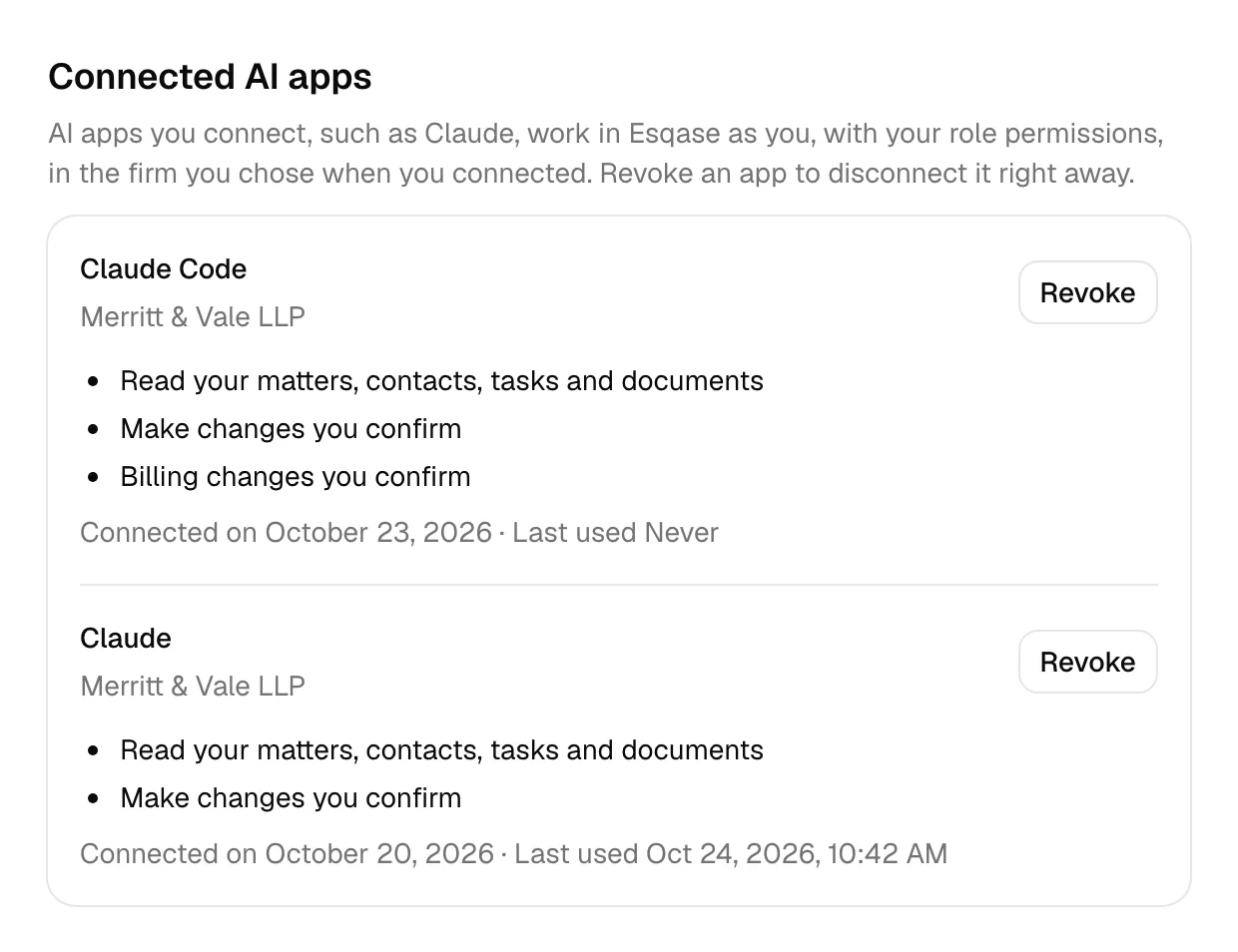
- Find the Connected AI apps section. It lists your connections for every firm you belong to, newest first. Each row shows the app's name (for example Claude or Claude Code), the firm, what it can do, when you connected it, and when it was last used, or Last used Never.
- Click Revoke on the row. In the Revoke access for Claude? dialog, click Revoke. You see Access revoked for Claude.
Claude loses access at once: its next request to Esqase is refused, and Claude asks you to connect again if you want to keep using it. Changes Claude already made stay in Esqase. If your role no longer includes the AI Assistant, the Security page still shows Connected AI apps while you have a connection, so you can revoke it.
In Claude
Removing the connector in Claude, under Customize > Connectors, or with claude mcp remove esqase in Claude Code, stops Claude from using it. To end the connection on Esqase's side as well, revoke it in Esqase.
When Esqase disconnects Claude for you
Esqase ends your connections by itself when:
- You change your password or reset a forgotten one, deactivate your account, or ask Esqase to delete it. All your connections end.
- You leave a firm, or are removed from it. Only that firm's connections end.
- A connection reaches 90 days. Claude then asks you to sign in to Esqase and approve again.
While your firm's account is paused, Claude cannot work in that firm. Once the account is active again, Claude works again; if it asks you to sign in, connect again.
The same goes for the AI Assistant: while your firm's Use the AI Assistant switch is off, or your role does not include AI Assistant, Claude cannot work in that firm, and your connection stays listed under Connected AI apps. Once the assistant is on for your firm and your role again, Claude works again; if it asks you to sign in, connect again.
When your firm accepts the Esqase BAA, Claude stops working in that firm at once, for everyone, whatever the AI Assistant settings say. Your connection stays listed under Connected AI apps, where you can revoke it.
Change what Claude may do
The switches you chose stay with the connection. To change them, connect again:
- In claude.ai or the desktop app: open the Esqase connector under Customize > Connectors, disconnect it, and click Connect again.
- In Claude Code: run
/mcp, choose esqase, then Clear authentication, and sign in again.
On the Connect page, choose the switches you want and click Approve. Then revoke the older connection under Connected AI apps if it is still listed.
Use Claude with another firm
A connection works with one firm. To use Claude with another firm you belong to:
- In Esqase, switch to the other firm.
- Connect again from Claude, as in Change what Claude may do. The Connect page shows the firm you switched to.
To use two firms side by side in Claude Code, add the connector twice under different names, for example claude mcp add --transport http esqase-smith https://app.esqase.com/mcp, and connect each one while the matching firm is open in Esqase.
How your firm's data is handled
- What goes to Anthropic. When you ask Claude a question, Claude asks Esqase for the records it needs, and Esqase answers with what your role can see. Those answers go to Anthropic, together with your conversation, under your Claude plan's terms with Anthropic. Your firm's agreements with Esqase, including the BAA, do not cover them.
- No protected health information. Personal injury matters and everything recorded on them are never sent to Claude, and Claude never receives the text of your documents and files. Do not paste protected health information into your conversation with Claude either.
- Your password stays with Esqase. You sign in on Esqase's own page, and Claude never sees your Esqase password. Claude receives access that works only for this connection, only for your account and the firm you approved, and only until it expires or you revoke it.
- Recorded in your audit trail. Changes Claude makes are recorded under your name in each record's activity history, the same as changes you make yourself, and opening a record through Claude is recorded like opening it yourself. Esqase also records each request Claude makes, with the connection it came from, in your firm's audit trail, without the contents of your records. Requests from Claude are not listed under Records sent to AI providers, which covers the AI Assistant only.
- Records are just information. Claude reads your records, documents, and messages as they are, including text that came from outside your firm, such as a form submission or an email. Be careful when you ask Claude to act on that kind of text, and check each change before you agree to it.
Limits
| Limit | Value |
|---|---|
| Requests per connection | 60 a minute and 2,000 a day. Every request Claude makes counts, including looking up which tools Esqase offers. The daily count resets at midnight UTC. |
| A confirmation | Works once, for that exact change, within 10 minutes |
| The Connect page | Expires 10 minutes after Claude opens it. Start again from Claude after that. |
| A connection | 90 days from when you approve it, then Claude asks you to approve again. Claude renews its access every hour on its own. |
| One answer from Esqase | About 8,000 characters. Ask Claude for a narrower list if it reports that a result was cut short. |
| Firms | One per connection |
If Claude sends requests too quickly, Esqase answers "Too many requests. Wait a moment and try again." After 2,000 requests in a day, it answers "This connection reached its daily limit. Try again tomorrow."
Troubleshooting
Esqase keeps asking me to sign in
- Finish any step Esqase asks for first: verifying your email address ("Verify your email address before you connect an app.") or setting up two-factor authentication.
- Make sure your browser allows cookies for app.esqase.com, and that you sign in with the account you use for your firm.
- A Connect page expires after 10 minutes ("This connection request has expired. Go back to the app and start again."). Go back to Claude and click Connect again.
The Connect page shows a message instead of the switches
- "Connecting an app needs the AI Assistant. Ask a firm owner or administrator to turn it on for your firm and your role.": your firm's Use the AI Assistant switch is off, or your role does not include View access for AI Assistant. A firm owner or administrator can turn the assistant on (see Turn the assistant off or on) and give your role View on AI Assistant (see Roles and permissions). The same message appears under the switches after you click Approve if the setting changed while the page was open.
- "Connecting an app is not available to firms that have accepted the Esqase business associate agreement.": your firm has accepted the Esqase BAA, so no one in your firm can connect Claude, even with the AI Assistant on. This is not a setting a firm owner or administrator can change. See Business associate agreement (BAA). The same message appears under the switches after you click Approve if your firm accepted the agreement while the page was open.
- "Choose a firm in Esqase before you connect an app.": open the dashboard, pick your firm, then connect again from Claude.
- "Your active firm changed in another tab. Reload this page to continue.": you switched firms in another tab. Reload the page and check the firm before you approve.
- "Your firm account is paused, so apps cannot connect right now.": your firm's subscription needs attention. See Your Esqase subscription.
- "We could not verify this app. Go back to the app and try again.": check that the connector's address is exactly
https://app.esqase.com/mcp, then connect again. - "This connection request is not valid. Go back to the app and try again.": remove the connector in Claude, add it again with the address above, and connect.
Claude says its access expired or asks me to sign in again
Your connection ended: you revoked it, it reached 90 days, you changed or reset your password, you left the firm, or Esqase ended it as a precaution because the same sign-in was renewed twice. It also stops working while your firm's account is paused, while your firm's AI Assistant is off, or while your role does not include AI Assistant; in that case connecting again shows "Connecting an app needs the AI Assistant. Ask a firm owner or administrator to turn it on for your firm and your role." until the assistant is on for you again. Once your firm accepts the Esqase BAA, it stops working, and connecting again shows "Connecting an app is not available to firms that have accepted the Esqase business associate agreement." Connect again: in claude.ai, click Connect on the Esqase connector under Customize > Connectors; in Claude Code, run /mcp and choose Re-authenticate or sign in again.
Claude says something is not available
- A personal injury matter. Claude cannot see personal injury matters or anything recorded on them.
- "Esqase did not run this tool because this connection was not given permission for it." The change needs a switch you left off when you connected, for example Billing changes you confirm. Connect again and turn it on (see Change what Claude may do).
- "Esqase did not run this tool because the member does not have permission for it in this firm." Your role does not allow it. Ask your firm owner or administrator about your role.
- Reading or writing a document's text. Claude cannot do that through the connector; use the AI Assistant inside Esqase.
Claude says a confirmation did not work
- "This confirmation does not match this change or has expired.": nothing changed. Ask Claude to propose the change again and confirm within 10 minutes.
- "This confirmation was already used, so this call made no change.": the change was made the first time. Open the record in Esqase to check it before you ask again.
Common questions
- Does the connector cost anything? Not from Esqase. Claude runs on your Claude plan, and the connector uses no AI credits and none of your firm's API keys.
- Is it the same as the AI Assistant? No. The AI Assistant runs inside Esqase on Esqase AI or your firm's key; the connector lets Claude, in Claude's own apps, work with your Esqase records. Both act as you, both follow your Approvals setting, and both need the AI Assistant turned on for your firm and your role.
- Can everyone in my firm connect? Members whose role includes View access for AI Assistant can, while your firm's AI Assistant is on. Owners, administrators, and attorneys have it by default; staff do not. If your firm has accepted the Esqase BAA, no one in your firm can connect Claude.
- Can my colleagues see or use my connection? No. Each member connects their own account, and Connected AI apps lists only your own connections.
- Can Claude make changes without asking me? Only those your Approvals setting lets happen at once. Billing and deleting always take two steps (see How changes work).
- Can Claude see personal injury matters? No.
- Can Claude read my documents? It can see their details, such as the name, folder, and status, but not what they say.
- Can Claude send email? Yes, from your connected Gmail or Outlook mailbox, with Make changes you confirm turned on. With the default Approvals setting it takes two steps, like every other change.
- Can I connect more than one firm? Yes, one connection per firm (see Use Claude with another firm).